Specify Size of MATLAB Function Block Variables
R2026bYou can specify the size of the MATLAB Function block variables that access your model data by using the Symbols pane and Property Inspector (since R2022a), or with the Model Explorer. You define the size by specifying the Size property. MATLAB Function blocks can use scalars, vectors, or matrices. You can set a variable to inherit the size or manually specify the size.
Access Variable Size Property
To access the Size property of the variable:
Double-click the MATLAB Function block to open the MATLAB Function Block Editor.
In the Function tab, click Edit Data.

In the Symbols pane, select the variable. The variable properties display in the Property Inspector.
Specify the Size property.
For more information about defining MATLAB Function block variables that can access model data, see Create MATLAB Function Block Variables.
Change How Outputs Treat Dimensions
Although the MATLAB® code that you write in MATLAB Function blocks evaluates array dimensions like ordinary MATLAB code, Simulink® distinguishes N-element vectors from 1-by-N and N-by-1 matrices. For more information on Simulink signal dimensions, see Determine Signal Dimensions.
By default, MATLAB Function blocks output N-by-1 matrices as N-by-1 matrices, but can output N-element vectors instead. To output N-by-1 matrices as N-element vectors, select the Interpret output column vectors as one-dimensional data property in the Property Inspector or Model Explorer.
Inherit Size from Simulink
The default size is -1, which means that the variable inherits its
size based on the value of the Scope property:
| Scope | Description |
|---|---|
Input | Inherits size from the Simulink signal connected to the associated input port. |
Output | Inherits size from the Simulink signal connected to the associated output port. |
Parameter | Inherits size from the associated Simulink or MATLAB parameter. See Access Workspace Data in MATLAB Function Blocks by Using Parameter Variables. |
Variables with the Scope property set to Data Store
Memory always inherit their size.
Customize Variable Sizes
You can also manually set the size of variables to a scalar, vector, or matrix. To
specify the size as a scalar, set Size to 1 or clear
the property. To specify the size as a vector or a matrix, enter a row vector with positive
integers in [row column] format. For example, to define a column vector
of size 6, set the Size property to [6 1]. To define
a row vector of size 5, set the Size property to [1
5]. To define a matrix of data size 3-by-3, set the Size
property to [3 3].
If you do not know the upper limit of the dimension size you
need, specify an unbounded dimension with Inf (since R2023b). For example, if
you do not know the upper bound of the columns, but you have a maximum size of two rows, set
Size to [2 Inf]. To specify an unbounded
dimension:
The variable must be variable size. See Declare Variable-Size MATLAB Function Block Variables.
Set the Language configuration parameter to
C++. Open the Configuration Parameters window and, in the Simulation Target pane, set Language toC++.
For more information, see Unbounded Variable-Size Signals and Unbounded Variable-Size Signal Basic Operations.
You can also set the Size property with an expression. The expressions can include:
These expressions must output a positive integer or two positive integers in
[row column] format. Otherwise, the specified size produces an error at
model compilation. For example, consider a MATLAB Function block with
variables k, x, and y that all have
the Scope property set to Parameter. Here,
k is a positive integer and x and
y are matrices. If you create new variables for the block, you can
define the Size property with any of these expressions:
k+1
size(x)
min(size(y))
Avoid Variables That Can Lead to Naming Conflicts
When a MATLAB Function block contains multiple variables with identical names, the block uses the variable with the highest priority to specify size.
| Priority | Variable |
|---|---|
| 1 | Mask parameter |
| 2 | Model workspace variable |
| 3 | MATLAB base workspace variable |
| 4 | MATLAB Function block variable |
To avoid confusion, do not specify variable size by using a variable name that you define in multiple levels of your model.
Custom Size Property Example
This example uses a MATLAB Function block with an input variable that adjusts its size based on the value of a base workspace variable.
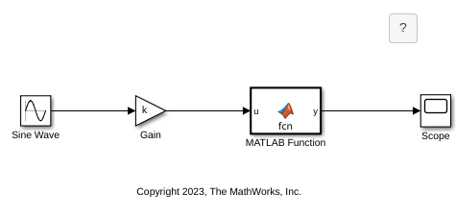
The MATLAB function takes an input signal that changes size based on the value of the base workspace variable, k. k is an array that the model defines when you open it. A Gain block multiplies the input signal by k and outputs this signal to the MATLAB Function block. To match the size of the input variable to the size of the input signal, the MATLAB Function block assigns a custom size to the input variable, u. Open the MATLAB Function block to view the variables and code.
function y = fcn(u)
y = 2*u;
View the variable properties. In the Function tab, click Edit Data. In the Symbols pane, select u to view the properties in the Property Inspector. To match the size of the input, the block defines u with the Size property set to size(k).
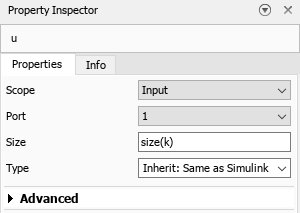
If you change the size of k, u matches the new size of k.
Simulation and Size Matching
After you build the model, the CompiledSize column in the Model
Explorer displays the actual size used in the simulation. If the value of the
Size property is not -1 and does not match the
actual size, a mismatch error occurs during model compilation.

