Collect Model Metrics Programmatically
R2026bYou can use the model metric API to programmatically collect model metrics that help you assess the architecture, complexity, and readability of your model. The results of these metrics can help you verify compliance with industry standards and guidelines.
This example shows how to use the model metric API to programmatically collect subsystem and block count metrics for a model. After collecting metrics for the model, you can access the results and export them to a file.
Note: The Metrics Dashboard app, model metrics, slmetric API, and corresponding customizations will be removed in a future release. For more information, see Migrating from Metrics Dashboard to Model Design Dashboards.
Example Model
Open the vdp model.
model = 'vdp';
open_system(model);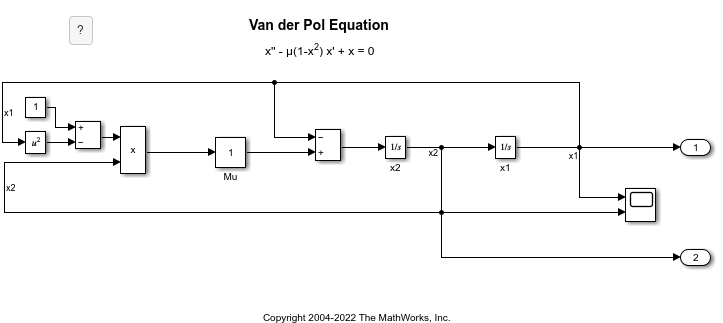
Collect Metrics
To collect metric data on a model, create an slmetric.Engine object and call execute for the metrics you want to collect. For this example, specify the block count and subsystem count metrics for the vdp model.
metric_engine = slmetric.Engine();
setAnalysisRoot(metric_engine,'Root','vdp','RootType','Model');
execute(metric_engine,{'mathworks.metrics.SimulinkBlockCount',...
    'mathworks.metrics.SubSystemCount'});
Access Results
Use the getMetrics method to specify the metrics you want to get metric results for. getMetrics returns an array of slmetric.metric.ResultCollection objects.
res_col = getMetrics(metric_engine,{'mathworks.metrics.SimulinkBlockCount',...
'mathworks.metrics.SubSystemCount'});
Store and Display Results
Create a cell array called metricData to store the MetricID, ComponentPath, and Value properties for the metric results. The MetricID property is the identifier for the metric, the ComponentPath property is the path to component for which the metric is calculated, and the Value property is the metric value. Write a loop to display the results.
metricData ={'MetricID','ComponentPath','Value'};
cnt = 1;
for n=1:length(res_col)
    if res_col(n).Status == 0
        results = res_col(n).Results;

        for m=1:length(results)
            disp(['MetricID: ',results(m).MetricID]);
            disp(['  ComponentPath: ',results(m).ComponentPath]);
            disp(['  Value: ',num2str(results(m).Value)]);
            metricData{cnt+1,1} = results(m).MetricID;
            metricData{cnt+1,2} = results(m).ComponentPath;
            metricData{cnt+1,3} = results(m).Value;
            cnt = cnt + 1;
        end
    else
        disp(['No results for:',res_col(n).MetricID]);
    end
    disp(' ');
end
MetricID: mathworks.metrics.SimulinkBlockCount
ComponentPath: vdp
Value: 12
MetricID: mathworks.metrics.SubSystemCount
ComponentPath: vdp
Value: 0
Export Results
To export the MetricID, ComponentPath, and Value to a spreadsheet, use writetable to write the contents of metricData to MySpreadsheet.xlsx.
filename = 'MySpreadsheet.xlsx';
T=table(metricData);
writetable(T,filename);
To export the metric results to an XML file, use the exportMetrics method. For each metric result, the XML file includes the ComponentID, ComponentPath, MetricID, Value, AggregatedValue, and Measure.
filename='MyMetricResults.xml';
exportMetrics(metric_engine,filename)
Close the vdp model.
bdclose(model);
Limitations
When you collect metric data, it is stored in a database file, Metrics.db, inside the simulation cache folder. You cannot collect metric data on one platform, move the database file to another platform, and then continue to collect additional metric data in that database file. For example, if you collect metric data on a Windows machine and then move the database file to a Linux machine, you cannot collect and store additional metric data in that database file. However, you are able to view that data in the Metrics Dashboard.
See Also
slmetric.Engine | slmetric.metric.Result | slmetric.metric.ResultCollection

