Process and Analyze Streaming Audio
R2026bThis example shows how to create an audio test bench and apply real-time processing.
Open the Audio Test Bench
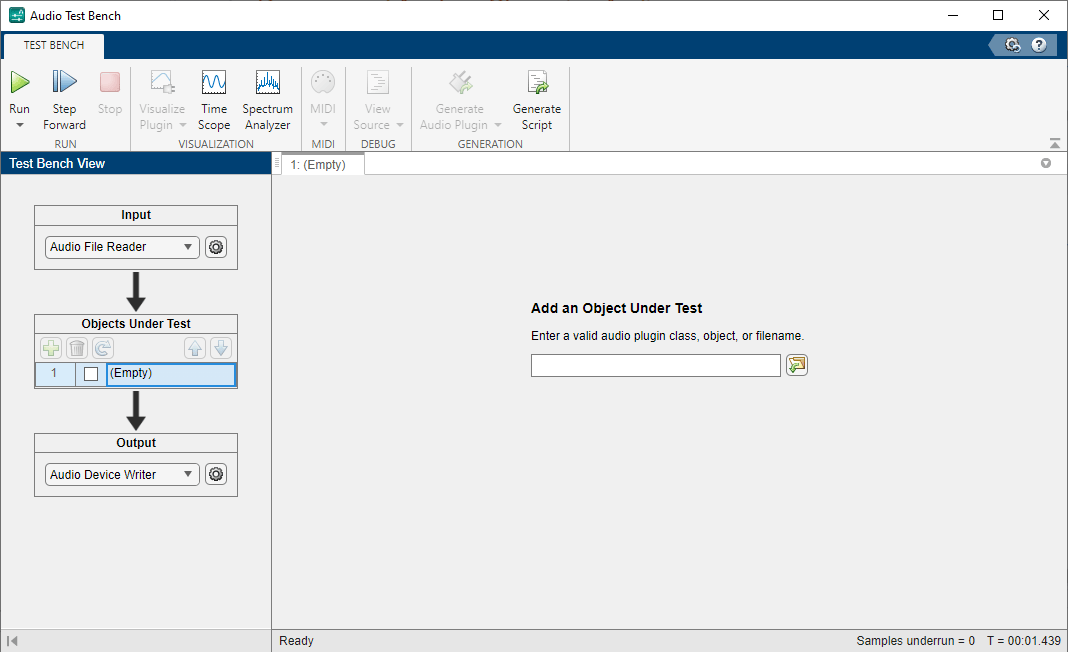
The Audio Test Bench app enables you to graphically set up your audio input and output, audio processing, and open common analysis tools like timescope and spectrumAnalyzer. Click  to read from a file and write to your speaker.
audioTestBench
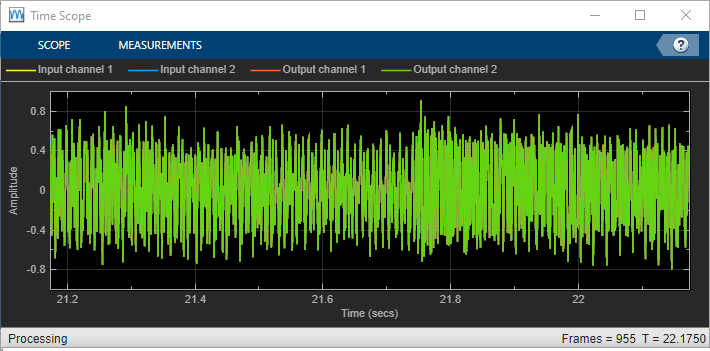
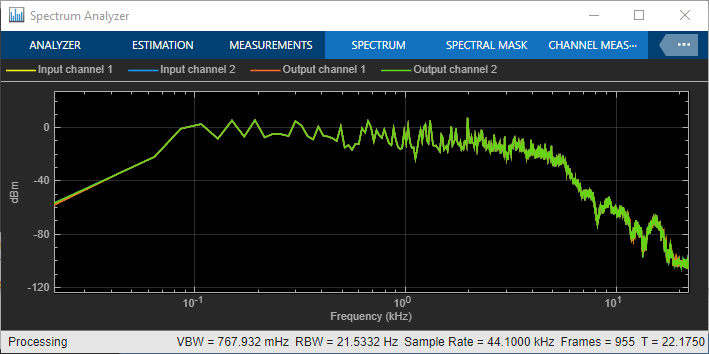
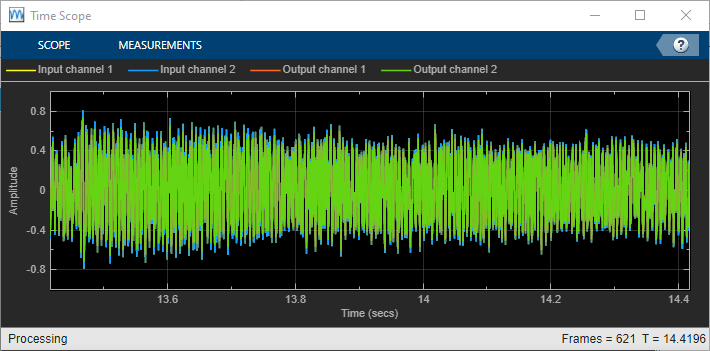
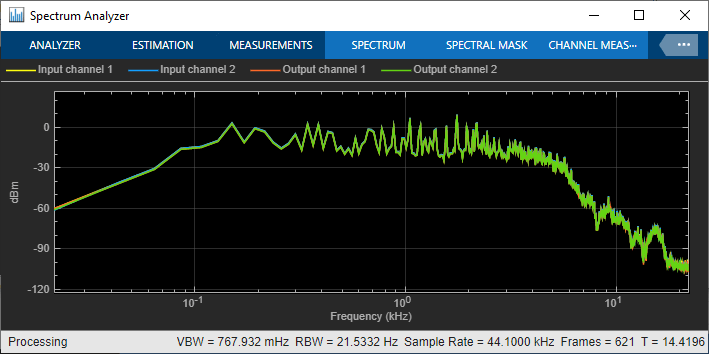
View the Audio Signal in the Time and Frequency Domains
Click  and
and  to analyze the audio signal in the time and frequency domains.
Apply Dynamic Range Compression
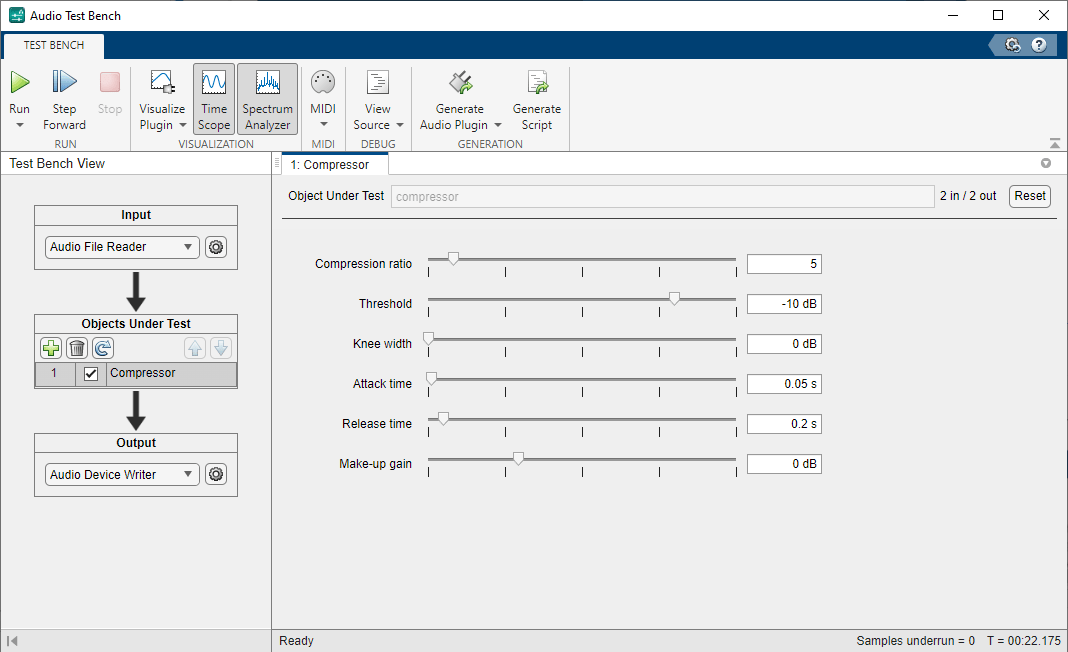
To apply dynamic range compression to the audio, first click  to stop the audio I/O, then enter
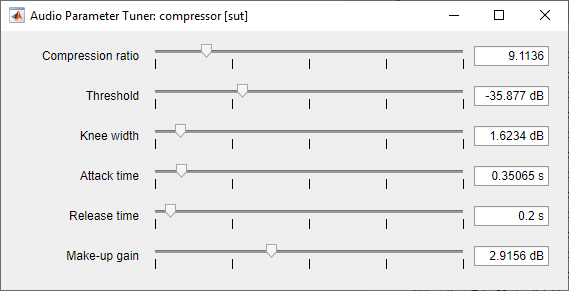
 compressor in the Add an Object Under Test edit box. The tunable properties of the compressor object are exposed. You can tune these properties while the test bench runs.
Generate a Test Bench Script
To generate a test bench script, first click  to stop the audio I/O, then click
  . The Audio Test Bench generates code in a new untitled script. The code generated by the test bench in this example is shown below.
% Test bench script for: Compressor.
% Generated by Audio Test Bench on 14-Jul-2026 13:36:57 UTC-04:00.

% Create test bench input and output
fileReader = dsp.AudioFileReader(Filename='RockGuitar-16-44p1-stereo-72secs.wav');
deviceWriter = audioDeviceWriter(SampleRate=fileReader.SampleRate);

% Create scopes
timeScope=timescope(SampleRate=fileReader.SampleRate, ...
    TimeSpanSource="property", ...
    TimeSpan=5, ...
    YLimitsMode="manual", ...
    BufferLength=5*fileReader.SampleRate, ...
    ChannelNames=["Input channel 1","Input channel 2","Output channel 1","Output channel 2"], ...
    YLimits=[-1 1], ...
    ShowLegend=true);

specScope=spectrumAnalyzer(SampleRate=fileReader.SampleRate, ...
    PlotAsTwoSidedSpectrum=false, ...
    FrequencyScale="log", ...
    AveragingMethod="exponential", ...
    ForgettingFactor=0.8, ...
    ShowLegend=true, ...
    ChannelNames=["Input channel 1","Input channel 2","Output channel 1","Output channel 2"]);
% Channel Measurements Configuration
specScope.ChannelMeasurements.Span=4410;
specScope.ChannelMeasurements.CenterFrequency=11025;


% Create the objects under test
sut1 = compressor;
sut1.SampleRate = fileReader.SampleRate;

% Open visualizer
% visualize(sut1);

% Open parameter tuners for interactive tuning during simulation
tuner1 = parameterTuner(sut1);
drawnow

% Stream processing loop
nUnderruns = 0;
while ~isDone(fileReader)
    % Read from input, process, and write to output
    in = fileReader();
    out1 = sut1(in);
    nUnderruns = nUnderruns + deviceWriter(out1);

    % Visualize input and output data in scopes
    timeScope(in,out1);
    specScope(in,out1);

    % Process parameterTuner callbacks
    drawnow limitrate
end

% Clean up
release(sut1)
release(fileReader)
release(deviceWriter)
release(timeScope)
release(specScope)
You can add additional processing steps, scopes, and analysis tools to the script. If you run the generated script, the parameterTuner opens and enables you to tune parameters while stream processing.
See Also
Audio Test Bench | parameterTuner | audioPlayerRecorder | dsp.AudioFileWriter | dsp.AudioFileReader | audioDeviceReader | audioDeviceWriter

