Create and Configure AUTOSAR Adaptive Software Component
R2026bThis example shows how to create an AUTOSAR Adaptive software component model from a Simulink® model.
AUTOSAR Blockset software supports creating AUTOSAR Adaptive software component models that generate code and ARXML that is compliant with the AUTOSAR standard. To develop AUTOSAR Adaptive software components in Simulink, follow this general workflow:
Create a Simulink algorithm model that implements software component behavior.
Configure the model as an AUTOSAR Adaptive software component.
Design the software component service interface and further refine the AUTOSAR software component configuration.
Generate C++ code and export ARXML descriptions (requires Embedded Coder®).
Create AUTOSAR Adaptive Software Component in Simulink
To create an initial Simulink representation of an AUTOSAR Adaptive software component, use one of these methods:
Create an AUTOSAR Adaptive software component using an existing Simulink model.
Import an AUTOSAR Adaptive software component description from ARXML files into a new Simulink model.
To create an AUTOSAR Adaptive software component using an existing model, first open a Simulink component model for which an AUTOSAR software component is not mapped. This example uses example model LaneGuidance.
open_system("LaneGuidance");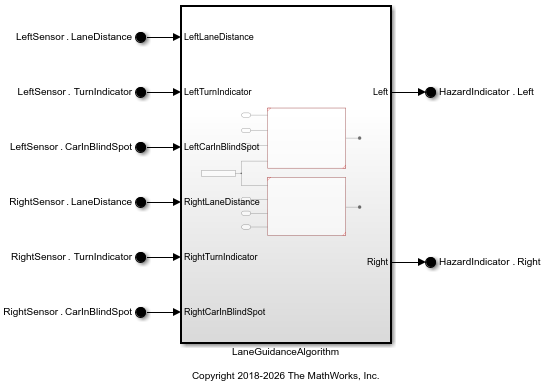
To configure the model as an AUTOSAR Adaptive software component, first set System Target File to autosar_adaptive.tlc.
set_param("LaneGuidance","SystemTargetFile","autosar_adaptive.tlc");
Save the model and name it my_autosar_LaneGuidance.
save_system("LaneGuidance","my_autosar_LaneGuidance.slx");
Create an initial AUTOSAR Adaptive configuration by using the autosar.api.create function.
autosar.api.create("my_autosar_LaneGuidance");On the Apps tab of the Simulink Toolstrip, click AUTOSAR Component Designer. The model opens in the AUTOSAR Adaptive software component perspective.
Configure AUTOSAR Component Port Interfaces in Simulink
Configure port interfaces by defining Simulink.dictionary.archdata.DataInterface objects in a linked Simulink data dictionary. Interfaces and types stored in the Architectural Data section of data dictionaries have code generation specific properties, such as individual C++ namespaces and header files. The data dictionary PortInterfaces is linked to example model autosar_LaneGuidance and already contains the port interfaces used in this example. In this section, you link the PortInterfaces dictionary, assign the data interface objects to software component ports in my_autosar_LaneGuidance.
Link the PortInterfaces data dictionary to the model and assign data interfaces to software component ports by using the set_param function.
set_param("my_autosar_LaneGuidance",DataDictionary="PortInterfaces.sldd");
set_param("my_autosar_LaneGuidance/LeftSensor",OutDataTypeStr="Bus: SensorInterface");
set_param("my_autosar_LaneGuidance/RightSensor",OutDataTypeStr="Bus: SensorInterface");
set_param("my_autosar_LaneGuidance/HazardIndicator",OutDataTypeStr="Bus: HazardInterface");
Configure code generation properties by editing the Simulink.dictionary.archdata.DataInterface objects. Set the CppNamespace property on each data interface object to specify a C++ namespace for use in code generation. These namespaces organize the generated ara::com proxy and skeleton headers in the generated C++ service code.
archDataObj = Simulink.dictionary.archdata.open("PortInterfaces.sldd");
sensorIntf = getInterface(archDataObj,"SensorInterface");
sensorIntf.CppNamespace = "company::chassis::perception";
hazardIntf = getInterface(archDataObj,"HazardInterface");
hazardIntf.CppNamespace = "company::chassis::actuation";
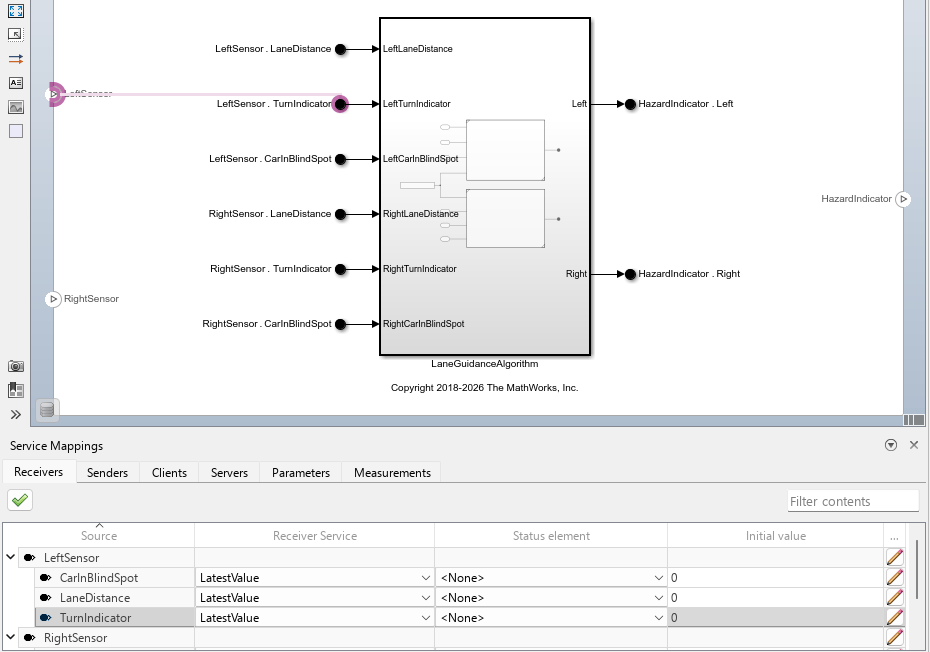
Configure service communication properties of software components by using the Service Mappings Editor. On the AUTOSAR tab of the Simulink Toolstrip, in the Prepare section, click Service Mappings. The Service Mappings Editor opens. On the Receivers tab, set Receiver Service for each data element of the LeftSensor port to LatestValue.
Generate C++ Algorithm and Service Code and Export ARXML Descriptions (Embedded Coder)
If you have Embedded Coder software, you can generate code for AUTOSAR Adaptive software component models. If you are using a POSIX-based Linux environment you can also generate ready-to-deploy applications alongside generated C++ code and exported ARXML. In this example, you only generate code and export ARXML.
Select configuration parameter Generate code only model configuration parameter settings.
set_param("my_autosar_LaneGuidance","GenCodeOnly","on")
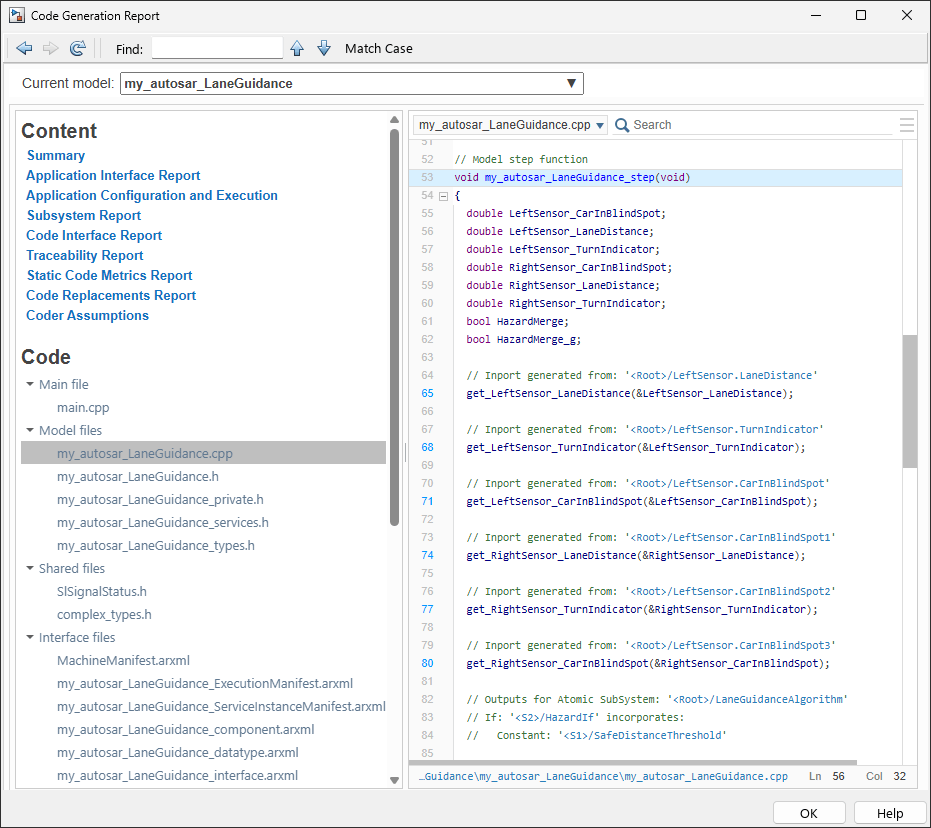
In the model window, on the AUTOSAR tab, click Generate Code. Inspect the generated code. Verify that your Service Mappings editor and Simulink data dictionary changes are reflected in the C++ code and ARXML descriptions.
evalc('slbuild("my_autosar_LaneGuidance")');When the build completes, a code generation report opens. Examine the report. Verify that your data dictionary changes are reflected in the C code and ARXML descriptions. Use the Find field to search for the names of the ports and interfaces that you modified.
Related Links
Code Generation (Adaptive Platform)

