Export Global Variable List
R2026bYou can export the list of global variables in your code to a tab delimited text file or a MATLAB® table. The text file or the table contains the same information as the Variable Access pane in the Polyspace® user interface.
Using the text file, you can:
Generate graphs or statistics about global variables. For instance, you can see the percentage of shared global variables that are not protected against concurrent access.
Use the range information to create external constraints for global variables. For instance, you can report that your code is free of certain run-time errors only for the extracted range of global variables.
You can also use the range to specify external constraints on subsequent verifications or verification of other modules. See Specify External Constraints for Polyspace Analysis.
Export Variable List to Text File
You can export results from the user interface or command line.
| User Interface | Command Line |
|---|---|
| Use appropriate options with the The available options are:
|
Export Variable List to MATLAB Table
Instead of a text file, you can read your Polyspace analysis results into a MATLAB table. See variableAccess.
View Exported Variable List
The text file or the table contains the result information available on the Global Variables Usage and Global Variable Accesses panes in the user interface.
For instance, suppose the Global Variables Usage pane shows a variable SHR:

If you select this variable, you see the following read or write operations on the variable on the Global Variables Access pane:
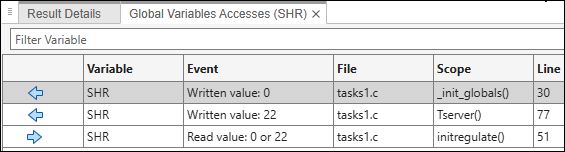
If you export this information to the tab-delimited text file and open the file in Excel®, you see the same information. Some of the information is shown below.
| Variables | Data Type | Access | Values | #Reads | #Writes | Written by task | Read by task | Protection | Usage | Line | Col | File | Function | Extension |
|---|---|---|---|---|---|---|---|---|---|---|---|---|---|---|
| SHR | int32 | Aggregate | 0 or 22 | 1 | 2 | server1 server2 | tregulate | Critical section | shared | 30 | 11 | tasks1.c | c | |
| SHR | Write | 0 | 30 | 11 | tasks1.c | _init_globals() | c | |||||||
| SHR | Write | 22 | 81 | 8 | tasks1.c | Tserver() | c | |||||||
| SHR | Read | 0 or 22 | 53 | 14 | tasks1.c | initregulate() | c |
See also Global Variables Usage in Polyspace Platform User Interface.
Some differences in presentation between the global variable information in the user interface and the text file (or MATLAB table) are listed below.
The Access column in the text file indicates whether the row shows information about the variable (Aggregate) or information about operations on the variable (Write or Read).
The Function column in the text file shows the functions where the variable is read or written (
 and
and  on the Global Variables Accesses pane).
The colors on the Global Variables Usage pane are represented through the columns Usage and Protection:
If a shared variable is accessed in multiple tasks without a common protection, it is colored orange on the Global Variables Usage pane. In the text file, the Protection column is empty.
If a shared variable is accessed in multiple tasks but with a common protection, it is colored green on the Global Variables Usage pane. In the text file, the Protection column shows an entry indicating the protection mechanism, for instance Critical section.
If a shared variable is not accessed at all, it is colored gray on the Global Variables Usage pane. In the text file, the Usage column shows neither read nor written and the Unreachable column contains an entry Is unreachable.
The Potential column in the text file shows read or write operations via pointers (
 or
or  on the Global Variables Access pane). For operations via pointers, the column shows Potential access.

