Hardware Setup for Embedded Coder Support Package for Renesas RA Microcontrollers
R2026bHardware boards and devices supported by MathWorks® require additional configuration and setup steps to connect to MATLAB® and Simulink®. Each support package provides a hardware setup process that guides you through registering, configuring, and connecting to your hardware board.
After installing the support package, the next step is to launch the hardware setup process. The support package provides a guided hardware setup that helps you through configuring your device and installing any required third-party tools.
Hardware Setup
To utilize the complete capabilities of Embedded Coder® Support Package for Renesas® RA Microcontrollers, run the hardware setup. Follow one of the steps to launch the hardware setup.
After completion of support package installation, click Setup Now.
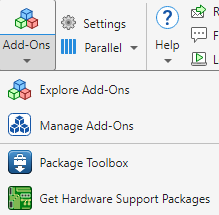
If you have already installed the support package and chose to setup later, open the Add-Ons panel by clicking Add-Ons > Manage Add-Ons in Environment section of the Home tab.
In the Add-Ons panel, go to Installed tab and check for Embedded Coder Support Package for Renesas RA Microcontrollers. Start the hardware setup process by clicking the Options button
 next to the installed support package, and
then click Setup
next to the installed support package, and
then click Setup
 .
.Alternatively, to start the hardware setup process, enter the following command in the MATLAB Command Window.
rasetup
The Hardware Setup window provides instructions for configuring the support package to work with your hardware. Complete the hardware setup process following the on-screen instructions.
Manually download and install the listed third-party software using the installation links provided in the hardware setup screen.
When the hardware setup process completes, you can open the examples to get familiar with the product and its features.

