Link Safety Analysis Manager Fault Tree Artifacts to Requirements, Tests, and Faults
R2026bIf you have a Requirements Toolbox™ license, you can define the traceability between fault tree artifacts in Safety Analysis Manager fault trees by linking events, gates, and failure models to other linkable items. Linkable items in Simulink® include requirements, test cases, faults, conditionals, and other Safety Analysis Manager artifacts.
To link artifacts in the Safety Analysis Manager, you must save the document first. When you link fault tree artifacts, the Requirements Toolbox software stores the links in an SLMX file by default.
Link Fault Tree Artifacts to Requirements
Link Safety Analysis Manager fault tree artifacts like gates, events, and failure probability models to requirements to specify design requirements in your fault tree documents. Before you begin, in the Apps tab, open the Safety Analysis Manager and the Requirements Editor.
To link fault tree artifacts to requirements:
In the Requirements Editor, open or create a new requirement set with at least one requirement.
Click the requirement.
In a saved fault tree document, create the link to the fault tree artifact by using one of these approaches:
Select the artifact in the fault tree diagram or in the Artifacts pane. In the Links section, click Add Link > Link to Selection in Requirements Browser.
Right-click the artifact in the fault tree diagram or in the Artifacts pane and click Requirements > Link to Selection in Requirements Browser.
You can view the links in the Requirements Editor by clicking Show Links in the View section. In the right pane, the Source field of a link from a fault tree artifact includes the fault tree artifact badge, the name of the fault tree document artifact, and the artifact type.
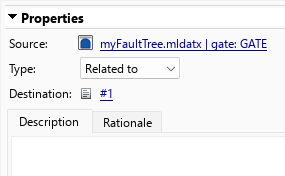
You can also see the fault tree artifacts linked to each requirement in the requirements view. In the View section, click Show Requirements and select a requirement. In this example image, a gate links to the requirement.
Link Fault Tree Artifacts to Simulink Test Artifacts
If you have a Requirements Toolbox and Simulink Test™ license, you can link fault tree artifacts to Simulink Test objects, such as test files, test suites, and test cases.
To link test cases to fault tree artifacts:
In the Apps tab, click Simulink Test.
Open the Test Manager. In the Tests tab, in the Test Cases section, click Simulink Test Manager.
Load or create a test suite or test file and click the test case. The test suite or test file must have at least one test case. For more information on how to create a test case, see Baseline Testing (Simulink Test).
Click the test case.
In a saved fault tree document, right-click the artifact and click Requirements > Link to Current Test Case.
Link to Simulink Fault Analyzer Artifacts
You can create links to conditionals, faults, or to other Safety Analysis Manager document artifacts, such as spreadsheet rows, cells, and other fault tree artifacts.
Link Fault Tree Artifacts to Faults
To create links to faults:
In a Simulink model, open the Fault Table pane. In the Fault Analyzer tab, in the View section, click Fault Table.
In the Fault Table pane, click the Fault tab.
Expand the model element list and click the fault.
In a saved fault tree document, create the link. Right-click the artifact and click Requirements > Link to Selection in Fault Table.
Link Fault Tree Artifacts to Conditionals
To create links to conditionals:
Open the Fault Table pane.
Click the Conditional tab.
Click the conditional.
In a saved fault tree document, create the link. Right-click the artifact and click Requirements > Link to Selection in Fault Table.
Link to Other Safety Analysis Manager Artifacts
You can link between fault tree artifacts and other Safety Analysis Manager artifacts, either in the same or a different document. These artifacts include spreadsheet rows and cells, and other fault tree events, gates, and failure models. You can link artifacts in the tree diagram or from the Artifacts pane.
To create links to other artifacts in the Safety Analysis Manager:
Create and save a new Safety Analysis Manager document or open an existing document.
Click the fault tree artifact and in the Links section, click Add Link > Select for Linking in Safety Analysis Manager.
In the same or a different saved document, create the link. Right-click the other artifact and select Requirements > Link to Selection in Safety Analysis Manager.
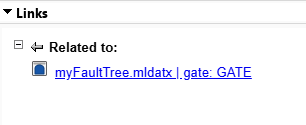
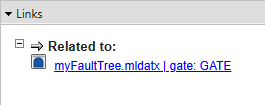
The first artifact you select has the incoming link icon
 and the second artifact has the outgoing link
icon
and the second artifact has the outgoing link
icon  . If you click the artifact, the
Properties pane displays the link and the direction in the
Gate, Event, or Failure
Model tab, depending on what you select.
. If you click the artifact, the
Properties pane displays the link and the direction in the
Gate, Event, or Failure
Model tab, depending on what you select.
Programmatically Link Fault Tree Artifacts
You can also programmatically link fault tree artifacts in the Safety Analysis Manager. For example, suppose that you have a fault tree document open in the Safety Analysis Manager and a requirement set called my_requirements. The document contains one fault tree that has a gate with the label myGate and an event labeled myEvent. To link the gate and event to the first requirement:
Retrieve the
FaultTreeDocumentobject associated with the fault tree document by using thesafetyAnalysisMgr.getOpenDocumentsfunction.myTreeDoc = safetyAnalysisMgr.getOpenDocuments;
Get the
Gateobject labeledmyGate.myGate = getGate(myTreeDoc,"myGate");Get the
Eventobject labeledmyEvent.myEvent = getEvent(myTreeDoc,"myEvent");Load the requirement set by using the
slreq.load(Requirements Toolbox) function.rs = slreq.load("my_requirements");Get the first requirement with the
findfunction.req = find(rs,Index=1);
Link the requirement to the gate and event.
link1 = slreq.createLink(myGate,req);
link2 = slreq.createLink(myEvent,req);
If your fault tree already has links, you can load the links by entering the fault
tree document name as the input argument in the slreq.load
function.
See Also
Apps
Functions
slreq.createLink(Requirements Toolbox)
Topics
- Link Conditionals to Requirements, Tests, and Safety Analysis Manager Artifacts
- Link Faults to Requirements, Tests, and Safety Analysis Manager Artifacts
- Link Safety Analysis Manager Spreadsheet Cells and Rows to Requirements, Tests, and Faults
- Track Changes in Safety Analysis Manager Spreadsheets
- Track Changes in Safety Analysis Manager Fault Tree Documents

