Calibrate Powertrain Blockset and Simscape Battery Blocks
R2026bIf your model contains battery blocks from Powertrain Blockset™ or Simscape™ Battery™, you can use the CAGE browser to calibrate the block lookup tables with experimental data. You can calibrate these blocks:
Battery (Table-Based) (Simscape Battery)
Battery Equivalent Circuit (Simscape Battery)
Equivalent Circuit Battery (Powertrain Blockset)
Estimation Equivalent Circuit Battery (Powertrain Blockset)
The CAGE browser optimizes the lookup tables for blocks with up to three RC circuits. In the Battery (Table-Based) block, specify the number of equivalent RC circuits with the Charge dynamics parameter. In the Powertrain Blockset blocks, set the number of RC series pairs values with the Number of series RC pairs parameter.
Note
You cannot optimize Battery (Table-Based) blocks that model aging, thermal, and fade characteristics. Set:
Fade characteristic to
Disabled.Internal resistance calendar aging to
Disabled.Capacity calendar aging to
Disabled.Thermal port to
Omit.
After calibrating the block, you can save the adjusted lookup tables to a MAT file, view validation plots in the CAGE browser, or export the data to the Simulation Data Inspector.
Import the Block and Data Set
To calibrate a battery block:
Open the CAGE Browser. In MATLAB®, in the Apps tab, in the Apps section, click MBC Optimization.
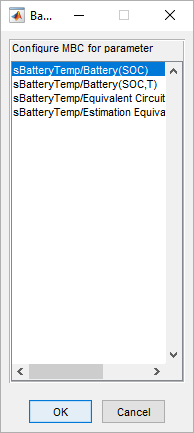
Click Feature Filling and select the model that contains the block. The model must contain one of the supported blocks from Powertrain Blockset or Simscape Battery. If your model contains more than one supported block, the browser shows a list of the supported blocks. Select one of the blocks and click OK.
In the Select Folder to Open window, select the folder that contains the data set. The data must be in a MAT file.
Calibrate the Block
After selecting the block and the dataset, the Import window opens. The window displays the location of the model, the block type, and the number of RC circuits that CAGE detects in the block.
You can specify these properties:
Data sample time — The sample time to use during calibration. Set this value to
0to match the sample time to the imported data set.Charging current — The direction that the charging current flows. You can select
positiveornegative.Use measured SOC — Whether to use the measured state of charge (SOC) if the data set contains that information. Otherwise, CAGE uses the battery capacity and the current to calculate the SOC.
Feature inputs and output signals — The CAGE variables and the associated variables in the data set. CAGE maps the CAGE variables to the corresponding data names. If you select an Equivalent Circuit Battery block or a Battery (Table-Based) block with the Temperature dependent tables property enabled, the window also displays the Temperature parameter and a variable to calibrate.
Lookup tables – The lookup tables that CAGE adjusts. You can select which lookup tables to fill. CAGE automatically selects the bounds for the lookup tables. To set the initial value for the lookup table to a constant value, adjust the value in the Mean Value column.
For example, this window displays the options available for a Battery (Table-Based) block with three RC circuits and no temperature dependency.
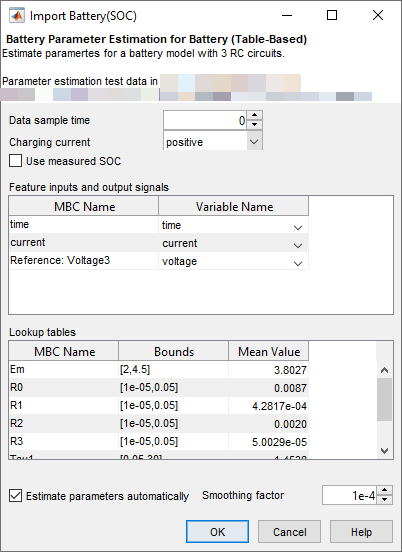
Battery (Table-Based) blocks have a direct specification for the time constant, tau. For Powertrain Blockset blocks, CAGE infers tau from the series resistance and capacitance.
After specifying the properties, click OK to start calibration.
Blocks Used for Calibration
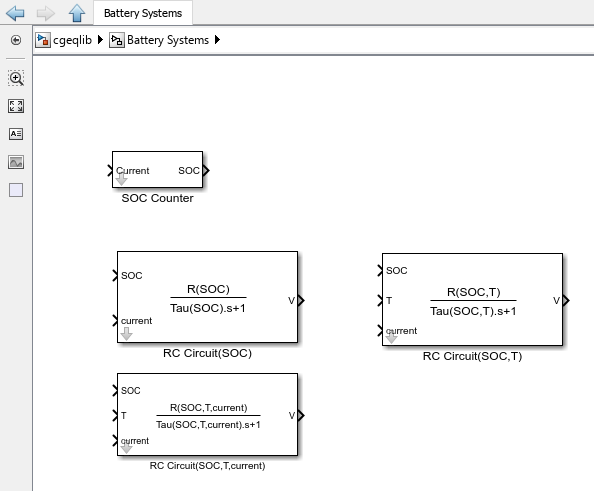
To calibrate the block, you must define strategies in CAGE that use blocks in the
cgeqlib library. See Block Support. When defining strategies for battery
blocks, CAGE uses blocks in the Battery Systems sublibrary to
represent common components found in battery equivalent circuits. Like other blocks
in the cgeqlib library, you can use these blocks to create custom
strategies.
CAGE Project Templates for Battery Block Calibration
To define the starting strategies and lookup tables for battery block calibration, CAGE loads template projects that contains prebuilt strategies. In these projects, each strategy models a mathematical section of a battery by using CAGE-supported blocks, and the strategies together model the whole battery. To model batteries, the templates derive their strategies from Simulink® models that use CAGE-supported blocks. Although you do not use these Simulink models directly, you can open and view them to learn about the design.
CAGE uses these template projects:
| CAGE Project | Corresponding Simulink Model | Description |
|---|---|---|
mbcBatterySOC_counter.cag
| BatteryEstimSOC_counter.slx | A project used for calibrating battery blocks that do not have temperature dependency or current directionality effects. This project is used when performing a feature fill from the Battery (Table-Based) (Simscape Battery) block. |
mbcBatterySOC_dir_counter.cag | BatteryEstimSOC_dir_counter.slx | A project used for calibrating battery blocks that do not have temperature dependency, but do have current directionality effects. This project is used when performing a feature fill from the Battery (Table-Based) (Simscape Battery) block. |
mbcBatterySOCT_counter.cag | BatteryEstimSOCT_counter.slx | A project used for calibrating battery blocks that have temperature dependency, but do not have current directionality effects. This project is used when performing a feature fill from the Battery (Table-Based) (Simscape Battery) block with temperature dependency enabled. |
mbcBatterySOCT_dir_counter.cag | BatteryEstimSOCT_dir_counter.slx | A project used for calibrating battery blocks that have temperature dependency and current directionality effects. This project is used when performing a feature fill from the Battery (Table-Based) (Simscape Battery) block with temperature dependency enabled. |
mbcBatterySOCT_ECB.cag | BatteryEstimSOCT_ECB.slx | A project used for calibrating battery blocks that have an equivalent circuit model with hysteresis and a constant temperature thermal model. This project is used when performing a feature fill from the Battery Equivalent Circuit (Simscape Battery) with temperature dependency enabled. |
mbcBatterySOC_ECB.cag | BatteryEstimSOC_ECB.slx | A project used for calibrating battery blocks without temperature dependence, where SOC data is represented as 1-D lookup tables. This project is used when performing a feature fill from the Battery (Table-Based) (Simscape Battery) block without temperature dependency enabled. |
mbcBatterySOCT_ECBdir.cag | BatteryEstimSOCT_ECBdir.slx | A project used for calibrating battery blocks that have an equivalent circuit model with hysteresis, current directionality, and a constant temperature thermal model. This project is used when performing a feature fill from the Battery Equivalent Circuit (Simscape Battery) with temperature dependency and current directionality enabled. |
mbcBatterySOC_ECB_dir.cag | BatteryEstimSOC_dir_ECB.slx | A project used for calibrating battery blocks that have current directionality without temperature dependence, where SOC data is represented as 1-D lookup tables. This project is used when performing a feature fill from the Battery (Table-Based) (Simscape Battery) block without temperature dependency enabled and current directionality enabled.. |
mbcBatterySOCT_ECB_PTBS.cag | BatteryEstimSOCT_ECB_PTBS.slx | A project used for calibrating battery blocks that have an equivalent circuit model with hysteresis, current directionality, and a constant temperature thermal model. This project is used when performing a feature fill from the Equivalent Circuit Battery (Powertrain Blockset) with temperature dependency enabled. |
mbcBatterySOCT_ECBdir_PTBS.cag | BatteryEstimSOCT_ECBdir_PTBS.slx | A project used for calibrating battery blocks that have an equivalent circuit model with hysteresis, current directionality, and a constant temperature thermal model. This project is used when performing a feature fill from the Equivalent Circuit Battery (Powertrain Blockset) with temperature dependency and current directionality enabled. |
| Not available | BatteryEstimSOCT_dir_counter_power_hyst.slx | Example simulink model that demonstrates an entropic heating and a thermal model. |
mbcBatterySOCTI_ECB.cag | BatteryEstimSOCTI_ECB.slx | A project used for calibrating battery blocks that have an equivalent circuit model with hysteresis and a constant temperature thermal model. This project is used when
performing a feature fill from the Battery Equivalent Circuit (Simscape Battery) with temperature
dependency and current dependency enabled.
|
mbcBatterySOCI_ECB.cag | BatteryEstimSOCI_ECB.slx | A project used for calibrating battery blocks that have a current‑dependent equivalent circuit model with hysteresis and no temperature dependence. OCV and hysteresis are defined using 1‑D SOC lookup tables, and Rx and Taux are defined using 2‑D lookup tables in SOC and current. This project is used when performing a feature fill from the Battery Equivalent Circuit (Simscape Battery) without temperature dependency enabled and with current dependency enabled. |
Each template CAGE project supports feature filling for battery blocks. CAGE automatically selects the template and adjusts the internal representation of the battery model based on selected configuration options, such as measured state of charge, hysteresis, temperature dependency, and the number of RC circuits. Depending on the number of RC circuits, CAGE selects feature voltage 1, 2, or 3. For example, if you enable Use measured SOC in the Import window, CAGE does not use the SOC Counter block in the strategies. Separately, if you select the State of charge checkbox under Initial Targets, CAGE reads the initial SOC value.
You can find the template projects and corresponding Simulink models in the toolbox/mbc/mbctraining
folder.
View Calibration Progress
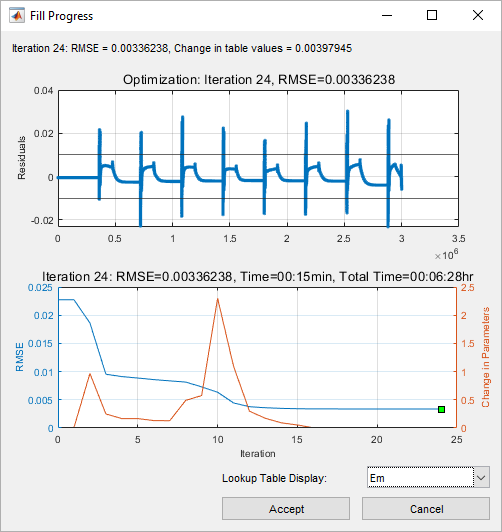
You can view the lookup table calibration progress in the Lookup Table Preview tab in the CAGE browser. To change the preview while the model calibrates, select the lookup table from the Lookup Table Display option.
As the model fits the data to the model, the Fill Progress window displays the residuals and the root-mean-square deviation (RSME) associated with the fit. You can end calibration manually by clicking Accept. CAGE runs a maximum of 300 iterations.
Inspect Results
CAGE generates validation plots you can use to inspect the fit of your parameters. Open the Validation tab to view the results. You can select the type of plot and the data.
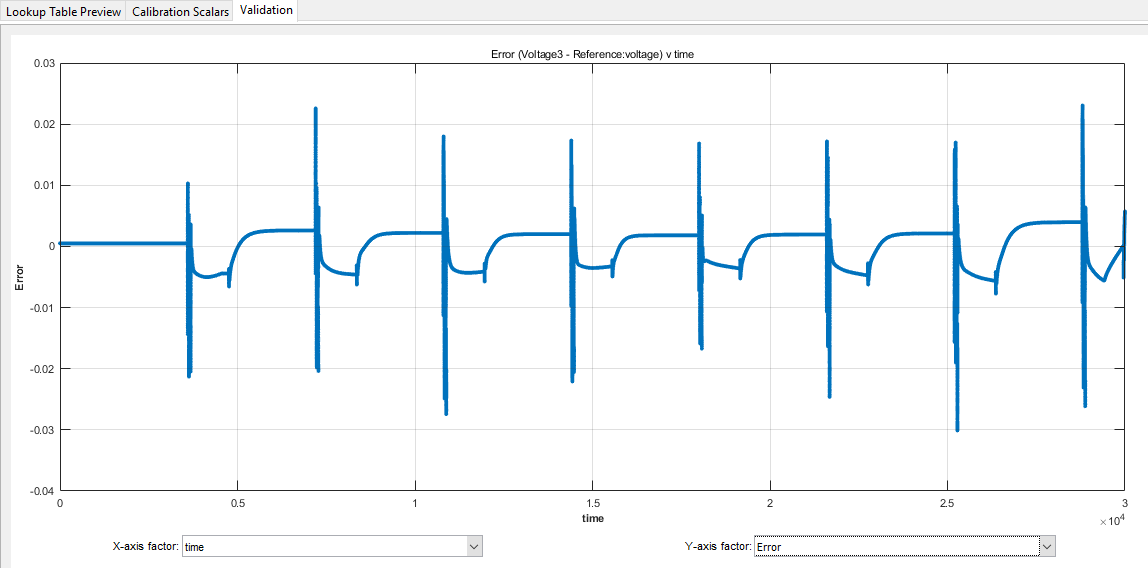
For more information, see Validate Feature and Export Lookup Tables.
Export Results
CAGE adjusts the parameters of the block in the Simulink model after it estimates the parameters. If you run feature fills again on the block, CAGE overwrites the parameters. You can export these results for later use in a separate file. See Import and Export Calibrations. CAGE stores the updated parameters in the same location they were originally defined, such as a base workspace, model workspace, or data dictionary.
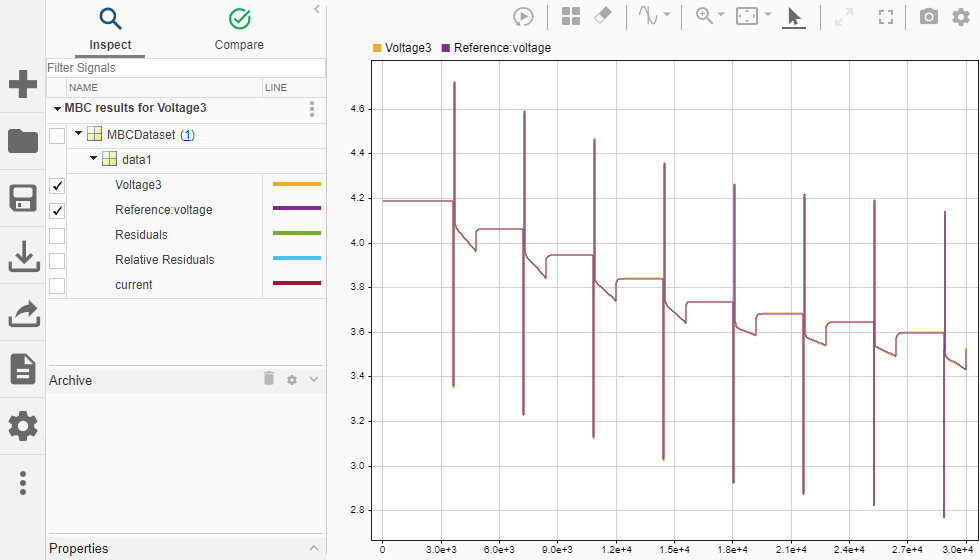
You can also export the data to the Simulation Data Inspector for additional visualization options. In the Validation tab, click Export To SDI. The export includes the modeled voltage, reference voltage, residuals, relative residuals, and current.
See Also
Equivalent Circuit Battery (Powertrain Blockset) | Estimation Equivalent Circuit Battery (Powertrain Blockset) | Battery (Table-Based) (Simscape Battery) | Battery Equivalent Circuit (Simscape Battery)

