Run Same Test with Different Inputs in Polyspace Platform User Interface
R2026bIf you want to write multiple C/C++ tests that differ only in the input values or expected values of assessments, you do not have to duplicate the same test several times. Instead, you can write a parameterized test in the Polyspace Platform user interface. In a parameterized test, you specify parameters for test inputs instead of constants, and then iterate the parameter through a test data array.
Example Files
This tutorial uses the files in the folder <polyspaceroot>\polyspace\examples\doc_pstest\parametrized_tests_ui\src. Here, <polyspaceroot> is the Polyspace® installation folder, for instance, C:\Program Files\Polyspace\R2026b. To continue with this tutorial:
Create a new Polyspace Platform project and add the folder to the project.
Select Parse Code on the toolstrip to analyze the files in the folder.
Decide Which Inputs to Parameterize
Before writing a parameterized test, decide on a testing strategy and figure out which tests can be combined by writing a single parameterized test.
For instance, consider the function getDifferenceOfValues that calculates the magnitude of difference between the absolute values of its inputs:
#include <stdlib.h>

int32_t getDifferenceOfValues(int32_t arg1, int32_t arg2) {
    return abs(abs(arg1) - abs (arg2));
}-2 (Magnitude greater than 1, opposite sign)
-1 (Magnitude same as 1, opposite sign)
0 (Magnitude less than 1)
1 (Magnitude same as 1, same sign)
2 (Magnitude same as 1, same sign)
Instead of writing five separate tests, you can write a single parameterized test to implement this testing strategy. Note that parameterizing inputs also requires your assessment values to be parameterized.
Parameterize Inputs and Assessments
Write a parameterized test to implement the test strategy outlined in the previous section:
On the Projects pane, right-click
getDifferenceOfValuesand select Add Test Case.In the Inputs section of the test, right-click the Values cell for the input that you want to parameterize, for instance,
arg1in the preceding example, and select Add test parameter.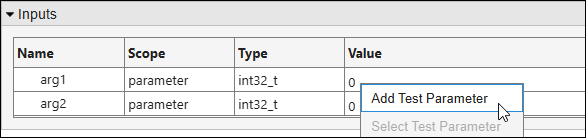
Enter a name for the parameter and the number of values the parameter can take.
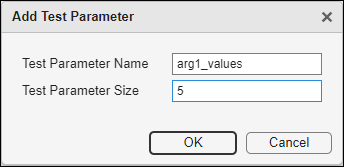
You can see the parameter
arg1_valuesappear in the Test Parameters section of the test.In the Test Parameters section, fill in the values that the parameter can take.
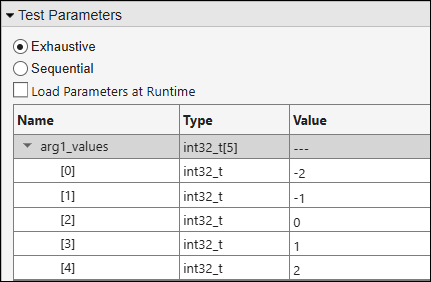
Note that:
For aggregates such as arrays and structures, instead of entering individual member values in each row, you can enter their values all at once in a C-style initializer list. Right-click the row containing the aggregate and select Fill Using Initializer List. For more information, see Fill Aggregates Using C-Style Initializer Lists.
You can resize a test parameter after the initial parameter creation. To resize a target, right-click the root node corresponding to the parameter, for instance,
arg1_valuesin the example, and select Resize Test Data.
Enter the value 1 for the input
arg2.Repeat the same steps for the assessment value and parameterize the assessment.
In the Assessments section, right-click the Value cell and select Add test parameter.
Enter a parameter name, for instance,
return_values, and size.The size of an assessment parameter depends on the size of input parameters and the iteration strategy. If you parameterize only one input, the assessment parameter size is the same as the input parameter size.
Fill in the assessment parameter values. You can calculate each assessment parameter value based on the corresponding input parameter value.
For instance, in the preceding example:
The input
arg1is a parameter that goes through the array {-2,-1,0,1,2}.The input
arg2takes the fixed value 1.
Therefore, the return value of the function
getDifferenceOfValuesmust be a parameter that goes through the array {1,0,1,0,1}.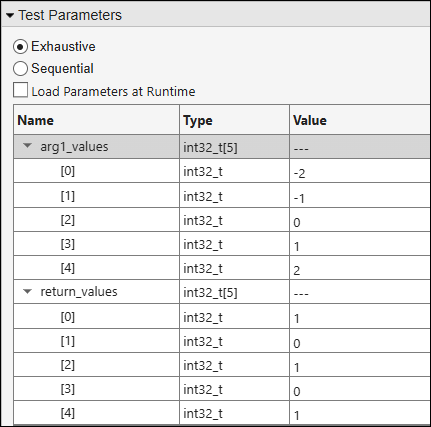
Decide Parameterization Strategy
After you parameterize inputs and assessments appropriately, you can decide how you want parameter values to appear in your tests. You can then build and run the parameterized test, just like any other test. See Build and Run Tests in Polyspace Platform User Interface.
You can specify the following parameterization strategies.
Decide Between Sequential and Exhaustive Combinations
If you parameterize multiple inputs or assessments, specify one of these parameter iteration strategies:
Sequential — Apply the parameter values in sequence. The first iteration uses the first values of all parameters, the second iteration uses the second values of all parameters, and so on.
Exhaustive — Exhaustively test all parameter value combinations. In an exhaustive iteration strategy, each value of a test parameter is combined with each value of other test parameters.
Note that the exhaustive parameter iteration strategy does not distinguish between parameters for inputs and parameters for assessments. Therefore, this strategy is useful only when you do not need to parameterize the expected values in the test assessments. For instance:
You are testing a function that returns an error code in case of an error. In all your test iterations, you can test that an error did not occur by assessing the single return value that represents the absence of an error.
You are using a comparator other than
==to test if a function returns values within a given range. Your assessments can use the>,>=,<, or<=comparators with a single expected value representing a boundary of the range.
In this example, you want each value of the test assessment parameter to be paired with the corresponding value of the test input parameter. Select the Sequential strategy to enable this pairing.
Decide Between Preload and Run-Time Load of Parameter Values
Instead of embedding all parameter values in the generated test code, you can pass the parameter values for each iteration at runtime. To enable run-time load of parameter values, select the option Load Parameters at Runtime.
This option helps reduce the test executable size for parameterized tests in case you want to run the tests on embedded targets with memory restrictions. Since the data is passed at runtime, selecting this option can result in slightly increased test execution times.
Not all data types are supported for run-time loading of parameters. If you choose to load parameters at run time, the inputs that you parameterize can have only these data types or typedefs of these data types:
Integer types (
char,short,int,long, andlong long)Note that most integer types such as
size_tandwchar_t, and fixed-width types such asint32_t, are defined as typedefs of these integer types.Unsigned integer types
Floating-point types (
floatanddouble)Boolean types
Aggregate data types such as structures and arrays, where each individual member has a supported data type
When you select the Load Parameters at Runtime option, if any of your parameters have an unsupported type, you see an error when you validate or build the test. Check the Logs pane for more details about the error.
In this example, all inputs have data types that are supported for runtime loading of parameters. You can leave the option unselected, or select the option to see its effect on test execution.
Review Test Results
Build and run the tests. After the test execution is completed, you see a Tests node on the Results pane. To review the test results:
Right-click the Tests node and select Open Dashboard. You see an overview of the results on a dashboard.
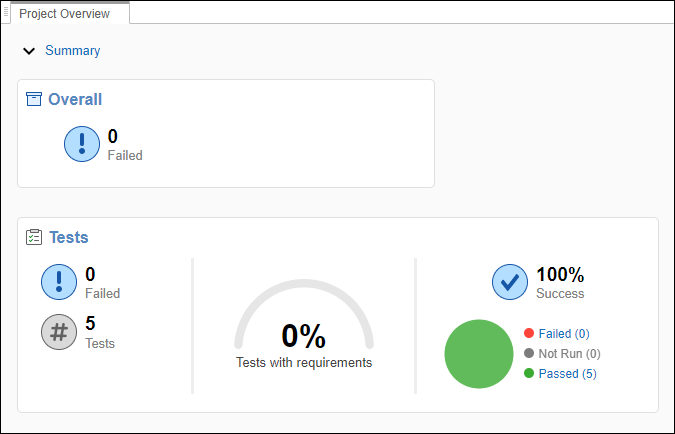
This dashboard shows that the parameterized test you wrote translated to five iterations, reported as five test points. All five test points passed.
Click the Review button on the Dashboard tab of the Polyspace Platform toolstrip.
You see all test iterations listed in the Results List pane. The Result column shows that all tests passed. You can see the same information on the Result Details pane when you select the test case node (for failed tests, this pane also shows expected and actual values).
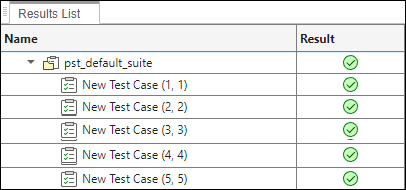
Since the parameterized test has two parameters, each iteration is indexed by a pair of numbers.
The iteration titled New Test Case (1,1) indicates that the first parameter
arg1_valuestakes the first value, -2, from the list of parameter values in the Test Parameters section, and the second parameterreturn_valuesalso takes the first value, 1.The iteration titled New Test Case (2,2) indicates that the first parameter
arg1_valuestakes the second value, -1, from the list of parameter values in the Test Parameters section, and the second parameterreturn_valuesalso takes the second value, 0.
And so on.
For failing test iterations, you can click the row displaying the iteration and see the expected and actual value for each failing assessment on the Result Details pane. To see which parameter values were used in an iteration, you can click any row on the Results List pane. This action opens a read-only form of the test case definition on the Test Definition pane. Using the indices on the results list together with the test definition, you can determine the test parameter values used in an iteration.
For more information, see Review C/C++ Test Execution Results.
Limitations
You cannot parameterize inputs or assessments when the input variable, or the variable being assessed, has a union type or an aggregate type containing a union as a child.
For these cases, write a test for a single set of inputs and assessments. To create a variant of this test, right-click the test on the Projects pane and select Duplicate Test. In the duplicated test, modify inputs and assessments as needed.
See Also
polyspace.project.OwnedTestCase

