Work with a Model in Restricted Mode
R2026bWhen you open a model in Restricted mode, you can perform a variety of tasks: simulate the model, inspect and fine-tune block parameters, add and delete basic Simulink® blocks, and so on. For a complete list of allowed operations, see What You Can Do in Restricted Mode.
The following examples illustrate operations allowed and disallowed in Restricted mode.
How to Simulate and Fine-Tune a Model in Restricted Mode
This example shows how you can work with a model in Restricted mode by changing the parameter values and observing the simulation results.
Open the
model_test_edit_modemodel, which you saved in Restricted mode in Example of Saving a Model in Restricted Mode. The model opens in Restricted mode.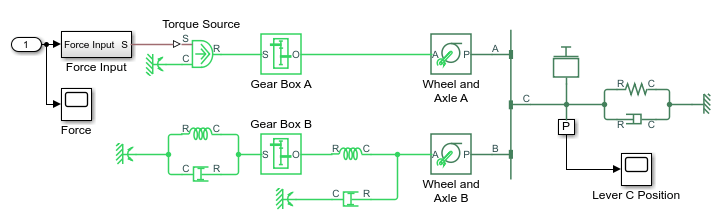
Open the Lever C Position scope and simulate the model. The models runs and simulates in Restricted mode.

Double-click the Wheel and Axle A block to open its dialog box.
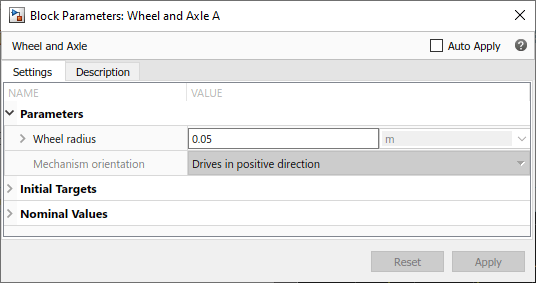
Change the Wheel radius parameter value to
0.1.Simulate the model again. Notice that the motion amplitude of node C became smaller as a result of the wheel radius change.

Double-click the Mass block and change the Mass parameter value to
24.Simulate the model. Notice that doubling the mass resulted in increased vibrations.

How to Add and Delete Simulink Blocks in Restricted Mode
This example shows how you can change the model input signal in Restricted mode by adding and deleting basic Simulink blocks.
Open the
model_test_edit_modemodel, which you saved in Restricted mode in Example of Saving a Model in Restricted Mode. The model opens in Restricted mode.Open the Lever C Position scope and simulate the model.
Replace the external input with a sine wave. On the Data Import/Export pane of the Configuration Parameters dialog box, under Load from workspace, clear the Input check box. Delete the Simulink Inport block, the Force scope, and the signal lines connecting the Inport block to the scope and going into the Force Input subsystem.
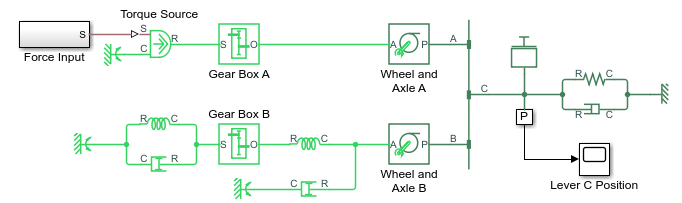
Double-click the Force Input subsystem to open it. Inside the subsystem, delete the Inport block. Replace it with a Sine Wave block from the Simulink Sources library, as shown below.

Simulate the model again. The model successfully compiles and simulates in Restricted mode because all the model topology changes have been performed in the Simulink part of the model.

Performing an Operation Disallowed in Restricted Mode
This example shows what happens when you perform an operation that is disallowed in Restricted mode.
Open the
model_test_edit_modemodel, which you saved in Restricted mode in Example of Saving a Model in Restricted Mode. The model opens in Restricted mode.Double-click the P subsystem to open it.

Delete the connection line between port P of the Ideal Translational Motion Sensor block and the PS-Simulink Converter block. Instead, connect port V of the Ideal Translational Motion Sensor block to the input port of the PS-Simulink Converter block, to measure the velocity on node C of the lever.

Try to simulate the model. An error message appears saying that the model cannot be compiled because its topology has been changed while in Restricted mode. You can either undo the changes, or switch to Full mode, as described in Switch from Restricted to Full Mode.

