Design Evolution Manager
R2026bDescription
Use the Design Evolution Manager app to manage different versions of a project. Evolutions capture the state of a project at key stages in your design process, which the app displays in an evolution tree hierarchy. You can use the relationships between evolutions and the metadata you associate with the components of the evolution tree to model your design process, test alternative solutions, and understand the rationale of certain design decisions.
Open the Design Evolution Manager App
MATLAB® Toolstrip: On the Project tab, under Tools, click the app icon.
Examples
This example shows how to use the Design Evolution Manager app to merge changes from an evolution into the project files.
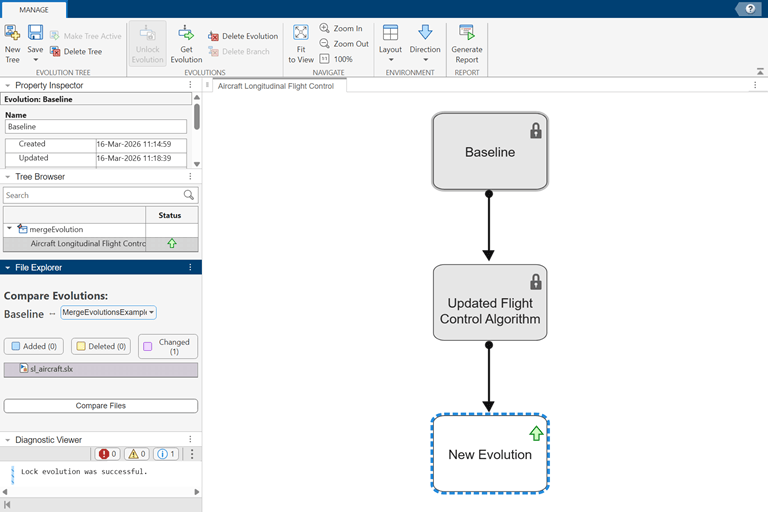
Suppose a user made some changes to the model sl_aircraft while
tracking their design progress using the Design Evolution Manager app. In the
Aircraft Longitudinal Flight Control evolution tree, the original
version of the model is recorded in the Baseline evolution, which
represents the starting point of this design. The updated version including changes the
user made to the design is recorded in the Updated Flight Control
Algorithm evolution. In this evolution tree, the Baseline
evolution and the Updated Flight Control Algorithm evolution are locked
to prevent further changes from being recorded to these evolutions. The next time you
update the evolution tree, changes made to project files will be recorded to a new
evolution, represented as a child of the Updated Flight Control
Algorithm evolution in the evolution tree.
Compare changes from the Baseline evolution to the active project
files.
Select two evolutions for comparison. For this example, select the
Baselineevolution in the evolution tree. In the File Explorer pane, use the Compare Evolutions dropdown to selectProject Files.Select which files to compare. In the File Explorer pane, select the model file
sl_aircraft.Click the Compare Files button to open the Comparison Tool. The tool shows a report of the differences between the two version of the
sl_aircraftmodel. Colors indicate if items have been modified (purple), inserted (blue), or deleted (yellow).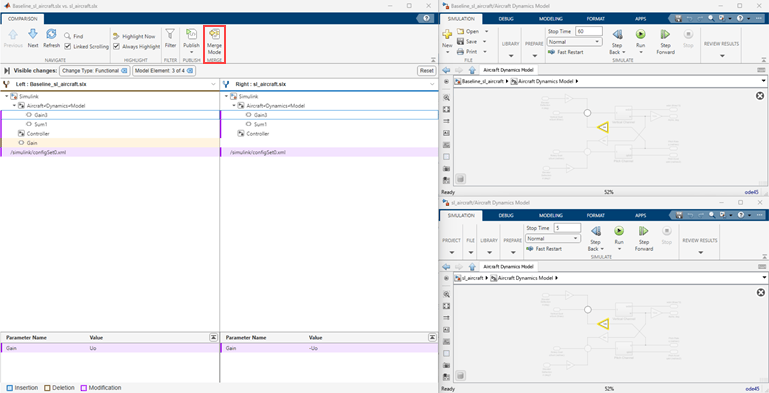
Next, merge changes from the Baseline evolution into the active
project files.
Click the Merge Mode button in the toolstrip.
Use the buttons in the Target tree to select the differences to keep in the active project files.
Click the Save Result button to save the changes you selected over the right model (active project files).
To record the changes to a new evolution in the evolution tree, in the Design Evolution Manager app, click the Save button.

