Perform Weighted Parameter Estimation for Single-Particle Battery Model
R2026bThis example shows how to estimate the parameters of a model by providing custom weights to the measured data. In this example, you estimate the parameters of a single-particle model with electrolyte dynamics (SPMe) of a lithium ion (Li-ion) battery.
In this example, you:
Specify which parameters to estimate and configure experiments.
Use the output data weights to specify the relative importance of different data points within a measured data set.
Use the experiment weights to specify the relative importance of different experiments.
Estimate the model parameters to match the voltage outputs of the battery model to measured voltage responses.
You can apply the approach demonstrated in this example to other parameter estimation scenarios with more experiments and measured data signals. If you have multiple measured data sets within an experiment, you can also specify the relative importance of these data sets using the output data weights.
Single-Particle Battery Model
Load the Simulink® model data.
load("sdoSPMBatteryData_WeightedEstimation.mat");Open the model.
open_system('sdoSPMBattery');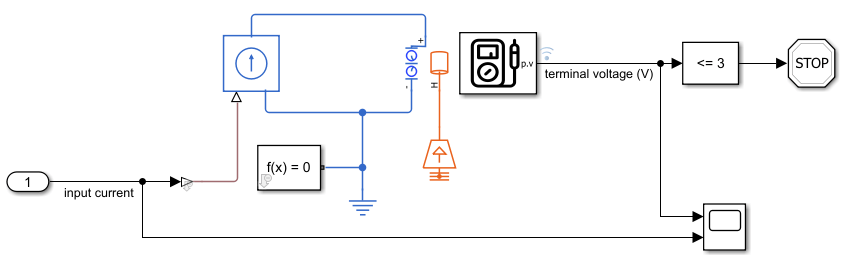
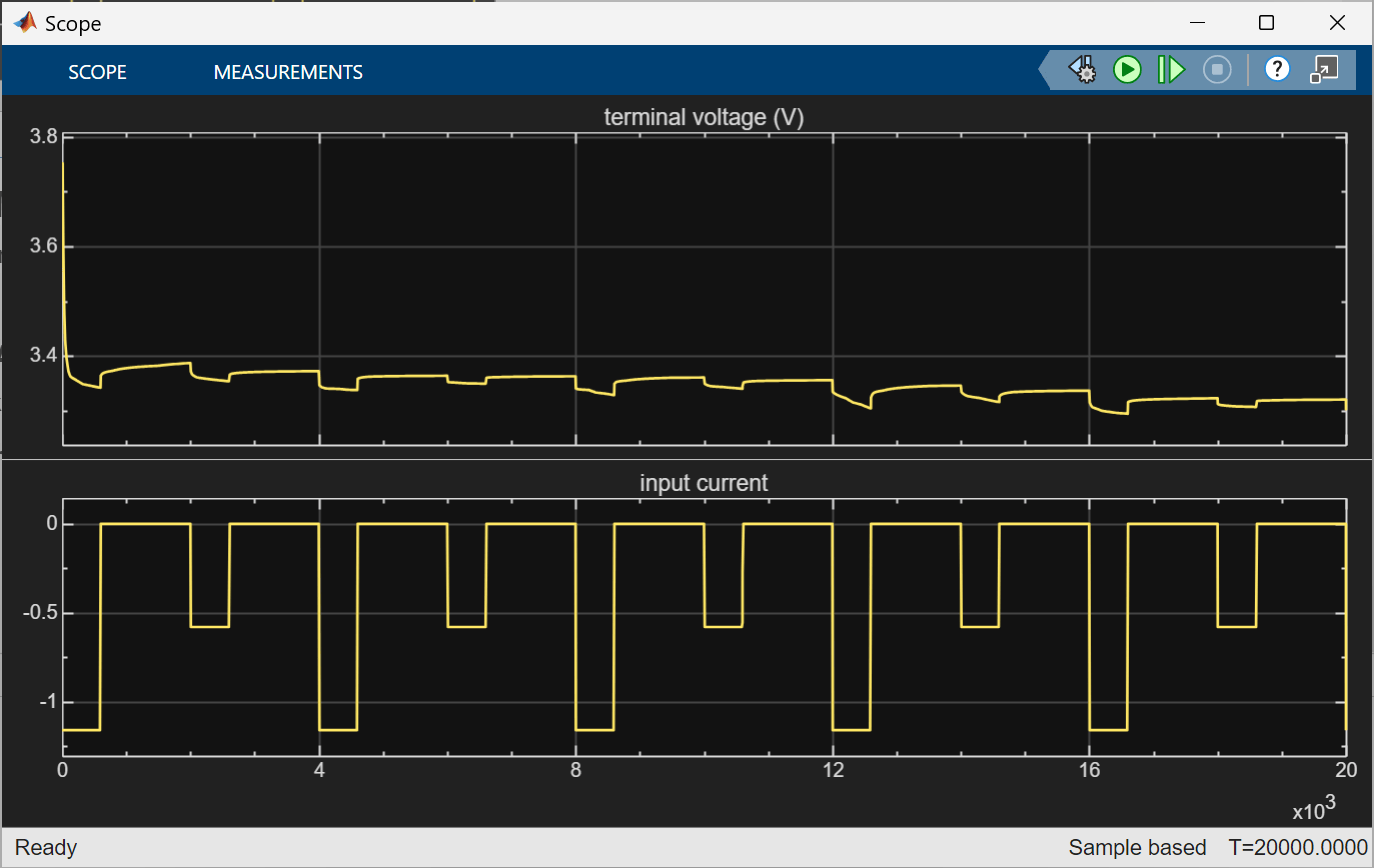
The sdoSPMBattery model simulates the battery terminal voltage in response to a hypothetical dynamic pulsed current profile. Use the Battery Single Particle block to model the battery behavior in the simulation. To simulate the model, click Run. To view the input current and the output terminal voltage, double click the Scope block.
The Battery Single Particle block implements a simplified electrochemical model for Li-ion batteries that follows a typical SPMe framework. For more information on the single-particle approach to model a battery, see Battery Single Particle (Simscape Battery).
There are many parameters associated with an electrochemical model for Li-ion batteries. These parameters can be related to the cell design, the cell equilibrium (or static) behavior, and the cell dynamic behavior. In this example, you estimate these battery design parameters for the model:
The Cathode Particle Radius (
CPR), with a baseline value of , ranging from a minimum of (CPR_min) to a maximum of (CPR_max)The Anode Particle Radius (
APR), with a baseline value of , ranging from a minimum of (APR_min) to a maximum of (APR_max)The Cathode Diffusion Coefficient (
CDC), with a baseline value of , ranging from a minimum of (CDC_min) to a maximum of (CDC_max)The Anode Diffusion Coefficient (
ADC), with a baseline value of , ranging from a minimum of (ADC_min) to a maximum of (ADC_max)
Set Up Parameter Estimation Problem
To open the Parameter Estimator app, in the Simulink model window, in the Apps gallery, click Parameter Estimator.
To load the session file for this example, on the Parameter Estimation tab, click Open Session > Open from file and open the file sdoSPMBattery_spesession_WeightedEstimation.mat.
Specify Parameters to Estimate
Specify the parameters to estimate. For more information, see Specify Parameters for Estimation.
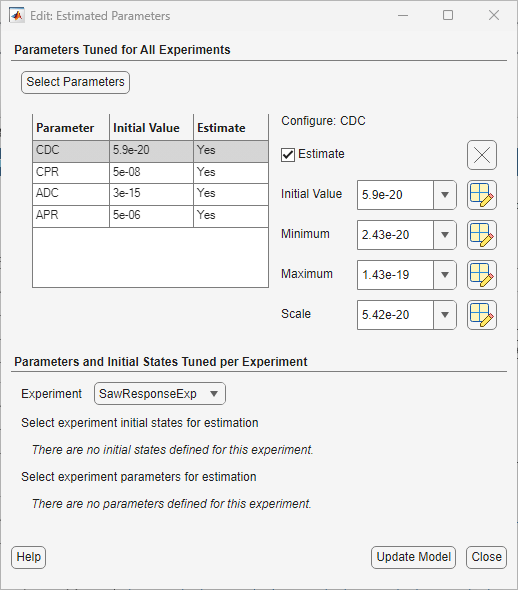
To view the selected parameters in the saved session, on the Parameter Estimation tab, click Select Parameters. The Edit:Estimated Parameters dialog box opens. This dialog box shows you the parameters to be estimated, along with their initial values, their minimum and maximum bounds, and the scaling factor.
Click Close.
Configure Experiments
Create experiments to define the measured data and other attributes of the data fitting for parameter estimation. For more information on configuring experiments, see Specify Estimation Data.
In this example, the saved session estimates the model parameters by fitting the model response to the measured data from two experiments. The StepResponseExp experiment uses an alternating stepped response current profile and the SawResponseExp experiment uses a truncated sawtooth current profile. The current profiles and the corresponding measured data in the two experiments are hypothetical. It is usually necessary to carefully design a current profile such that the measured voltage encodes enough information for estimating battery model parameters.
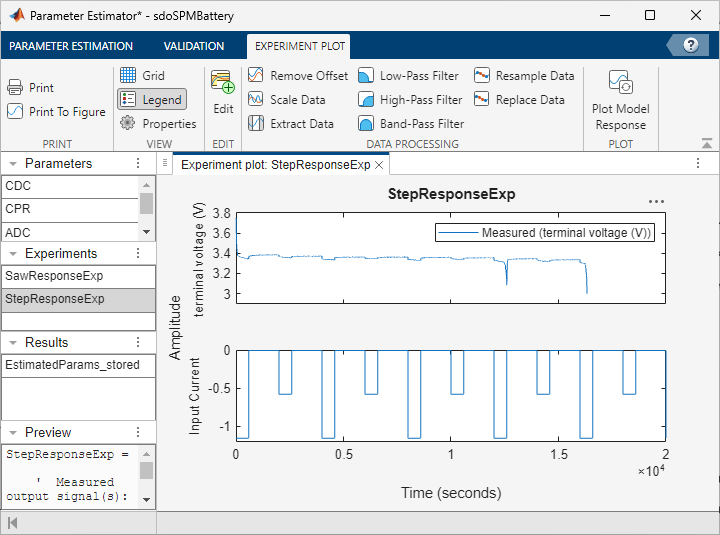
To open the experiment plot for the SawResponseExp or StepResponseExp experiment, right-click the experiment in the Experiments section and select Plot measured experiment data. The experiment plot shows the measured experiment data to which you will fit the model response. The plot also shows the corresponding truncated sawtooth step or alternating step input data that the app will use as the input current profile for the model simulation. Open both experiment plots.
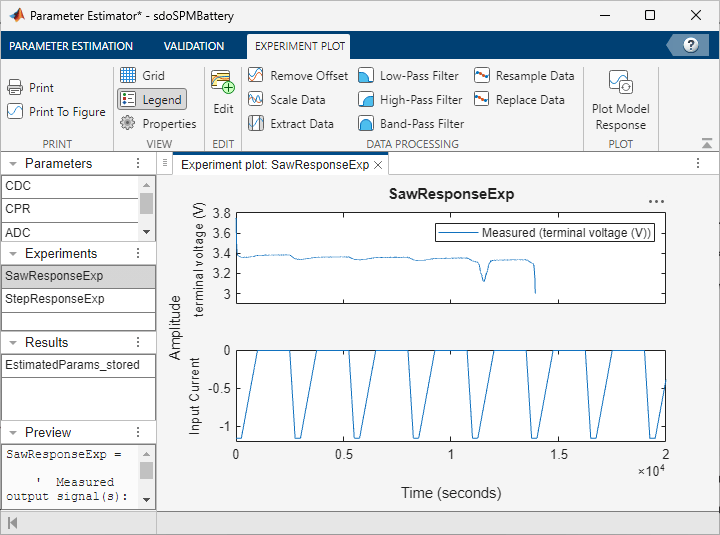
To compare the initial model response to the measured data, on the Parameter Estimation tab, click Plot Model Response. The model response appears in the experiment plots for the two experiments.
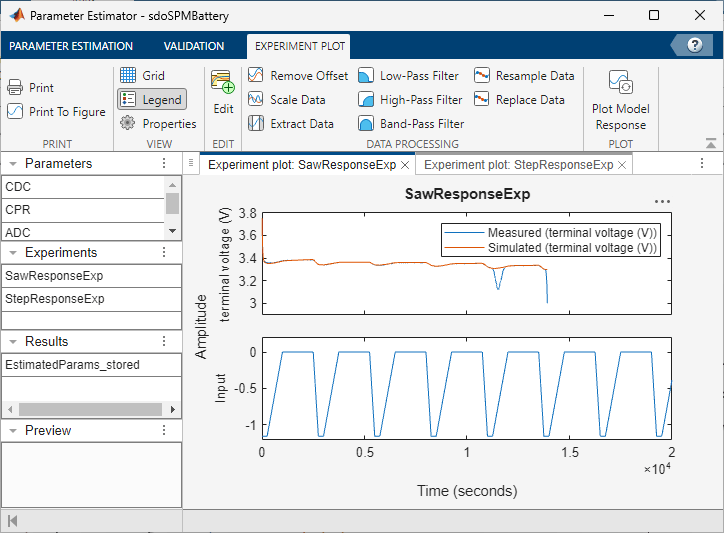
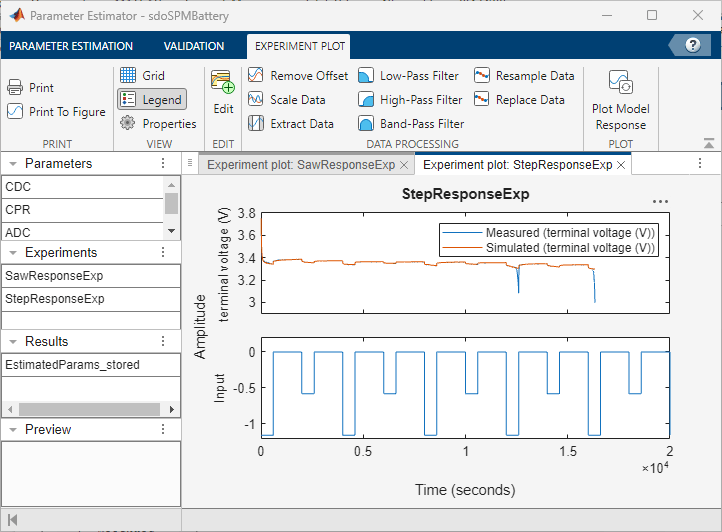
In both the experiments, the model response differs from the measured data at the latter data points. To better fit the data, specify the output data weights.
Specify Output Data Weights
When fitting the model response to the measured data, you can assign greater importance to specific measured data points by specifying the output data weights.
To specify the output data weights for an experiment, double-click the experiment in the Experiments section of the app. In the Edit Experiment dialog box, select an output signal to enable the Configure Measured Data section. In this section, use the Signal Weights text box to specify the output data weights for the measured data for the selected output signal. For more information, see Specify Estimation Data.
In this example, the saved session uses stepMeasWeights as the output data weights for the measured data in the StepResponseExp experiment. It uses sawMeasWeights as the output data weights for the measured data in the SawResponseExp experiment. The values defined in these variables give a higher weight to the latter data points in the measured data. This reduces the effect of the model transient response on the data fitting.
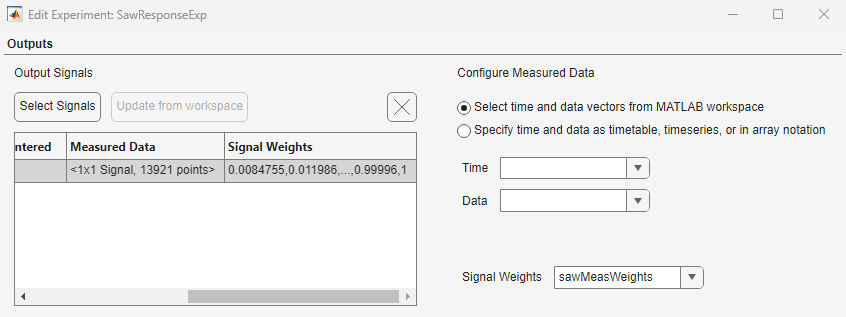
To fit multiple signals to multiple measured data within a single experiment, you can specify the output data weights individually for the measured data for each output signal.
Specify Experiment Weights
To specify the relative importance of each experiment with respect to other experiments, configure the experiment weights. A larger experiment weight indicates that it is more important to reduce the fitting error between the model response and the measured data for that experiment.
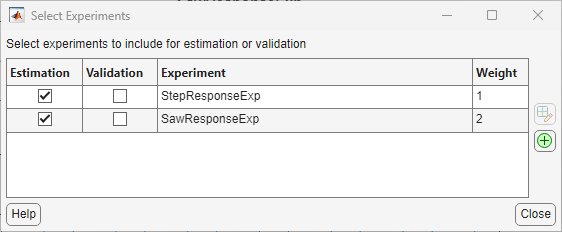
To specify the weights for the experiments, on the Parameter Estimation tab, click Select Experiments. In the Select Experiments dialog box, edit the entries in the Weight column to set the experiment weight for each experiment. For more information, see Estimate Parameters and States.
The saved session is set up with the weight of the SawResponseExp experiment as twice that of the StepResponseExp experiment. This setting indicates that reducing the fitting error for SawResponseExp experiment is twice as important as reducing the fitting error for StepResponseExp experiment. For this example, keep these experiment weight settings.
Click Close.
Estimate Model Parameters
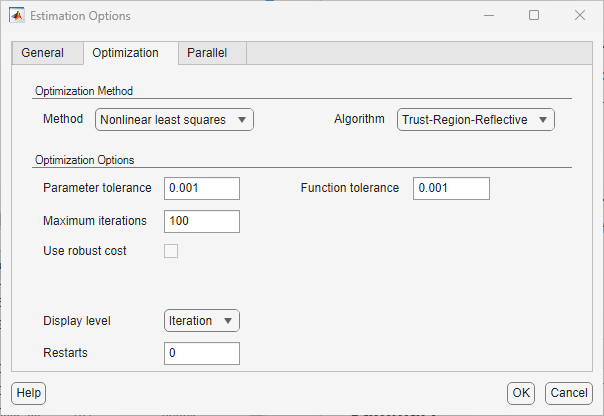
To configure the optimization options, on the Parameter Estimation tab, click More Options > Optimization. The saved session in this example uses the default optimization method and options. Click OK.
To estimate the model parameters, on the Parameter Estimation tab, click Estimate.
The estimation converges with parameters tuned to best fit the simulation data. After the estimation, a new evaluation result EstimatedParams appears in the Results section of the app.
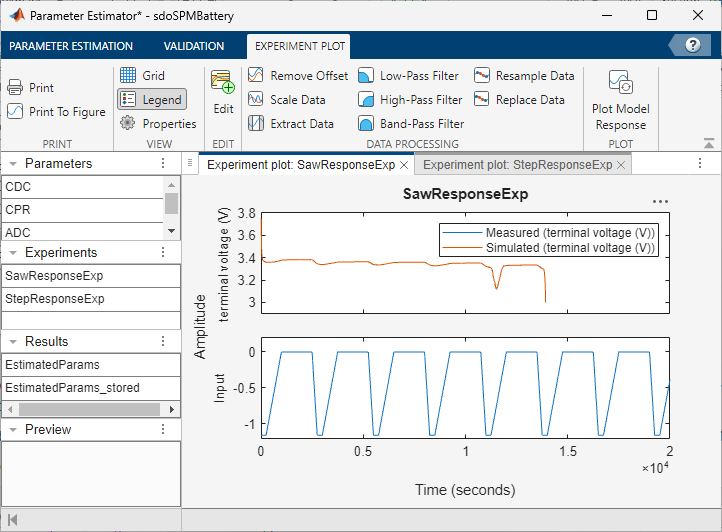
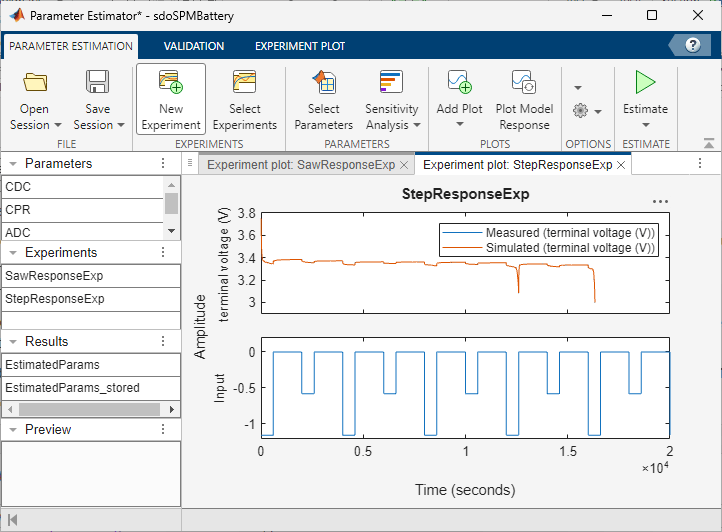
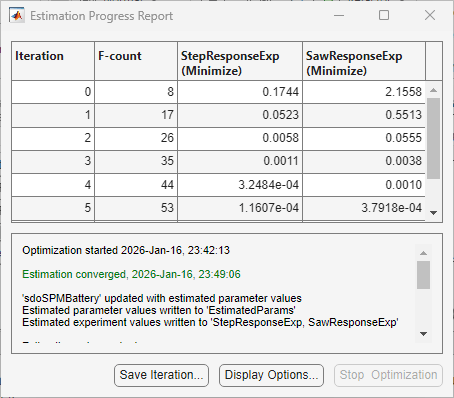
The model response now fits the measured data well in both experiments.
You can also view the estimated parameters stored in the saved session file by double-clicking EstimatedParams_stored in the Results section of the app.
To generate code for estimating the model parameters, on the Parameter Estimation tab, click Estimate > Generate MATLAB Function.
Close the model.
close_system('sdoSPMBattery');
