Control Real-Time Application by Using Web App
R2026bThis example shows how to use a web app HTML page as an interface to run a Simulink Real-Time application MLDATX file and collect execution data.
Connect to Target Computer and Build Real-Time Application
To create the real-time application that gets controlled by the web app, use these steps to connect to the target computer, configure the model and build the real-time application.
% create Target object and connect to target computer
tg = slrealtime;
connect(tg);
% open model and configure it for target computer
model = 'slrt_ex_osc';
open_system(model);
% modelSTF = getSTFName(tg);
% set_param(model,"SystemTargetFile",modelSTF);
% build real-time application MLDATX file
evalc('slbuild(model)');
% close model
bdclose(model);
Load and Run Real-Time Application from Web App
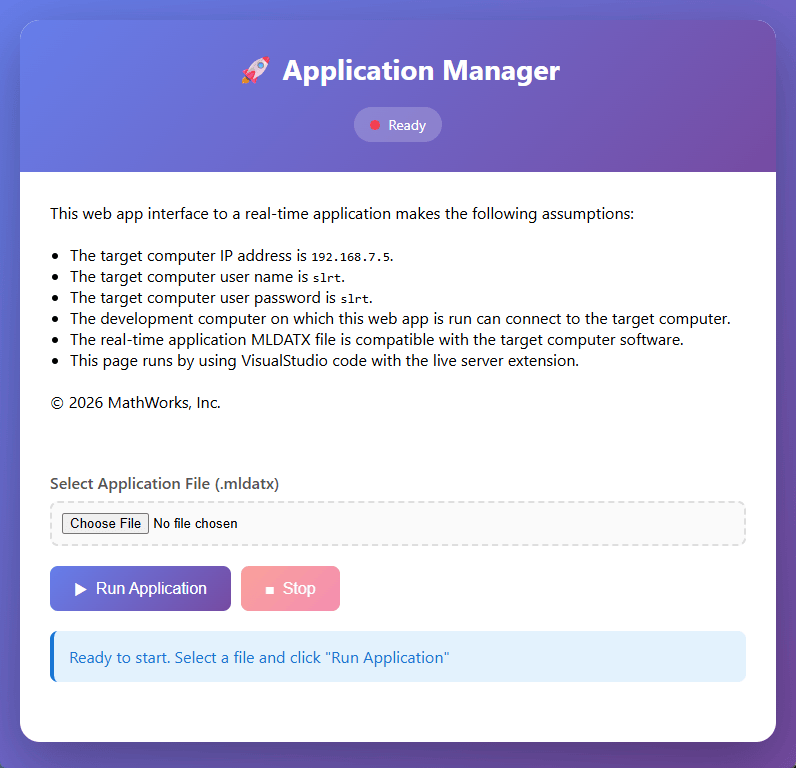
Open the web app real-time-app-web-interface.html in your browser. This web app interface to a real-time application makes the following assumptions:
The target computer IP address is
192.168.7.5.The target computer user name is
slrt.The target computer user password is
slrt.The development computer on which this web app is run can connect to the target computer.
The real-time application MLDATX file is compatible with the target computer software.
This page runs by using VisualStudio code with the live server extension.
Click the Choose File button to select the real-time application MLDATX file.
Click the Run Application button to run the application and collect execution data. The web app polls execution data for one minute.
Stop Real-Time Application and View Execution Data
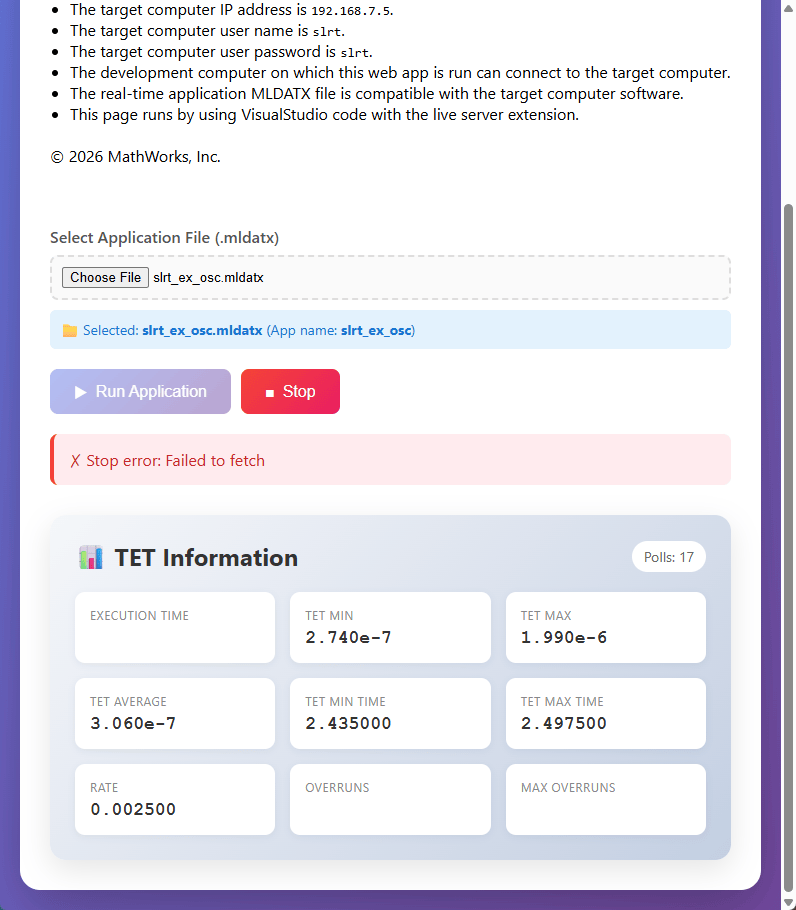
While the web app is polling or after polling completes, use the Stop button to display the polled execution data from the real-time application.
Close Web App
When done controlling the real-time application and viewing the execution data, close the web app HTML file.

