Migrate Code Prover Workflows for Checking Coding Standards and Code Metrics to Bug Finder
R2026bIn previous releases, Polyspace® Code Prover supported checking of external coding standards and computation of code complexity metrics. For instance, you might be using Code Prover to:
Check compliance with external coding standards such as MISRA C:2023 or MISRA C++:2023.
Check compliance with naming conventions.
Check compliance with code complexity standards.
Calculate code metrics.
Support for the preceding capabilities is removed from Code Prover. Polyspace Bug Finder is the recommended tool for performing these tasks. Modify your workflows to migrate from using Code Prover to using Bug Finder.
Changes in Workflow
To migrate from Code Prover to Bug Finder, your workflow might need some changes.
Check for Coding Rule Violations and Compute Code Metrics
To migrate to using Bug Finder for checking coding rule violations and computing code metrics:
Polyspace user interface:
On the Configuration node in your project configuration, locate the Static Analysis tab.
In Defects and Coding Standards, select
Use custom checkers file.Open the Checkers Selection dialog box by clicking Open (
 ).
).Activate the coding rules you need in the Checkers Selection dialog box and save your selection in a reusable checkers activation file (
.xml).The activation file is used as Checkers activation file.
Configure other options related to coding rules and code metrics.
Save your configuration.
On the Project tab, select Find Issues to start a Polyspace Bug Finder™ analysis.
Command Line: In the commands you use to check for coding rule violations or compute code metrics, replace
polyspace-code-proverbypolyspace-bug-finder. If you do not want to enable the Bug Finder defects, specify-checkerswith the valuenone. For instance, replace this command:with this command:polyspace-code-prover -sources file_name -misra3 all -code-metrics
polyspace-bug-finder -sources file_name -misra3 all -code-metrics -checkers none
Polyspace Bug Finder checks some coding rules differently compared to Code Prover. After migrating to Bug Finder, you might see some differences in the number and location of coding rule violations.
Compute Code Metrics, Check for Run-Time Errors and Coding Rule Violations
To migrate to using Bug Finder:
Polyspace User interface:
On the Configuration node in your project configuration, locate the Static Analysis tab.
In Defects and Coding Standards, select
Use custom checkers file.Open the Checkers Selection dialog box by clicking Open (
).Activate the coding rules you need in the Checkers Selection dialog box and save your selection in a reusable checkers activation file (
.xml).The activation file is used as Checkers activation file.
Configure other options related to coding rules and code metrics.
In the Static Analysis tab, configure options related to Polyspace Code Prover™ in Run Time Errors.
Save your configuration.
On the Project tab, from the dropdown Run Multiple, select Find Issues and Prove Absence of Run-Time Errors. Start an analysis that performs both a Bug Finder and a Code Prover run by clicking Run Multiple.
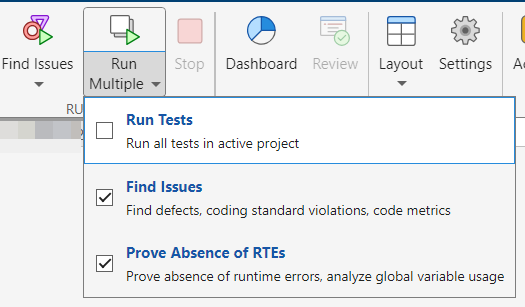
Command Line: Run separate Bug Finder and Code Prover analyses by using the commands
polyspace-bug-finderandpolyspace-code-prover. Use the Bug Finder run to generate the coding rule and code metrics results and the Code Prover run to generate the run-time error results. For example, replace this command:with this command:polyspace-code-prover -sources file_name -misra3 all -code-metrics
polyspace-bug-finder -sources file_name -code-metrics -misra3 all -checkers none polyspace-code-prover -sources file_name
Compute Code Metrics, Check for Run-Time Errors and Coding Rule Violations in Generated Code
Previously, to perform these tasks, you configured your Polyspace analysis, and then started a Code Prover verification. To migrate to using Bug Finder:
On the Simulink® toolstrip, use the same configurations that you used before. Then, run separate Bug Finder and Code Prover analyses.
In the MATLAB® Command Window, use separate sets of
polyspace.ModelLinkOptionsandpolyspace.Projectobjects to perform separate Bug Finder and Code Prover analyses.
Produce a Polyspace Report Containing Run-Time Errors, Coding Rule Violations, and Code Metrics
Previously, you configured a Code Prover verification to produce a single report containing run-time errors, code metrics, coding rule violations, and other results. To migrate to using Bug Finder, configure the same options and run separate Bug Finder and Code Prover analyses. See Compute Code Metrics, Check for Run-Time Errors and Coding Rule Violations.
The Bug Finder and Code Prover results are summarized in separate reports.
To produce a combined report containing Bug Finder and Code Prover results, use polyspace-report-generator. For instance, if your Bug Finder and Code Prover results are saved in the folders BF_results and CP_results, use this command at the command prompt:
polyspace-report-generator ^ -template %template_path% ^ -results-dir "CP_Results","BF_Results"
Check for Protected and Unprotected Shared Global Variables
Previously, to perform this task, you specified the entry point functions and temporally exclusive functions in your code, and then computed code metrics by using Code Prover. The recommended tool for performing this task is to use the global variable checks in Code Prover instead.
Polyspace user Interface:
On the Configuration node in your project configuration, locate the Static Analysis tab.
In the Static Analysis tab, configure the same options you did for this workflow in Run Time Errors. You do not need to explicitly select
Calculate code metrics (-code-metrics)In the toolstrip, select Prove Absence of Run-Time Errors to start a Code Prover analysis.
Command line: Run a Code Prover verification by using the same analysis options that you used before. Omit
-code-metrics.
After the verification completes, in the Results List, the protected shared global variables are flagged by green checks, and the potentially unprotected shared global variables are flagged by orange checks.
See Global Variables (Polyspace Code Prover).
Calculate Stack Usage
Previously, to calculate stack usage, you configured your Code Prover analysis in the Polyspace UI to compute code metrics or specified the option -code-metrics. The recommended tool for performing this task is to use the analysis option Calculate stack usage (-stack-usage) (Polyspace Code Prover).
Polyspace user interface:
On the Configuration node in your project configuration, locate the Static Analysis tab.
In the Check Behavior, select
Calculate stack usage
                                        (-stack-usage)
(Polyspace Code Prover).In the toolstrip, select Prove Absence of Run-Time Errors to start a Code Prover analysis.
Command line: Run a Code Prover verification by using the same analysis options that you used before. Use
-stack-usageinstead of-code-metrics.
After the verification completes, in the Results List, the stack usage metrics are listed.
See Also
Topics
- Justify Coding Rule Violations Using Code Prover Checks (Polyspace Code Prover)
- Check for and Review Coding Standard Violations
- AUTOSAR C++14 Rules
- CERT C Rules and Recommendations
- CERT C++ Rules
- Polyspace Support for Coding Standards
- Justify Coding Rule Violations Using Code Prover Checks
- Configure Coding Rule Checks and Code Metrics

