Configure Polyspace Options in Simulink
R2026bWhen running a Polyspace® analysis from Simulink®, you can configure Simulink configuration parameters related to the analysis as well as advanced Polyspace analysis options. You can reuse existing configuration across multiple analyses.
To get started with Polyspace analysis in Simulink, see Run Polyspace Analysis on Code Generated with Embedded Coder.
Set Configuration Parameters in Simulink
To set configuration parameters in Simulink, open the Polyspace Code Verifier app. Then, on the
Polyspace toolstrip tab, click Model Settings
 to open the Configuration Parameters dialog box.
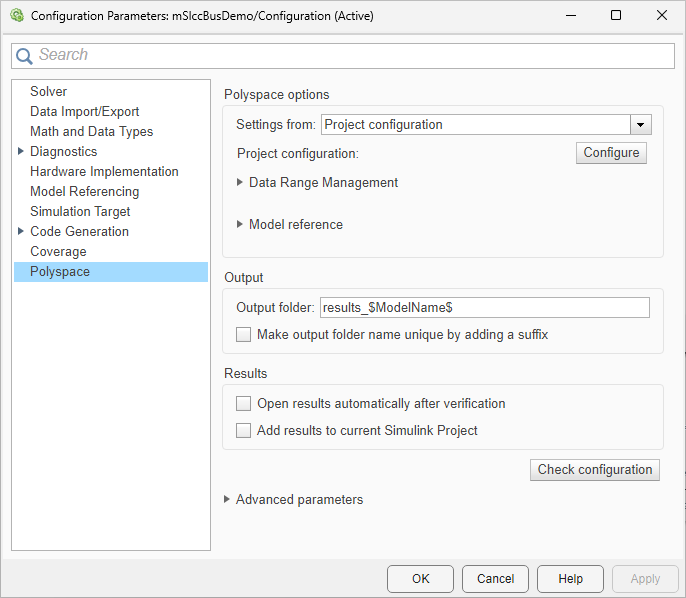
On the Polyspace tab, you can find the model configuration parameters that affect the Polyspace analysis. Use these options to prepare your Simulink model for the analysis of code generated from it.
Set Polyspace Analysis Options
To control how Polyspace analyzes the generated code, you can set Polyspace configuration options in the Configuration pane of the Polyspace Platform user interface. To review and update the configuration options, click Polyspace Settings on the Polyspace tab of the Simulink toolstrip. The current Polyspace configuration opens in the Polyspace Platform user interface.
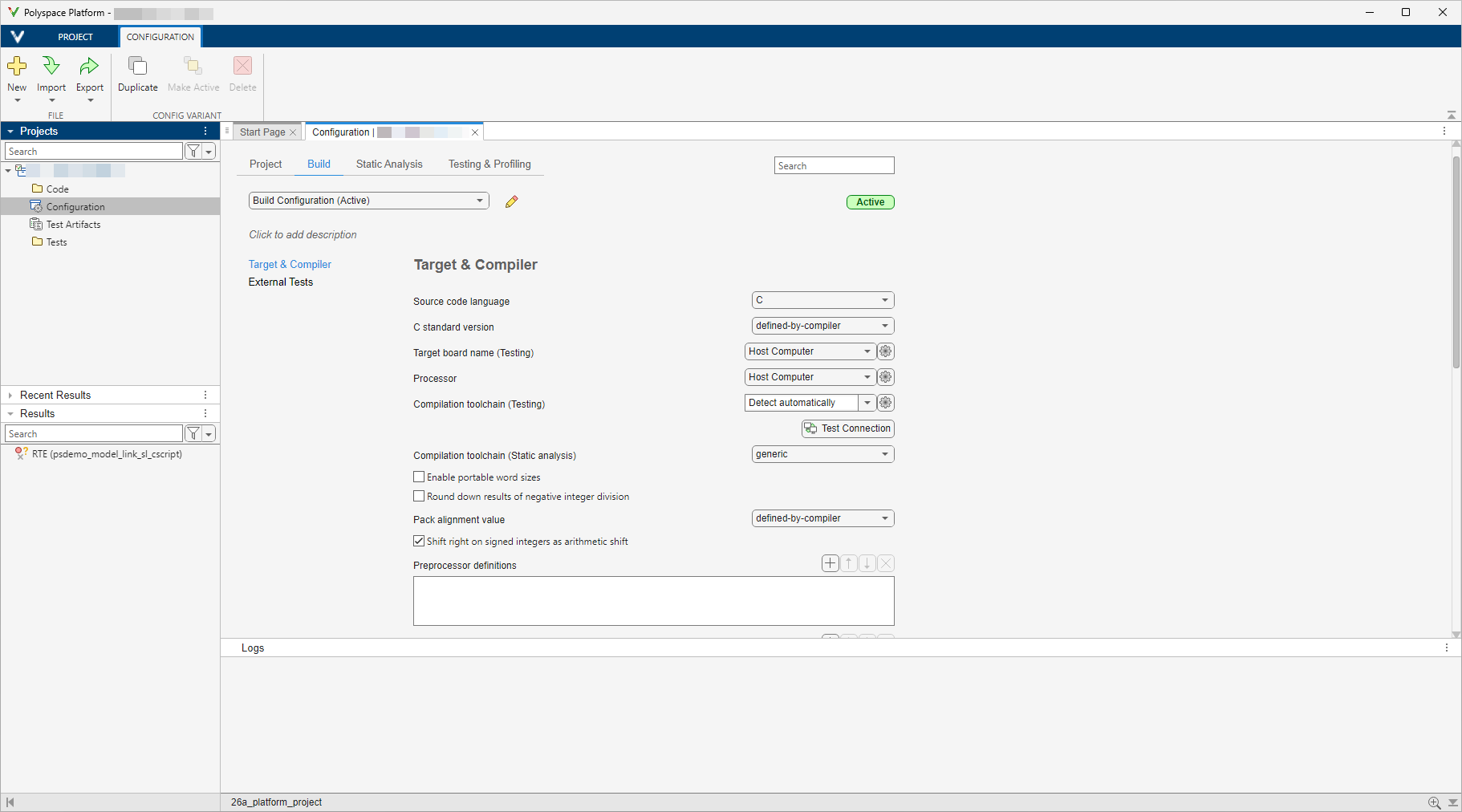
In the Configuration pane of the Polyspace platform user interface, you can specify the analysis options. These options configure how Polyspace analyzes the generated code. For example:
On the Build tab, click Target and Compiler to specify your compiler and target hardware options.
On the Static Analysis tab, click Inputs and Stubbing to specify options to stub certain functions for the analysis. Alternatively, click Advanced and specify the option
Functions to stub
                (-functions-to-stub)
in the Other field.
For the full list of options, see Configuration. To create
an options file that you can specify in the Other field, see
-options-file.
If an option in the Configuration Parameters dialog box directly conflicts with an option in the Polyspace Configuration pane, the option specified in the Simulink model Configuration Parameters dialog box takes precedence. For instance, say you specify these options:
The configuration parameter Settings from (C): You select this value
Project configuration and MISRA C 2012 checking for generated code.The Polyspace analysis option
Check MISRA C:2012 (-misra3): You disable this Polyspace option.
The option specified by the configuration parameter is given precedence and Polyspace checks for violations of MISRA C™:2012 rules.
Note
The Settings from (C) parameter will be removed in a future release.
Share and Reuse Configuration
You can specify the model configuration parameters and Polyspace options once and share them across multiple models.
Model Configuration options — Share and reuse the options set in the Simulink model's Configuration Parameters dialog box. See Share a Configuration with Multiple Models (Simulink).
Polyspace options — Reuse the
.psprjxproject file across different models and Polyspace analyses by selecting the Use custom project file in the Simulink model Configuration Parameters dialog box and specifying the filename. Reusing a project file that is not generated from Simulink can result in unexpected results.
By default, after you configure a Polyspace analysis, the configuration options are saved in the project file
modelname_config.psprjxpslink_config subfolder of the results folder. Use
this .psprjx project file to reuse the options associated with the
project.
If you run an analysis from the command line, you can set these options with the pslinkoptions function. See also pslinkoptions Properties.

