Manage Faults in Referenced Subsystems
R2026bYou can add faults to individual instances of referenced subsystems in the parent model, or add faults to all instances of the referenced subsystem in your model by modifying the subsystem file faults directly. If you modify the faults in the subsystem file, you must synchronize the changes in the referenced subsystem to the parent model.
Note
Model elements in self-modifying masked subsystems do not support faults.
Add Faults to Referenced Subsystems
You can add faults to an individual instance of a referenced subsystem or to all instances of a referenced subsystem in a model.
Add Fault to Single Referenced Subsystem Instance
To add a fault to a single instance of a referenced subsystem:
Open a model that contains a referenced subsystem.
Open the referenced subsystem by double-clicking the Subsystem Reference block.
Add a fault to the referenced subsystem. Select a signal and, in the Fault Analyzer tab, in the Prepare Faults section, click Add Fault. In the Add Fault window, specify the fault properties, then click OK.
Save the parent model. The fault appears only in that instance of the referenced subsystem. The software updates the fault information file of only the parent model.
Add Faults to All Instances of a Referenced Subsystem
To add faults to all instances of a referenced subsystem, add faults to the subsystem as a standalone model. However, when you add a referenced subsystem to a parent model, Simulink® Fault Analyzer™ does not automatically copy the faults in the referenced subsystem to the parent model. To introduce the faults to the parent model, you must synchronize the fault information files. Synchronizing copies the faults from the referenced subsystems to the parent model.
To create faults in a referenced subsystem and synchronize the faults with the parent model:
Open the subsystem as a standalone model.
Add faults to the subsystem. Select a signal and, in the Fault Analyzer tab, in the Prepare Faults section, click Add Fault. In the Add Fault window, specify the fault properties, then click OK.
Save and exit the subsystem. The software stores the fault information in the fault information file of the subsystem file.
Open the parent model that contains the referenced subsystem and synchronize the faults. In the Fault Analyzer tab, in the Prepare Faults section, click Resync Faults.
If you click Resync Faults in a parent model that does not have faults, Simulink Fault Analyzer creates the fault information file for the parent model in the working folder.
The synchronized faults appear in the parent model and their names include the name of the Subsystem Reference block, followed by the name of the fault. To save the model, the synchronized faults, and the fault behaviors, in the Fault Analyzer tab, in the File section, click Save All.
Configure Referenced Subsystem Fault Properties
You can access the fault properties of the faults that you add directly or the synchronized faults from the parent model. To access the properties:
Open the Fault Table pane. In the Fault Analyzer tab, in the Prepare Faults section, click Fault Table. The faults appear in the table. The path includes the name of the referenced subsystem.
Right-click the fault and click Properties to view the properties in the Property Inspector.
This image shows the Fault Table pane for a parent model with two
faults. The parent model contains a referenced subsystem. The parent model contains one
fault, SineWave_Outport1_fault, and the referenced subsystem contains
another fault, SubsystemReference_Inport_Outport1_fault. The
Fault Table pane displays the faults available to the parent
model.
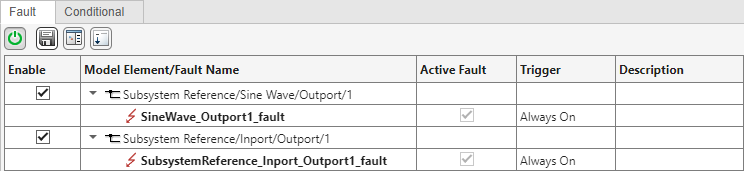
The model element path corresponds to the name of the Subsystem Reference block that contains the fault. If you update the name of the Subsystem Reference block that contains the faults, the model element path updates automatically. If you update the name of the Subsystem Reference block name and synchronize the fault information files, the synchronized fault names also update.
Example Referenced Subsystem with a Fault
This example shows how a referenced subsystem that contains a fault interacts with a top model. The reference subsystem also contains a fault that only appears in this instance of the model. To view the parent model, open the subsystemRef1 model.

The parent model contains two faults. One of the faults originates from the referenced subsystem, and the other originates in the parent model. From the top model, open the SubsystemA subsystem to view the faults.

The fault information file of the parent model, subsystemRef1_faultInfo, stores information from the faults in the parent model and the subsystem. The Fault Table pane indicates whether the faults originate in the referenced subsystem or the top model. Open the Fault Table pane and expand the model elements to view the faults.

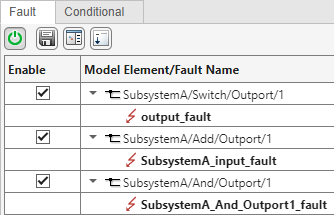
The faultedCounterSubsystem subsystem has its own fault information file, as does the parent model subsystemRef1. You can also add faults to the referenced subsystem and synchronize. In this example, add a fault to the output port of the And block in the faultedCounterSubsystem subsystem and synchronize the new fault in the subsystemRef1 model.
Open
faultedCounterSubsystemas a standalone model.Select the output port signal from the And block.
In the Fault Analyzer tab, in the Prepare Faults section, click Add Fault. In the Add Fault window, click OK.
Save the model, the faults, and the fault behaviors. In the File section, click Save All.
Exit
faultedCounterSubsystem.In the
subsystemRef1model, synchronize the fault information. TheFault Tablepane shows that the parent model now has a copy of the fault you added.
Store and Use Faults from Multiple Instances of a Referenced Subsystem
If the top model contains more than one instance of a referenced subsystem that contains faults, and you synchronize the model, Simulink Fault Analyzer stores the fault behaviors for the instances in different fault models. The fault model depends on the order that the referenced subsystem is added to the parent model during synchronization:
For the first instance of the referenced subsystem, Simulink Fault Analyzer uses the fault behaviors in the original fault model used by the subsystem.
For additional instances of the referenced subsystem, Simulink Fault Analyzer stores the fault behaviors in a new fault model whose name ends with the text
FaultRefModel.
For example, suppose a parent model contains two Subsystem Reference
blocks, Subsystem1 and Subsystem2, that both
reference the subsystem myRefSubsystem.
myRefSubsystem contains faults and uses the fault model
myRefSubsystem_faultModel to store the fault behavior. When you
synchronize the faults in the parent model, the fault behaviors that the parent model
uses for Subsystem1 are stored in
myRefSubsystem_faultModel, and the fault behaviors that the
parent model uses for Subsystem2 are copied into a fault model called
myRefSubsystem_FaultRefModel.
Example with Multiple Instances of a Referenced Subsystem with a Fault
This example shows how a model with multiple instances of a referenced subsystem stores faults. To view the parent model, open the subsystemRef2 model.
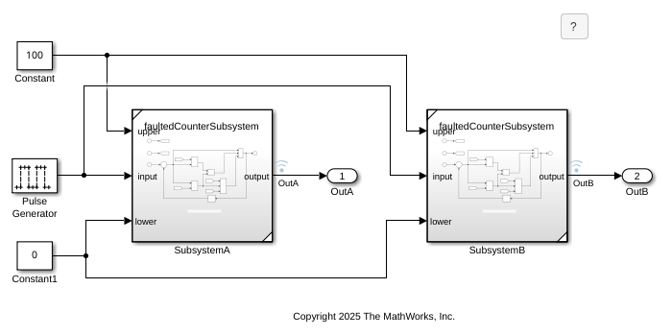
The parent model contains two instances of the same referenced subsystem, faultedCounterSubsystem. The parent model contains one fault that exists only on the Switch block in the instance of SubsystemA. However, the parent model is not synchronized, and faultedCounterSubsystem contains an additional fault on the Add block. The instances of this fault in SubsystemA and SubsystemB do not appear in the parent model.
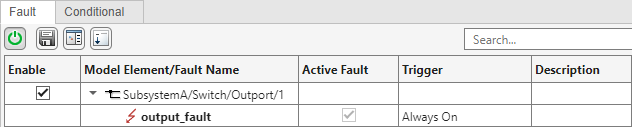
Because the model is not synchronized, the fault information file of the parent model, subsystemRef2_faultInfo, contains only one fault. Open the Fault Table pane to view the fault.
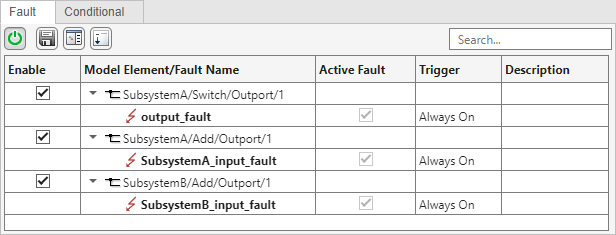
In the Fault Analyzer tab, click Resync Faults to synchronize the faults. Because this example uses two instances of the same referenced subsystem, the top model copies the fault behavior of the second referenced subsystem, SubsystemB, and stores it in a separate fault model, subsystemRef2_FaultRefModel. The faults now appear in the Fault Table pane.
To save the model, the faults, and the fault behaviors, in the Fault Analyzer tab, in the File section, click Save All.

