Synchronize Faults in Linked Library Blocks
R2026bIf you add faults to a block in a library, all new instances of the linked library block contain the faults from the library block. Copy Faults from Model Libraries. However, if you modify or add additional faults to the library block, you must resynchronize the model for the linked library blocks to contain the new or updated faults.
Synchronize Faults from Single Instance of a Linked Library Block
When you modify the faults in a library after adding the library block to your model, Simulink® Fault Analyzer™ does not automatically copy the faults into the model. To create faults in a library block and synchronize the faults with the parent model:
Open the library.
Add faults to the library block. Select a signal and, in the Fault Analyzer tab, in the Prepare Faults section, click Add Fault. In the Add Fault window, specify the fault properties, then click OK.
Save and exit the library. The software stores the fault information in the fault information file of the library.
Open the parent model that contains the linked library block and synchronize the faults. In the Fault Analyzer tab, in the Prepare Faults section, click Resync Faults.
If you click Resync Faults in a parent model that does not have faults, Simulink Fault Analyzer creates the fault information file for the parent model in the working folder.
The synchronized faults appear in the parent model and their names include the name of the linked library block, followed by the name of the fault. To save the model, the synchronized faults, and the fault behaviors, in the Fault Analyzer tab, in the File section, click Save All.
If you disable the link between the library block and the parent model, you cannot synchronize the library faults to the model.
Limitations of Simulink Fault Analyzer Artifacts in Libraries
When you synchronize faults from linked library blocks, these Simulink Fault Analyzer artifacts do not copy to the parent model:
Faults on unconnected input or output ports at the top level of the linked library blocks.
Fault Data Inport block mappings.
Additionally, you cannot create conditionals or use conditional triggers in libraries. To use conditionals in reusable model elements, add faults to referenced models or referenced subsystems. See Manage Faults in Referenced Models and Manage Faults in Referenced Subsystems.
Example of Synchronizing Faults from Single Linked Library Block
This example shows how to synchronize faults in a model that contains a linked library block. The linked library block contains a fault that is not synchronized to the model.
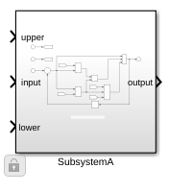
Open the faultedCounterLibrary library to view the library block and the fault.
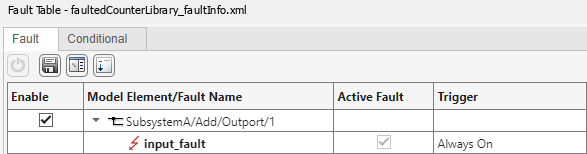
Open the Fault Table pane and expand the model element to view the fault. The Fault Table pane indicates that the block contains one fault.
Open the libraryRef1 model.
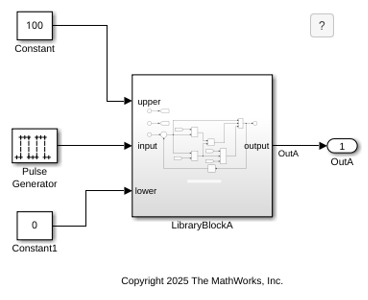
The model contains a subsystem named LibraryBlockA, which is an instance of the linked library block from the faultedCounterLibrary library. However the Fault Table pane indicates that the model does not have faults. To get the fault, synchronize the fault information. In the Fault Analyzer tab, in the Prepare Faults section, click Resync Faults. The model now includes a copy of the fault in the linked library.

Synchronize Faults from Multiple Instances of a Linked Library Block
If the top model contains more than one instance of a linked library block that contains faults, and you synchronize the model, Simulink Fault Analyzer stores the fault behaviors for the instances in different fault models. The fault model depends on the order that the linked library block is added to the parent model during synchronization:
For the first instance of the linked library block, Simulink Fault Analyzer uses the fault behaviors in the original fault model used by the library block.
For additional instances of the linked library block, Simulink Fault Analyzer stores the fault behaviors in a new fault model whose name ends with the text
FaultRefModel.
For example, suppose a parent model contains two linked library blocks,
LinkedBlock1 and LinkedBlock2, that are linked
to the same block in the library myLibrary. The blocks in
myLibrary use the fault model
myLibrary_faultModel to store the fault behavior. When you
synchronize the faults in the parent model, the fault behaviors that the parent model
uses for LinkedBlock1 are stored in
myLibrary_faultModel, and the fault behaviors that the parent
model uses for LinkedBlock2 are copied into a fault model called
myLibrary_FaultRefModel.
Example of Synchronizing Faults from Multiple Linked Library Blocks
This example shows how a model with multiple instances of a linked library block stores faults. To view the parent model, open the libraryRef2 model.
Open the libraryRef2 model. libraryRef2 contains two instances, LibraryBlockA and LibraryBlockB, of the same linked library block from the faultedCounterLibrary library. However, libraryRef2 is not synchronized, and the block in faultedCounterLibrary contains a fault. This fault in does not appear in the parent model in either the LibraryBlockA and LibraryBlockB instances.
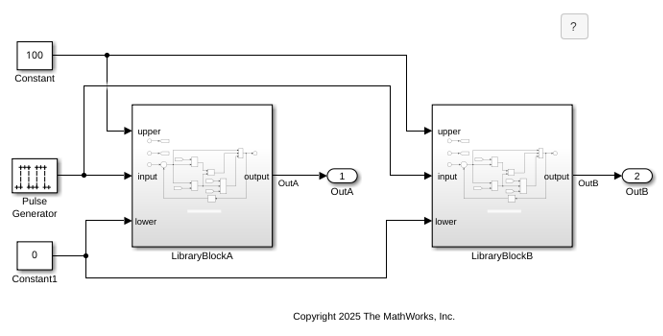
Synchronize the faults in the libraryRef2 model. In the Fault Analyzer tab, in the in the Prepare Faults section, click Resync Faults. The model now includes a copy of the fault in each instance of the linked library block. Because this example has two instances of the same library block, the top model copies the fault behavior in the second instance, LibraryBlockB, and stores it in a separate fault model, libraryRef2_FaultRefModel. The faults now appear in the Fault Table pane.


