Share Files Using MATLAB Drive
R2026bYou can collaborate with others by sharing files and folders from MATLAB® and MATLAB Drive™ online. When sharing, you can control whether others can view or edit your files. If you share an individual file, MATLAB shares the entire folder that contains that file. Sharing files located in the root MATLAB folder is not supported.
There are two ways to share items:
Invite individual members — Send a personal invitation so they can preview the items, add it to their files, and (if allowed) edit its contents.
Share a link — Send a view-only link so people can preview and add the items to their files, but not edit them.
To share files and folders from an installed version of MATLAB, MATLAB Connector must be enabled, and the file or folder must be located in your MATLAB Drive. If you are using MATLAB Online™, MATLAB Connector is not required because sharing is always enabled.
Note
Security Considerations: If a folder contains symbolic links to other folders on your system, sharing that folder might grant recipients of the shared folder access to other locations on your system. MATLAB Drive does not create symbolic links, but it does follow existing symbolic links.
Share Files and Folders by Personal Invitation
You can share files and folders by sending a personal invitation. Sharing an item by personal invitation lets you give others permission to either view or edit that item.
To send an invitation:
In MATLAB Files panel or MATLAB Drive online, right-click the file or folder that you want to share and select Share > Invite Members. If the file or folder is already shared, right-click the shared file, folder, or any subfolder within the folder, and select Manage Members.
Alternatively, in MATLAB Drive online, click the Share link at the top of the page. In the MATLAB Files panel, you also can click the Preview button to the right of the file or folder and select from the available sharing options.
Before R2026a: You only can select a folder to share from MATLAB. Selecting individual files is not supported.
If you are sharing a file, click Continue to acknowledge that you are sharing the entire folder that contains that file.
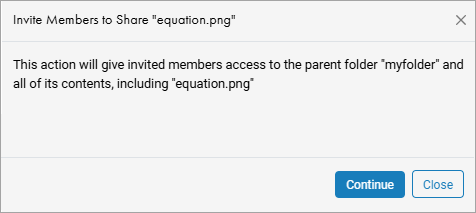
In the invitation window, enter the email addresses of the people that you want to share the file or folder with. To invite multiple people at once, separate their email addresses with semicolons or commas.
If you have shared files or folders before, you also can select from a list of people that you have recently or frequently shared with. This list only includes people who have accepted your invitations. To find someone in the list, type their first name, last name, or their email address.
Choose the permission level for each invitee:
Can View(read-only)Can Edit(edit access)
To assign different permissions to different people, send separate invitations.
(Optional) Add a message to include with the invitation.
Click Send. MATLAB Drive sends an email to the people you selected.

Change Permissions and Revoke Access
After personally inviting someone, you can change their access at any time.
To change someone's access:
In the MATLAB Files panel or MATLAB Drive online, right-click the shared file or folder, or any subfolder within the shared folder, and select Share > Manage Members.
Alternatively, in MATLAB Drive online, click the Share link at the top of the page. In the MATLAB Files panel, you also can click the Preview button to the right of the file or folder and click Manage Members.
Adjust the permissions next to the person's name. To revoke someone's access, click the X next to the name of the person.
Click Update Permissions to confirm. If you are revoking someone's access, click Remove instead.
Share Files and Folders with View-Only Link
You can let others view (but not edit) your files and folders by creating a view-only link. You can create a link to open the file or folder in MATLAB Drive.
To create a view-only link:
In the MATLAB Files panel or MATLAB Drive online, right-click the shared file or folder, or any subfolder within the shared folder, and select Share > Create Link. If a link already exists, select Manage Link instead.
Alternatively, in MATLAB Drive online, click the Share link at the top of the page. In the MATLAB Files panel, you also can click the Preview button to the right of the file or folder and select from the available sharing options.
Before R2026a: You only can select a folder to share from MATLAB. Selecting individual files is not supported.
If you are sharing a file, click Continue to acknowledge that you are sharing the entire folder that contains that file.
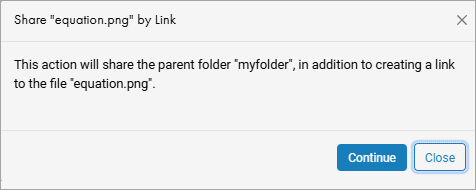
Click Continue to create the link.
Click the Copy Link button to copy the link to the clipboard.
Share the link with others, for example, by sending it in an email.

Remove Shared Link
To stop sharing a file or folder via a view-only link:
In the MATLAB Files panel or MATLAB Drive online, right-click the shared file or folder, or any subfolder within the shared folder, and select Share > Create Link. If a link already exists, select Manage Link instead.
Alternatively, in MATLAB Drive online, click the Share link at the top of the page. In the MATLAB Files panel, you also can click the Preview button to the right of the file or folder and select from the available sharing options.
Click Delete Link.
Confirm the deletion by clicking Delete.
If you are deleting a link to a file, click Continue to acknowledge that you are removing access to the parent folder as well.
Once you delete the link, anyone who has the link will lose access to the file or folder. Deleting the link does not affect people who have access using a personal invitation. To change their permissions, see Change Permissions and Revoke Access.
Access Files and Folders Shared with You
Files and folders in MATLAB Drive can be shared with you in two ways, by personal invitation or by a view-only link. When an individual file is shared, MATLAB shares the entire folder that contains that file.
Preview with Personal Invitation
To preview a file or folder shared by personal invitation, click the View File in MATLAB Drive or View Folder in MATLAB Drive link in the invitation. The preview opens in MATLAB Drive online. You can navigate the structure of shared folders and preview individual files within the folder.
Previewing files or folders shared by personal invitation requires a MathWorks Account.

To view all of your pending invitations in MATLAB Drive online, click Shared Content on the left side of the page.

Preview with View-Only Link
To preview a file or folder shared by view only link, click the link. The preview opens in MATLAB Drive online. You can navigate the structure of shared folders and preview individual files within the folder.
Previewing a folder shared by link does not require a MathWorks Account.

To create a copy of the link to share to others, click  Share Link. In the Share by Link dialog box, click the
Copy Link button to copy the link to the clipboard.
Share Link. In the Share by Link dialog box, click the
Copy Link button to copy the link to the clipboard.
Add Shared Files and Folders to Your Files
To work with the contents of shared files or folders, add them to your files. When you add a shared file to your files, the entire containing folder is added. You must be logged in with your MathWorks Account to add a shared folder to your files.
To add shared files or folders to your files, in the MATLAB
Drive online preview, click the  Add to my Files link at the top of the page. Then, select from the
two options.
Add to my Files link at the top of the page. Then, select from the
two options.
Add Shortcut — Create a shortcut to the shared file or folder.
Copy Folder — Create your own copy of the shared file or folder, which only you can access.
MATLAB Drive adds the file or folder to your files and opens it in the Files view. If you have MATLAB Connector installed, the Connector syncs the contents of the added shared folder to your local drive.

Manage Shared Files and Folders
After adding shared files and folders to your files, you can edit, rename, move, and delete them.
MATLAB and MATLAB
Drive online indicate shared folders using a shared folder icon
( or  ). If you have MATLAB Connector installed, the Connector indicates shared files in the
Activity section by displaying SHARED below the
filename. If you do not have edit permissions for the shared file, the Connector displays a
padlock icon
). If you have MATLAB Connector installed, the Connector indicates shared files in the
Activity section by displaying SHARED below the
filename. If you do not have edit permissions for the shared file, the Connector displays a
padlock icon  .
.

Edit Shared Files and Folder
If you have edit permissions, you can modify shared files or the contents of shared folders in MATLAB Online. If you have MATLAB Connector installed, you also can modify them on your local drive and in MATLAB. As you and other members of the file or folder make changes, the Connector keeps the items on your local drive up-to-date.
Caution
If multiple participants with edit permissions are editing the same file at the same time, the most recently saved version overwrites previous changes.
If you do not have edit permissions to a shared file or the contents of a shared folder, you cannot edit it.
Rename or Move Shared Files and Folders
You can rename or move a shared folder to a new location within your MATLAB Drive using MATLAB Drive online. If you have MATLAB Connector installed, you also can move or rename the folder from your local drive or using MATLAB.
If you move or rename a shared folder, the change only affects your own MATLAB Drive. Other collaborators still see the item in its original location and with its original name. This is true even if you are the owner of the shared folder.
Caution
If you move one shared folder into another, the one that you move takes on the permissions of its new parent. For example, if a member can edit the parent folder, they can now edit the folder that you moved into it.
If you have edit permissions, you also can move or rename a shared file or the contents of a shared folder. If you move or rename the shared file or the items inside the shared folder, those changes are reflected for all members of the folder.
Delete Shared Files and Folders
You can delete a shared folder in your MATLAB Drive. Deleting a shared folder or file removes it only from your MATLAB Drive, and it will no longer count toward your storage quota. Other people you’ve shared the item with will still have access. You can delete the folder using MATLAB Drive online and, if you have edit permissions, using MATLAB.
If you have edit permissions, you can delete the shared file or the contents of the shared folder. If you delete a file or the content of a shared folder, that content is deleted for all members who have access to the folder, and it will no longer count toward your storage quota.
Permanently Delete Shared Files and Folders
When you delete shared files or folders, MATLAB Drive moves the deleted items to your Deleted Files folder. Items in this folder are automatically and permanently deleted after 30 days, or sooner if your Deleted Files folder exceeds its storage quota.
To permanently delete items immediately, select the items and click the Permanently Delete link.
If you permanently delete a shared folder from your Deleted Files folder, the item is permanently deleted only from your MATLAB Drive. Others with access to the folder continue to have access to it.
If you are the owner of the shared folder, then the folder becomes ownerless. This means:
No new members can gain access to the folder
All pending invitations to access the item are canceled.
If you permanently delete a shared file or the content inside a shared folder, the content is permanently deleted for other members of the folder.
Note
You cannot permanently delete content from a shared folder that has active members with edit permissions to the folder.
Sharing Limitations
There are limits on how many folders you can share, how many people you can share each folder with, and how much data your MATLAB Drive can hold.
Folder Sharing Limitations
You can have up to 100 shared folders in your MATLAB Drive. This total includes folders shared by you (regardless of whether others have accepted your invitation) and folders shared by others that you have added to your files. Subfolders in shared folders are not included in this limit.
If you reach the limit of 100 shared folders:
You cannot share additional folders.
You cannot add more shared folders to your files.
If you receive an invitation to access a shared folder, you can preview the files, but you cannot add a shortcut to the folder to your files. You can, however, create an unshared copy of the folder and add it to your files. To create an unshared copy of the folder, in MATLAB Drive online, select the folder, click the
Add to my Files link, and select Copy
Folder.
User Sharing Limitations
The number of people that you can share a folder with depends on whether you have an eligible MATLAB license that is current on Software Maintenance Service.
If you have an eligible MATLAB license, you can share a folder with 1000 people using a view-only link and with an additional 100 people using a personal invitation.
If you do not have an eligible MATLAB license, you can share a folder with 10 people using a view-only link and with an additional 10 people using a personal invitation.
After you have reached your limit for personal invitations, you cannot invite others to share that folder. If a member leaves the shared folder or declines the invitation to access the shared folder, then you can send additional invitations.
When sharing a folder using a view-only link, when the number of people accessing the link reaches the folder maximum, others who try to use that link cannot access the folder.
Storage Quota Limitations
When you add a shared folder to your files, the content of that shared folder is included as part of your total storage allotment, regardless of whether you have edit or view-only permissions to the folder. If a member of the folder adds or deletes content, your storage allotment updates accordingly.
If you exceed your maximum storage allotment:
Others with edit permissions can add content to your shared folders, but you cannot.
You cannot add more folders to your files or create new invitations or shared links to a folder.
For more information, see Storage Quota.

