Explore Global Model Types
R2026bAlternative Global Model Types
First, try fitting the defaults using the Fit models common task button.
To build a selection of global models to compare, in the Common Tasks pane, click Create Alternatives. See Create Alternative Models to Compare for details.
If you want to try a single alternative global model type, click Add Model in the Common Tasks pane at any global model node. This opens the Global Model Setup dialog box.
Browse all the available model types on this page.
Some global models are only available in the Model class list when using the appropriate number of inputs. The example of a user-defined model is for a single input; the example transient model is for two inputs. You can check in your own user-defined models and transient models with as many factors as you choose; these only appear as options when the appropriate number of inputs are present.
Global Linear Models: Polynomials and Hybrid Splines
Global linear models can be polynomials or hybrid splines. Options are described in the following sections:
Polynomials
Polynomials of order n are of the form

You can choose any order you like for each input factor.
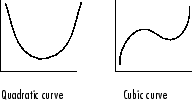
A quadratic polynomial  can have a single turning point, and a cubic curve
 can have two. As the order of a polynomial increases, it is
possible to fit more turning points. The curves produced can have up to
(n-1) bends for polynomials of order
n.
can have two. As the order of a polynomial increases, it is
possible to fit more turning points. The curves produced can have up to
(n-1) bends for polynomials of order
n.
See also the local model Polynomials for information about different settings available.
Click the Edit Terms button to see the terms in the model. This opens the Term Editor dialog box. Here you can remove any of the terms.
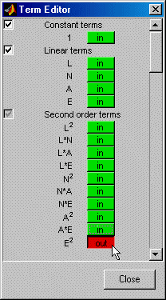
Interaction: You can choose the interaction level on both linear model subclasses (polynomial and hybrid spline). The maximum interaction level is the same as the polynomial order (for example, three for cubics).
The interaction level determines the allowed order of cross-terms included.
You can use the Term Editor to see the effects of changing the interaction level. Click the Edit Terms button. The number of constant, linear, second-, and third-order (and above) terms can be seen in the Model Terms frame.
For polynomials, with an interaction level of 1, there are no terms in the model
involving more than one factor. For example, for a four-factor cubic, for factor L,
you see the terms for L,  , and
, and  , but no terms involving L and other
factors. In other words, there are no cross-terms included.
, but no terms involving L and other
factors. In other words, there are no cross-terms included.
If you increase the interaction level to 2, under second-order terms you see
 and also L multiplied by each of the other factors; that is,
second-order cross-terms (for example, LN, LA, and LS).
and also L multiplied by each of the other factors; that is,
second-order cross-terms (for example, LN, LA, and LS).
Increase the interaction to 3, and under third-order terms you see
 multiplied by each of the other factors (
 ,
,  ,
,  ), L multiplied by other pairs of factors (LNA, LNS, LAS), and L
multiplied by each of the other factors squared (
), L multiplied by other pairs of factors (LNA, LNS, LAS), and L
multiplied by each of the other factors squared ( ,
,  ,
,  ). Interaction level three includes all third-order
cross-terms.
). Interaction level three includes all third-order
cross-terms.
The preceding also applies to all four factors in the model, not just L.
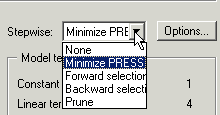
Stepwise: Take care not to overfit the data; that is, you do not want to use complex models that "chase points" in an attempt to model random effects.
The Stepwise feature can help. Stepwise selects the terms
using various criteria. Stepwise generally means that terms are removed in steps (one
at a time). The stepwise algorithms are Minimize Press, Forward Selection, Backward
Selection, and Prune. The most commonly used stepwise algorithm is Minimize
PRESS, where at each step the term that improves the PRESS statistic the
most is removed or included. Minimize PRESS throws away terms in
the model to improve its predictive quality, removing those terms that reduce the
PRESS of the model. Forward and Backward Selection uses statistical significance at
the alpha % level.
Predicted sum of squares error (PRESS) is a measure of the predictive quality of a model. See PRESS statistic for an explanation of PRESS and Guidelines for Selecting the Best Model Fit for more information on why it is useful as a diagnostic statistic.
Prune is one of the alternative algorithms for stepwise. The order of the terms matter, and the terms are removed from the end, provided they improve the quality of the fit (measured by various criteria: PRESS, GCV etc.). The other stepwise algorithms do not have this restriction - they can remove any term in any order. Removing terms only from the end is valid when there is ordering in the terms, e.g., polynomials (from low-order terms to high-order terms) or RBFs where the fitting algorithms select the most important terms first.
Click Options to open a dialog box containing further
settings for the selected Stepwise option. Choose from the list
a criteria for removing terms (PRESS, RMSE, AIC, BIC etc.). For the
Prune settings, see Global Model Class: Radial Basis Function. For a guide to all the
settings in the Stepwise window (which explains the other Stepwise settings available
here), see Stepwise Regression. Note you can also
use the Stepwise window after model fitting to try other Stepwise settings, and
replace excluded model terms if you want.
Hybrid Splines
You can use the Hybrid Spline model to fit a spline to one factor and polynomials to all other factors.
A spline is a piecewise polynomial function, where different sections of polynomials are fitted smoothly together. The locations of the breaks are called knots. You can choose the required number of knots (up to a maximum of 50) and their positions. In this case all the pieces of curves between the knots are formed from polynomials of the same order. You can choose the order (up to 3).
The following example illustrates the shape of a spline curve with one knot and
third-order basis functions. The knot position is marked on the N
axis.
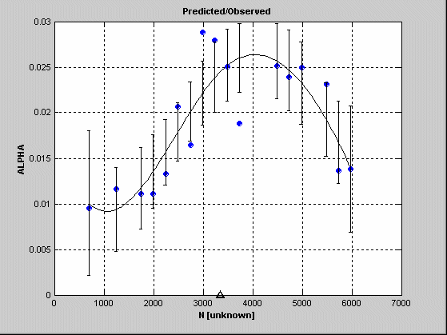
You can fit more complicated curves using splines, so they can be useful for the factor you expect to behave in the most complex way. This allows you to model detailed fluctuations in the response for one factor, while simpler models are sufficient to describe the other factors.
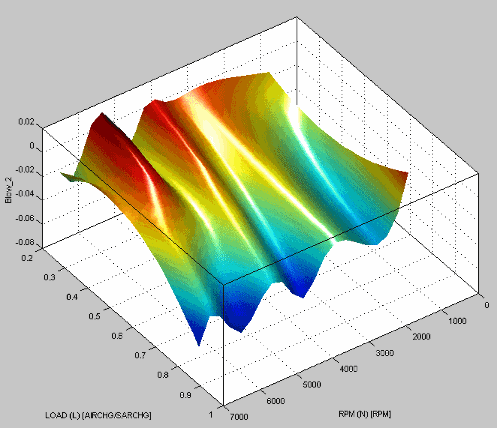
The following example clearly shows that the response (Blow_2
in this case) is quadratic in the Load (L) axis and much more
complex in the RPM (N) axis.
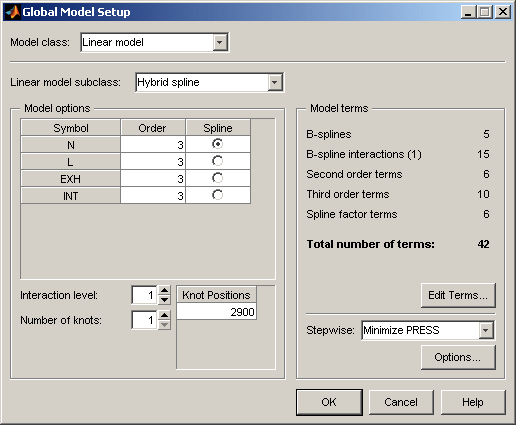
You can choose the order of the polynomial for each factor and the factor to fit the spline to. The maximum order for each factor is cubic. Use the radio buttons to select which factor is modeled with a spline. Select the order for each factor in the edit boxes.
The following example shows the options available for the Hybrid Spline linear model subclass.
See also Local Model Class: Polynomials and Polynomial Splines.
For hybrid splines, the interaction function is different to polynomials: it refers only to cross-term interactions between the spline term and the other variables. For example, at interaction order 0, raw spline terms only; interaction 1, raw terms, and the spline terms x the first-order terms; interaction 2, includes spline terms x the second-order terms.
Global Model Class: Gaussian Process Model
Gaussian process models (GPM) are popular non-parametric regression models used in model-based calibration. These models can usually produce a good fit without needing to tune lots of parameters.
Settings:
Kernel function
Explicit basis function
If you want to try all kernels and basis function options, use the Gaussian Process model template to build a selection of Gaussian process models. Click Create Alternatives in the Common Tasks pane, and see Gaussian Process Template.
For large data sets (>2000 points), Gaussian process models use the default large data settings from Statistics and Machine Learning Toolbox™.
If you have a large data set (>2000 observations), in the Model Setup dialog box you can try the large data fit options to see if other sparse methods result in better fits.
Select the Show large data fit options check box. This displays further options that can be helpful for larger data sets.
To apply these options when fitting, edit the Threshold value to less than the number of observations in your data set.
Gaussian process models do not support the AICc selection criteria or MLE.
Global Model Class: Radial Basis Function
Several radial basis functions (RBFs) are available in MBC. They are all radially symmetrical functions that can be visualized as mapping a flexible surface across a selection of hills or bowls, which can be circular or elliptical.
Networks of RBFs can model a wide variety of surfaces. You can optimize on the number of centers and their position, height, and width. You can have different widths of centers in different factors. RBFs can be useful for investigating the shapes of surfaces when system knowledge is low. Combining several RBFs allows complicated surfaces to be modeled with relatively few parameters.
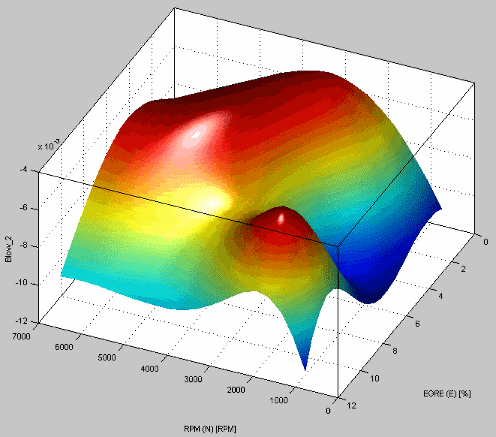
The following example shows a surface of an RBF model.
There is a detailed user guide for modeling using RBFs in Radial Basis Functions for Model Building.
The statistical basis for each setting in the RBF global models is explained in detail in Radial Basis Functions for Model Building.
The following example illustrates the basic RBF settings available.
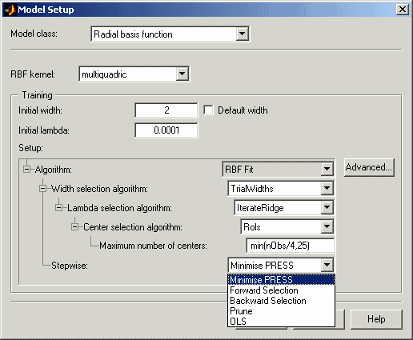
You can use the drop-down menus to set RBF kernel type, initial width and lambda, width, lambda, and center selection algorithm and maximum number of centers. After you have fitted a model once to get some idea of what to expect, you can try different maximum numbers of centers as a useful method for homing in on a good fit. There are more options for fine-tuning in the Advanced options dialog box, but you can use the main controls from here to narrow down the search for the best model.
For most algorithms the Initial width is a single value.
However, for WidPerDim (available in the Width
selection algorithm pull-down), you can specify a vector of widths to
use as starting widths. WidPerDim produces elliptical basis
functions that can have a different width in each factor direction. If supplying a
vector of widths, there should be the same number as the number of global variables, and
they must be in the same order as specified in the test plan. If you provide a single
width, then all dimensions start off from the same initial width, but are likely to move
from there to a vector of widths during model fitting.
You can use the last drop-down menu to choose to run Stepwise at the end of the center/width selection algorithm to remove less useful model terms, Ordinary Least Squares (OLS), or the Prune algorithm to home in on the best number of centers (using your choice of the Summary Statistics as selection criteria).
Of you choose Prune, there are further settings you need which can
be found by clicking Advanced. This opens the Radial Basis
Function Options dialog box.
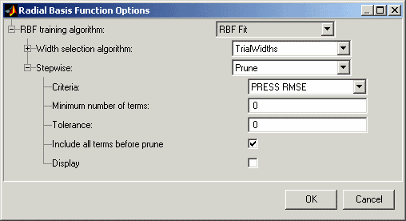
All the settings under Width selection algorithm are for fine-tuning the RBF model. See Radial Basis Functions for Model Building for guidelines and details on specific parameters.
The options in the Stepwise drop-down menu are the same as the main Model Setup dialog box — Min. PRESS, Forward, Backward, Prune, and OLS (Ordinary Least Squares). If you choose Prune, there are more options. Choose one of the Summary Statistics as selection criteria for the Prune algorithm. All the Summary Statistics options are available as criteria, and do not depend on your choices of these statistics in the Summary Statistics dialog box. See Summary Statistics for more information.
We recommend that you select the check box to Include all terms before prune (otherwise the current number of terms is used at the start). You can choose a Minimum number of terms, and the Tolerance you set determines how far from this number of terms the algorithm can go — within the limits of the tolerance, the algorithm searches for fewer terms that reduce the value of your selection criteria.
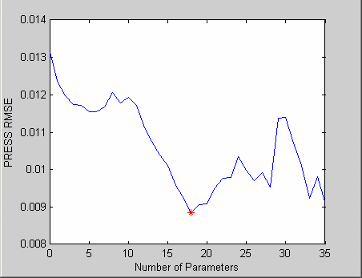
If you select the Display check box a figure appears illustrating the Prune process, like the example shown following, plotting the number of parameters against the selection criteria, in this case PRESS RMSE. You can use this information to determine if you need to change the minimum number of terms and the tolerance and refit to avoid a local minimum.
Note
Once you have a global model, you can use the RBF template in the Create Alternative Models to Compare to build several radial basis function models with varying maximum numbers of centers and/or different kernels.
Global Model Class: Hybrid RBF
This option combines an RBF model with a linear model.
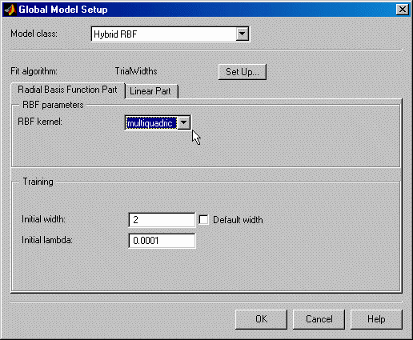
The RBF kernel drop-down menu offers the same options as for normal RBF.
The Linear Part tab contains the same options as the other global linear models; see Global Linear Models: Polynomials and Hybrid Splines.
See Hybrid Radial Basis Functions.
Click Set Up to reach the Hybrid RBF Options dialog box where you can change all the settings for the RBF part of the model. Here you can also choose to run Stepwise, OLS, or Prune. These settings are the same as the Radial Basis Functions Options dialog box, see Global Model Class: Radial Basis Function for details.
See also Radial Basis Functions for Model Building for a detailed guide to the use of all the available RBFs.
Global Model Class: Interpolating RBF
The Interpolating RBF model type fits an interpolating surface that passes through every data point. Each point is used as a radial basis function center and the toolbox interpolates RBFs between all those centers. This model type is also used by the Boundary Editor for creating boundary models.
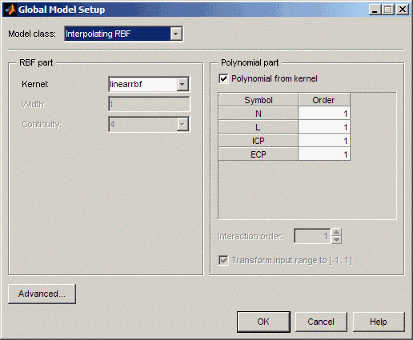
The Kernel drop-down menu offers the same options as for normal RBF. The Width and Continuity parameters are only enabled for specific kernels.
The Polynomial Part tab contains the same options as the other global linear models (order and interaction); you cannot edit them unless you clear the check box to create the Polynomial from kernel. See Global Linear Models: Polynomials and Hybrid Splines.
You can click Advanced to reach more interpolating RBF model
settings. You can leave the defaults unless you have a large data set (several thousand
points). With large data sets, you can improve the speed and robustness of fitting if
you try a different Algorithm setting, such as
GMRES, first and then vary the tolerance and number of iterations.
The Algorithm setting specifies which linear solver to use in
solving the linear system of equations for the interpolation.
Global Model Class: Multiple Linear Models
The following example shows the defaults for multiple linear models. You can add linear models (as seen in the single linear model settings).
This is primarily for designing experiments using optimal designs. If you have no idea what model you are going to fit, you would choose a space-filling design. However, if you have some idea what to expect, but are not sure exactly which model to use, you can specify several possible models here. The Design Editor can average optimality across each model.
For example, if you expect a quadratic and cubic for two factors but are unsure about a third, you can enter several alternative polynomials here. You can change the weighting of each model as you want (for example, 0.5 each for two models you think equally likely). The optimization process in the Design Editor uses the weighting.
The model that appears in the model tree is the one you select, listed as Primary model. Click the model in the list, then click Use Selected. The Primary model changes to the desired model. If you do not select a primary model, the default is the first in the list.
When the model has been fitted, you can view the primary model at the global node. To
compare the fit of all the alternatives, click Create
Alternatives in the toolbar, select Multiple Linear
Models in the dialog box, and click OK. One of each
model is then built as a selection of child nodes.
See also Polynomials, and Edit Point-by-Point Model Types.
Global Model Class: Free Knot Spline
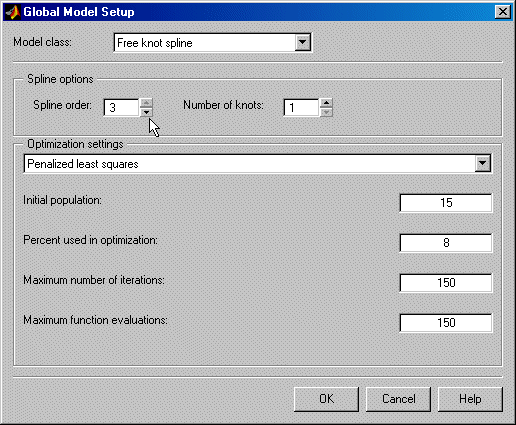
This option is only available for global (and local) models with only one input factor. See also Hybrid Splines for a description of splines. The major difference is that you choose the position of the knots for hybrid splines; here the optimal knot positions are calculated as part of the fitting routine.
You can set the number of knots and the spline order can be between one and three.
There are three different algorithms under Optimization
settings: Penalized least squares,
Genetic algorithm, and Constrained least
squares.
For all three methods, you can set the Initial population. This is the number of initial guesses at the knot positions. The other settings put limits on how long the optimization takes.
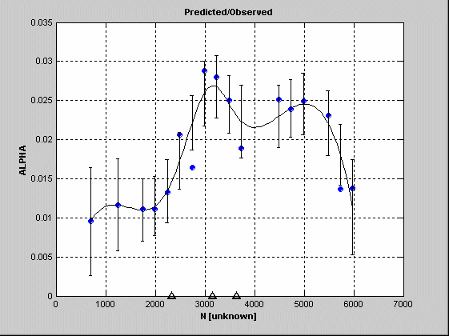
The following example shows a free knot spline model with three knots. The position
of the knots is marked on the N axis.
See also the local models involving splines:
Global Model Class: Neural Network
Neural network models require the Deep Learning Toolbox™ product. If any of your global models are neural nets, you cannot use MLE (maximum likelihood estimation) for your two-stage model.
Neural nets contain no preconceptions of the model shape, so they are ideal for cases with low system knowledge. They are useful for functional prediction and system modeling where the physical processes are not understood or are highly complex.
The disadvantage of neural nets is that they require much data to give good confidence in the results, so they are not suitable for small data sets. Also, with higher numbers of inputs, the number of connections and hence the complexity increase rapidly.
MBC provides an interface to some of the neural network capability of the Deep Learning Toolbox product. Therefore these functions are only available if the Deep Learning Toolbox product is installed.
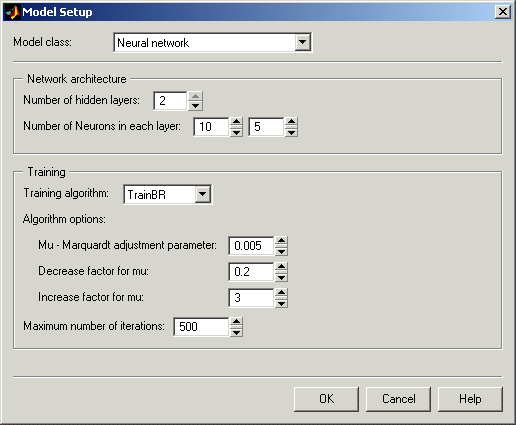
For help on the neural net models implemented in the Model-Based Calibration Toolbox™ product, see the Deep Learning Toolbox documentation. At the MATLAB® command-line, enter
>>doc nnet
The training algorithms available in the Model-Based Calibration Toolbox product are traingdm, trainlm, trainbr.
These algorithms are a subset of the ones available in the Deep Learning Toolbox product. (The names indicate the type: gradient with momentum, named after the two authors, and Bayesian reduction). Neural networks are inspired by biology, and attempt to emulate learning processes in the brain.
Global Model Class: User-Defined and Transient Models
These models can be local, global, or one-stage models. For set up information see Local Model Class: User-Defined Models and Local Model Class: Transient Models.

