Determine Default Pool Size for Local Parallel Environments
R2026bIf you have Parallel Computing Toolbox™, you can start a parallel pool of workers to take advantage of the cores in your multicore machine.
A parallel pool is a group of MATLAB® workers on which you can run code. By default, each worker is limited to a single computational thread. To learn more about parallel pools, see Run Code on Parallel Pools.
Parallel Computing Toolbox provides the parallel environment profiles
Processes and Threads for running
parallel code on your local desktop machine. The NumWorkers
property determines the maximum number of workers that the Processes and Threads
profiles use. By default, NumWorkers is equal to the number of
high-performance physical CPU cores on your machine.
Physical Cores and Logical Cores
A physical CPU core is a hardware processing unit with its own floating-point unit
(FPU), capable of performing calculations and running instructions. Technologies
like simultaneous multithreading (SMT) [1] or
Intel® Hyper-Threading Technology [2] allow a
single physical core to appear as multiple logical cores to the operating system.
However, logical cores often share FPUs, which can cause performance bottlenecks in
compute-bound tasks. The default value of NumWorkers is based
on the number of physical cores, not logical cores. This setting provides each
worker with exclusive access to an FPU.
Machines with Performance and Efficiency Cores
Some CPUs have both Performance-cores (P-cores) and
Efficient-cores (E-cores)
[3]. P-cores have
similar computational capability to traditional physical cores, while E-cores are
optimized for power efficiency and less intensive tasks. Workers can use both types
of cores, relying on the operating system to schedule tasks across the available
cores. However, for parallel pools, a best practice is to start with a number of
workers equal to the number of physical P-cores. So, if your CPU has both P- and
E-cores, the default value of NumWorkers is equal to the number
of physical P-cores only.
Before R2024a: The default number of workers is equal to the total number of physical cores, including both P- and E-cores.
View Additional Pool Size Details in Cluster Profile Manager
Since R2026a
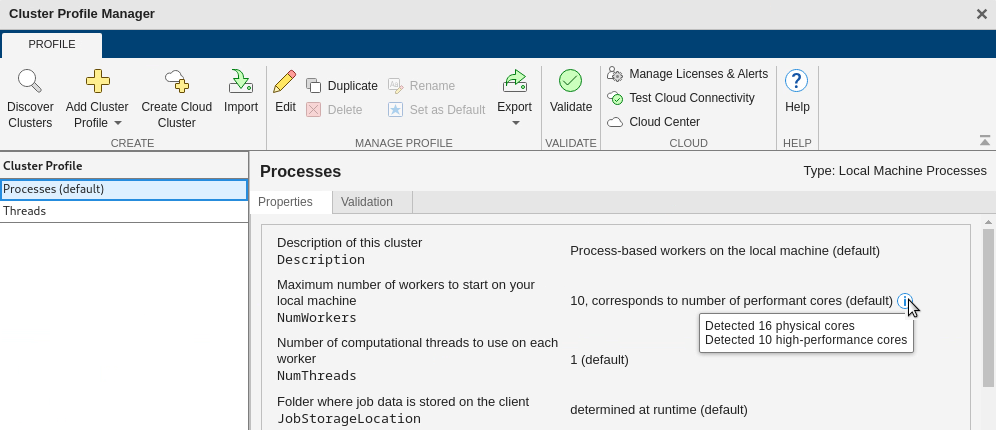
The Cluster Profile Manager displays how MATLAB determines the default value of the NumWorkers
property for the Processes and Threads profiles. For example, in the figure below,
the NumWorkers property displays: 10, corresponds to
number of performant cores (default). This means MATLAB detects 10 high-performance cores and uses those 10 as the default
value for NumWorkers.
You can also view the total number of available physical cores, including the
number of P-cores if applicable. To view this information, point to the information
button  next to the
 NumWorkers property value.
If you change the NumWorkers value, the Cluster Profile
Manager displays only the modified property value, without the explanatory text or
the "(default)" label. The information icon and tooltip are
also not shown. If you restore NumWorkers to its default value,
the Cluster Profile Manager returns to displaying the default
NumWorkers value, explanatory text, and the information
button.
Edit Maximum Number of Workers
You can override the default NumWorkers property value in the
Processes profile programmatically or using the Cluster Profile Manager. You can
change the NumWorkers property value in the Threads profile
only by using the Cluster Profile Manager.
As a best practice, start with NumWorkers equal to the number
of physical cores or P-cores on your machine. Then adjust the value gradually while
monitoring performance and stability.
You might further improve performance by including E-cores, but scaling behavior can vary. Compute-bound mathematical operations typically complete faster and more efficiently when they run exclusively on physical cores or physical P-cores where available.
If your code is not computationally intensive, for example, code that is input and output (I/O) intensive, then you can consider using up to two workers per physical core.
Note
Ensure that your machine has sufficient memory and disk space to support the number of workers you configure. To learn about disk and memory requirements for Parallel Computing Toolbox, see Product Requirements & Platform Availability for Parallel Computing Toolbox.
Using the Cluster Profile Manager
Open the Cluster Profile Manager. In the Parallel panel , to the right of the cluster profile that you want to edit, click the More Actions button , then click View Profile (since R2026b).
Alternatively, on the Home tab, in the Environment section, select Parallel > Create and Manage Clusters.
In the Cluster Profile tab, select Processes or Threads.
Modify the
NumWorkersprofile property. In the Manage Profile section, click Edit. Enter the new value in theNumWorkerstext box.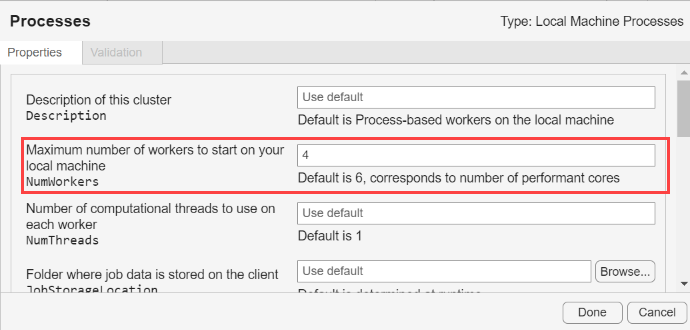
.
Programmatically
You can programmatically change the NumWorkers property
value in the Processes profile using the parcluster and saveProfile functions.
Programmatically changing the NumWorkers property value in
the Threads profile is not supported.
Create a cluster object in your workspace using the Processes profile.
c = parcluster("Processes")Before R2022b:
c = parcluster("local")Specify a new value for the
NumWorkersproperty.c.NumWorkers = 10;
Save the modified profile of the cluster by using the
saveProfilefunction.saveProfile(c)
The next time you start a pool using the updated profile, MATLAB attempts to create a pool with the number of workers specified in
the NumWorkers property.
References
[1] Wikipedia. “Simultaneous multithreading.” August 4, 2025. https://wikipedia.org/w/index.php?title=Simultaneous_multithreading&oldid=1304464531.
[2] Wikipedia. “Hyper-threading.” August 4, 2025. https://wikipedia.org/w/index.php?title=Hyper-threading&oldid=1304462351.
[3] Intel “How Intel® Core™ Processors Work” August 4, 2025. https://www.intel.com/content/www/us/en/gaming/resources/how-hybrid-design-works.html

