Compilation toolchain (Testing)
R2026bSpecify the compiler that you use to build your source code and tests for dynamic testing
Description
This option applies to C/C++ testing with Polyspace®
Test™. To specify a compilation toolchain for static analysis, use the option Compilation toolchain (Static Analysis) (Polyspace Bug Finder).
Specify the compiler that you use to build your source code and tests for dynamic testing. Polyspace invokes your specified compiler on your source code and tests to create a test executable.
Set Option
Set the option using one of these methods:
Polyspace Platform user interface (desktop products only): In your project configuration, on the Build tab, select the Target and Compiler node and then select a value for this option.
Command line: Use the option
-toolchain. See Command-Line Information.Python® API: Set the
Toolchainproperty in the build configuration. Seepolyspace.project.BuildConfiguration.TOML configuration file (
.toml.pscfg) — Use the keyNamein the[Toolchain]table. For example:[Toolchain] Name = "GNU GCC"
Why Use This Option
When you build a Polyspace Platform project, the build happens in two steps. Each step uses a separate compiler specification.
The source code and tests are compiled into a test executable. You can compile the code and tests for on-host or on-target execution. The compiler being used for this step will be henceforth referred to as the user compiler. You specify the user compiler through this option.
A master executable is created from internally generated code to dispatch instructions to the test executable. This compilation step always happens on the host. The compiler being used for this step will be henceforth referred to as the host compiler. You specify the host compiler in your settings.
You can specify the same compiler as user compiler and host compiler. For more information, see the Settings section below or see Specify C/C++ Compilers for Testing in Polyspace Platform User Interface.
polyspace-configureWhen you create a project using the polyspace-configure command, the testing toolchain is automatically selected based on the compiler invoked in your build command. The toolchain is selected using this priority order:
Host toolchain — If the compiler matches a host toolchain available on the current machine.
Registered toolchain — If the compiler matches a custom toolchain that was registered previously.
Template toolchain — If the compiler matches a predefined template toolchain (for instance, a cross-compiler). When a template toolchain is selected, the toolchain configuration variables are automatically populated with compiler paths from the build command and the Target board name (Testing) is set to
None.
The Compilation toolchain (Static Analysis) (Polyspace Bug Finder) is set to Same as testing toolchain. For more information, see Information Gathered from Build Systems for Polyspace Analysis and Testing.
Settings
Default: Detect automatically
Host Toolchains
Detect automaticallyPolyspace uses the host compiler that you specify in your settings as the user compiler.
If you have a supported host compiler installed, the compiler is automatically detected when you open the Polyspace Platform user interface and set in your settings. When you create a new project in the user interface, this compiler is also selected as the user compiler for parsing source code and building the project. To change the host compiler:
On the Polyspace Platform toolstrip, select Settings.
On the Testing and Profiling tab, select a compiler for the option C/C++ Host Compiler.
If you do not see a compiler in this dropdown, it indicates that a supported compiler was not detected. See Supported Host Compilers for installing and configuring a supported host compiler.
Microsoft Visual C++ 2019 v16.0 – CMake/Ninja (64-bit Windows),MinGW64 – CMake/Ninja (64-bit Windows),GNU gcc/g++ – CMake/gmake (64-bit Linux), ...Instead of using the same compiler as the host and user compiler using
Detect automatically, you can explicitly select a user compiler from the list of installed compilers.By default, this list shows installed compilers that are supported for use as host compilers.
Template Toolchains – GCC, Clang, and Visual Studio Compilers
Template toolchains are predefined toolchains that require only minimal configuration before they can be used for project build. When you select a template toolchain, you must configure it by providing the paths to the compiler executables on your system. For information on how to configure these toolchains, including the required environment variables, see Configure Template Toolchains for Testing.
The following toolchains correspond to standard compilers — GCC, Clang, and Microsoft®
Visual Studio®. These toolchains also work for GCC-based or Clang-based cross-compilers that use variant executable names such as arm-none-eabi-gcc or qcc, since you specify the full path to each executable.
gnuProject build uses a GCC-based toolchain that requires you to specify paths to the C compiler, C++ compiler, linker, archiver, and assembler executables. This toolchain supports GCC-based compilers with different executable names, such as
gcc,arm-none-eabi-gcc, orqcc.clangProject build uses a Clang-based toolchain that requires you to specify paths to the C compiler, C++ compiler, linker, archiver, and assembler executables.
visualProject build uses a Microsoft Visual Studio toolchain that requires a setup command (typically
vcvarsall.bat) and a compiler executable name. Visual-based toolchains are supported only on Windows®.
Template Toolchains – Specialized Cross-Compilers
The following template toolchains correspond to specialized cross-compilers. To configure these toolchains, you have to specify the path to a folder containing the compiler and other executables. You can also optionally provide paths to scripts that must run prior to project build, and any other options required for compilation. For detailed configuration steps and the list of environment variables for each toolchain type, see Configure Template Toolchains for Testing.
If your cross-compiler is GCC-based or Clang-based (for example, arm-none-eabi-gcc), use the gnu or clang template toolchain instead.
Selecting a template toolchain does not automatically change the Target board name (Testing). If you select a cross-compiler template toolchain and want to run tests on target, you must set the board separately.
armccProject build uses the ARM® v5 compiler. The supported target is
arm.armclangProject build uses the ARM v6 compiler. The supported targets are
armandarm64.cosmicProject build uses the Cosmic compiler. The supported target is
s12z.codewarriorProject build uses the NXP CodeWarrior® compiler. The supported targets are
s12zandpowerpc.diabProject build uses the Wind River® Diab compiler. The supported targets are
arm,powerpc,powerpc64,coldfire,i386,mips,mcore,rh850,superh, andtricore.greenhillsProject build uses a Green Hills® compiler. The supported targets are
arm,arm64,powerpc,powerpc64,tricore,rh850,i386, andx86_64.iar-ewProject build uses the IAR Embedded Workbench compiler. The supported targets are
arm,avr, andrl78.intelProject build uses the Intel® C++ Compiler Classic (icc/icl) compiler. The supported target is
x86_64.microchipProject build uses the MPLAB XC8 C compiler. The supported target is
pic.renesasProject build uses the Renesas® compiler. The supported targets are
rl78,rx, andsh.taskingProject build uses the TASKING compiler. The supported targets are
arm,c166,rh850, andtricore.tiProject build uses the Texas Instruments® compiler. The supported targets are
c28x,arm, andc6000.
Custom Toolchains
You can add more toolchains using one of these methods:
Create a toolchain in the Polyspace Platform user interface by specifying build tool paths, directives, and other information in an app. For more information, see Toolchain.
Note that you cannot create a full execution target in the toolchain app. Using this app, you can only create a toolchain to associate with host execution (that is, with
Host Computeras board and processor), or link it to a board that you have registered separately using a target registration file.Create and register a target using a custom target registration file. The target registration file defines the toolchain that you want to use. For more information on:
How to register a target using a custom target registration file, see Run C/C++ Tests on Target in Polyspace Platform User Interface.
How to define a toolchain in a custom target registration file, see:
Create Target Registration Packages for C/C++ Test Execution on Targets for a brief overview of a custom target registration file.
Set Up PIL Connectivity by Using Target Framework (Embedded Coder) for the full description of a custom target registration file.
target.create(Embedded Coder) to get started with creating a target.target.Toolchain(Embedded Coder) to add a toolchain description to the custom target registration file. A compiler can be specified as part of the toolchain description.
Dependencies
The list of available toolchains for this option depends on your selection for the option Target board name (Testing):
If you select
Host Computeras your target board, you only see toolchains associated with the host compilers that you have installed. For instance, if your host compiler is GCC on Linux®, you see these toolchains:GNU gcc/g++ | CMake/gmake (64-bit Linux)GNU gcc/g++ | CMake/Ninja (64-bit Linux)GNU gcc/g++ | gmake (64-bit Linux)
If you register a custom target where you have associated a host processor with a toolchain, this toolchain also appears in the list. A host processor includes the processor
Host Computerand someIntelandAMDprocessors. For more information, seeProcessor.If you set your target board to
Noneyou see all toolchains: ones associated with the installed host compilers and ones that you have specified in your target registration files.If you select a specific target board, you see all toolchains. However, the toolchains that are explicitly associated with the target board in the target registration file appear first and are shown separated from the remaining toolchains.
Tips
If you select a template toolchain, you must configure it by providing the paths to the compiler executables on your system before you can parse or build. If the required paths or environment variables are not set, you get an error. For more information on configuring template toolchains and troubleshooting errors, see Configure Template Toolchains for Testing.
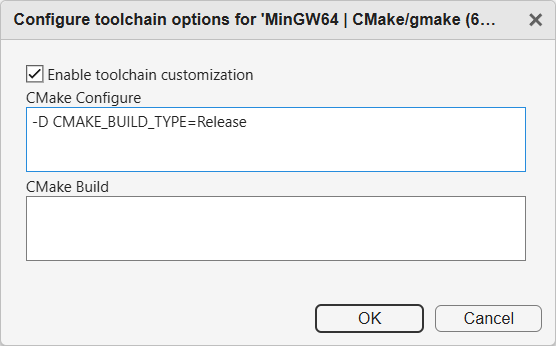
Optionally, after configuring your toolchain, you can customize compiler flags, build flags, and other such flags to emulate your command-line build. Instead of creating a new target with the additional flags and registering the new target, you can add these flags in your project configuration.
To add custom toolchain flags:
Open your project configuration.
On the Build tab, select your toolchain in the dropdown for Compilation toolchain (Testing). Click Edit toolchain options
 next to that option.
Select Enable toolchain customization. You can see the default command-line flags being used. Modify the flags as necessary to emulate your command-line build.
Debugging of tests on host requires that your host compiler and user compiler are the same. For more information, see Compilers and Debugging.
The internals of a template toolchain cannot be edited. To edit the internals of a template toolchain, duplicate it from the Manage Toolchains window to create an editable copy. For more information, see Toolchain.
Command-Line Information
Parameter: -toolchain |
| Default: N/A |
Example:
polyspace-test -build -project |
The option -toolchain overrides the existing compilation toolchain defined in the project myProject.psprjx. If you do not specify this option, Polyspace
Test uses the compilation toolchain specified in the project.

