Log Data Stores
R2026bA data store is a repository to which you can write data and from which you can read data throughout a model hierarchy without connecting a signal directly to the data store. You can log the values of a local or global data store data variable for all the steps in a simulation. Two common uses of data store logging are:
Model debugging — View the order of all data store writes. See Order Data Store Access.
Confirming a model modification — Use the logged data to establish a baseline for comparing results to identify the impact of changes to a model.
For more information about data stores, see Data Store Basics.
You can log data stores that contain data of any fixed dimension or complexity of these data types:
All built-in data types
Enumerated data types
Fixed-point data types
Nonvirtual buses (since R2026a)
Logging data stores that contain other custom data types, including virtual buses, is not supported.
You can log data store data in normal, accelerator, and rapid accelerator mode simulations (since R2024b). View and access logged data in the MATLAB® workspace and the Simulation Data Inspector.
Note
During accelerator or rapid accelerator mode simulations, you cannot log data from inside a MATLAB System Block or Stateflow block to a Data Store Memory block.
Create Data Stores
To create a data store, use a Data Store Memory block or a
Simulink.Signal object. The block
or signal object represents the data store and specifies its properties.
A Data Store Memory block defines a local data store. For more information, see Data Stores with Data Store Memory Blocks.
A
Simulink.Signalobject can act as a local or global data store. See Data Stores with Signal Objects.
Log Data Stores Created with Data Store Memory Block
To log a local data store that you create with a Data Store Memory block:
Double-click the Data Store Memory block to open the Block Parameters dialog box.
In the Logging tab, select Log data store data.
Optionally, you can configure additional logging characteristics such as the logging name or the maximum number of data points to log.
To enable data store logging, select Model Settings > Data Import/Export > Data stores.
Simulate the model. Data stores are saved to the workspace using the default variable name
dmsout. Logged data stores stream to the Simulation Data Inspector during simulation. For more information about accessing saved data stores, see Access Logged Data Store Data.
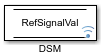
When you enable data store logging for a model and configure a local data store to log data, the Data Store Memory block displays a blue signal icon. If you configure a local data store to log data, but do not enable data store logging for the model, then the icon is gray.
Log Data Stores Created with Simulink.Signal Object
To log a local or global data store that you create with a
Simulink.Signal object:
Create a
Simulink.Signalobject in a workspace that is visible to every component that needs to access the data store, as described in Data Stores with Signal Objects.In the Block Parameters dialog box of the Data Store Read and Data Store Write blocks that you want to write to and read from, set the Data store name parameter to use the name of the
Simulink.Signalobject.At the MATLAB command line, set the
DataLoggingproperty to1.DataLoggingis a property of theLoggingInfoproperty ofSimulink.Signal.For example, if you use a
Simulink.Signalobject namedDataStoreSignalObjectto create a data store, use this command.DataStoreSignalObject.LoggingInfo.DataLogging = 1
Optionally, limit the amount of data logged using the
Decimation,LimitDataPoints, andMaxPointsproperties of theLoggingInfoproperty of theSimulink.Signalobject.Select Model Configuration Parameters > Data Import/Export > Data stores to enable data store logging for the model.
Simulate the model. During simulation, data stores are logged to the workspace using the default variable name
dsmout.
For an example of logging a global data store, see Use Data Stores Across Multiple Models.
Access Logged Data Store Data
How data stores are logged to the workspace depends on whether the model is
configured to return all simulation data in a single Simulink.SimulationOutput.
When a model is configured to return all simulation data in a single
SimulationOutputobject, which is the default, all data store data is stored as a property of theSimulationOutputobject in aSimulink.SimulationData.Datasetobject with the default variable namedsmout.When a model is not configured to return a single simulation output, all logged data stores are returned to the workspace in a
Simulink.SimulationData.Datasetobject with the default variable namedsmout.
For example, to access logged data stores when a model is configured
to return all simulation data in a single SimulationOutput object,
use dot notation.
dsmData = out.dsmout
dsmData =

Simulink.SimulationData.Dataset 'dsmout' with 2 elements

                                  Name          BlockPath
                                  ____________  ________________________________________
    1  [1x1 DataStoreMemory]      ErrorCond     ''
    2  [1x1 DataStoreMemory]      RefSignalVal  ...dlref_dsm/A|sldemo_mdlref_dsm_bot/DSM

  - Use braces { } to access, modify, or add elements using index.
To change the variable name for logged data stores, in the Configuration Parameters dialog box, in the Data Import/Export pane, specify the variable name in the Data stores text box.
Inside the Dataset object, each data store is saved as a Simulink.SimulationData.DataStoreMemory object. To access a specific
logged data store by name or index, use get. For example, access the
logged data store named RefSignalVal in the
dsmout dataset.
refSigDSM = get(dsmData,"RefSignalVal")refSigDSM =
Simulink.SimulationData.DataStoreMemory
Package: Simulink.SimulationData
Properties:
Name: 'RefSignalVal'
BlockPath: [1×1 Simulink.SimulationData.BlockPath]
Scope: 'local'
DSMWriterBlockPaths: [1×2 Simulink.SimulationData.BlockPath]
DSMWriters: [101×1 uint32]
Values: [1×1 timeseries]
Methods, SuperclassesThe Simulink.SimulationData.DataStoreMemory object contains logged
data store data and metadata. To access the timeseries object
containing the logged time and data, use the Values property.
You can also use the DataStoreMemory object to access metadata for
the logged data store, such as the block paths of the blocks that write to the data
store and which writer performed each write.
See Also
Blocks
Objects
Simulink.DataStore|Simulink.SimulationData.DataStoreMemory|Simulink.SimulationData.BlockPath|Simulink.SimulationData.Dataset|Simulink.SimulationOutput

