Author and Extend Functions for Software Architectures
R2026bA function is an entry-point that can be defined in a software component. For inline components, you can author functions from the architecture level to schedule and customize functionality of each software component for simulation and code generation. You can author, visualize, and schedule the order of component functions on the Functions tab of the Functions Editor. You can then implement Simulink® behaviors for your authored functions.
For reference components, the functions are automatically created from the referenced behavior Simulink models. For information, see Simulate and Deploy Software Architectures.
This topic describes how to:
Author and visualize functions.
Add functions to function groups.
Implement Simulink behaviors for functions.
Add custom properties to functions using stereotypes.
Import and export functions.
For information about initialize functions, see Schedule Component Initialization in Software Architectures.
Author Functions and Create Function Groups Using Functions Editor
You can apply stereotypes to functions in software architectures, edit sample times, and specify the function period using the Functions Editor.
The Functions Editor is visible only when you model software architectures. To open the Functions Editor, in the toolstrip on the Modeling tab, click Functions Editor.
On the Functions tab of the Functions Editor, you can author, view, and schedule the execution order of functions of components in your model.

When you open the Functions Editor, the model automatically updates, and the table displays the functions of components in your model.
If the software architecture model changes, the Update Model button becomes yellow to signal that an update is required to refresh your functions tables.
To change the order of component functions, use the up and down arrows or drag functions to sort them.
If your software architecture model contains two or more functions of the same period, you can group functions and schedule groups of functions which propagates throughout the model hierarchy.
The Functions Editor visualizes the functions created at the architecture level and the functions implemented in a Simulink model that is referenced by a component.
Author Component Functions
To add functions to software components within your model:
Click the Add function button and select a component as the parent of the function.

Modify the execution order of functions by using the up and down arrows or clicking and dragging functions.

Change the name of functions by double-clicking the function name in the functions table.

Edit sample times of functions by specifying their period in the table.

You can order functions automatically based on their data dependencies. This functionality is available for functions from behavior models. To enable automatic sorting, select the Order functions by dependency check box or enable
OrderFunctionsByDependencyon the architecture model.set_param('MySoftwareArchitecture','OrderFunctionsByDependency','on')
The default value for the parameter is
off.
Alternatively, you can also author functions for your components using the
addFunction function.
Group Functions
Since R2026a
You can group functions within your software architecture model by period. When you create a function group, the execution order of functions propagate throughout the model hierarchy.
To create a function group, use one of these methods:
To automatically group functions by period, in the Functions Editor, click Group functions by period .
To manually select functions to add to a new function group, in the Functions Editor, hold Ctrl or Shift and click functions of the same period, then click Group functions
 .
.To programmatically create a function group, use the
createFunctionGroupfunction of thesystemcomposer.arch.Architectureobject.To interactively create a function group, in the Functions Editor, click and drag a function onto another function of the same period.
Note
When you simulate a software architecture model with function groups, the execution order will be honored. In code generation, each function group is a new entry-point containing the component functions within the function group.
Implement Behavior of Functions Using Simulink
You can author functions from the architecture level, and then implement behaviors for your functions by creating Simulink behavior models.
To define and implement the behavior of your functions using the toolstrip:
Under the Modeling tab, select Component > Create Simulink Behavior.
Select the Type of the Simulink behavior as
Model Reference: Rate-BasedorModel Reference: Export-Function.
To programmatically create a Simulink behavior model and link the model to a software component, you can use the
createSimulinkBehaviorfunction. The function creates a new rate-based or export-function behavior and links the software component to the new model.createSimulinkBehavior(component,"mySoftwareModel",BehaviorType="RateBased")
Define and Apply Stereotypes to Functions
Stereotypes provide a mechanism to extend the core language elements and add domain-specific metadata. To define stereotypes and their properties for functions, use the Profile Editor. Create a profile, add a stereotype that applies to functions, and add a common set of properties to the stereotype. For more information, see Define and Style Stereotypes in Profiles.

You can apply stereotypes to component functions and function groups to automatically add the metadata defined in the stereotype to functions in your model. Use the Functions Editor to select functions in your software component, apply stereotypes, view the stereotypes applied to your functions, and edit the stereotype property values. For more information about applying stereotypes, see Apply Stereotypes to Extend Model Elements.
Visualize Functions Using Class Diagram Views
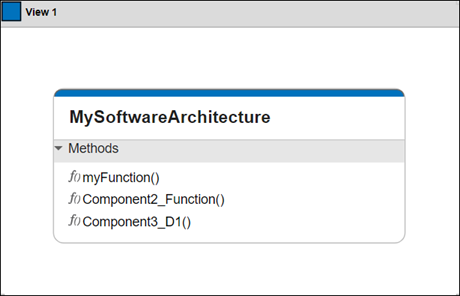
Class diagrams are graphical representations of software architecture model structures. Each architecture component is represented as a class box with methods and properties listed. The root architecture is also represented as a class box that lists all methods, stereotypes, and properties.
All functions within your software architecture model are displayed in the class diagram view. For more information, see Class Diagram View of Software Architectures.
Import and Export Functions of Software Architectures
You can import and export functions of your software architectures.
Use the
systemcomposer.exportModelfunction to output afunctionsfield that contains a table with information such as the name, execution order, parent component ID, period, and stereotypes of a function.This example shows how to export a software architecture model
mySoftwareArchitecture. TheexportedSetoutput has thefunctionsfield that contains the table with function information.exportedSet = systemcomposer.exportModel('MySoftwareArchitecture') exportedSet = struct with fields: components: [4×5 table] ports: [6×4 table] connections: [3×5 table] portInterfaces: [0×9 table] requirementLinks: [0×15 table] domain: 'Software' functions: [3×4 table] >> exportedSet.functions ans = 3×4 table Name ExecutionOrder CompID Period _____________________ ______________ ______ ______ "myFunction" "1" "1" "1" "Component2_Function" "2" "2" "-1" "Component3_D1" "3" "3" "0.2"Use the
systemcomposer.importModelfunction to import a model with functions where theimportStructargument can have afunctionsfield that contains function information.
See Also
Tools
Objects
Functions
addFunction|decreaseExecutionOrder|increaseExecutionOrder|createFunctionGroup|add|ungroup|remove|systemcomposer.importModel|systemcomposer.exportModel

