Contenido principal

Simulation 3D Vehicle with Ground Following

Implement vehicle that follows ground in 3D environment

  • Simulation 3D Vehicle with Ground Following block

Libraries:
Automated Driving Toolbox / Simulation 3D
Vehicle Dynamics Blockset / Vehicle Scenarios / Sim3D / Sim3D Vehicle / Components
Simulink 3D Animation / Simulation 3D / Actors

Description

Note

Simulating models with the Simulation 3D Vehicle with Ground Following block requires Simulink® 3D Animation™.

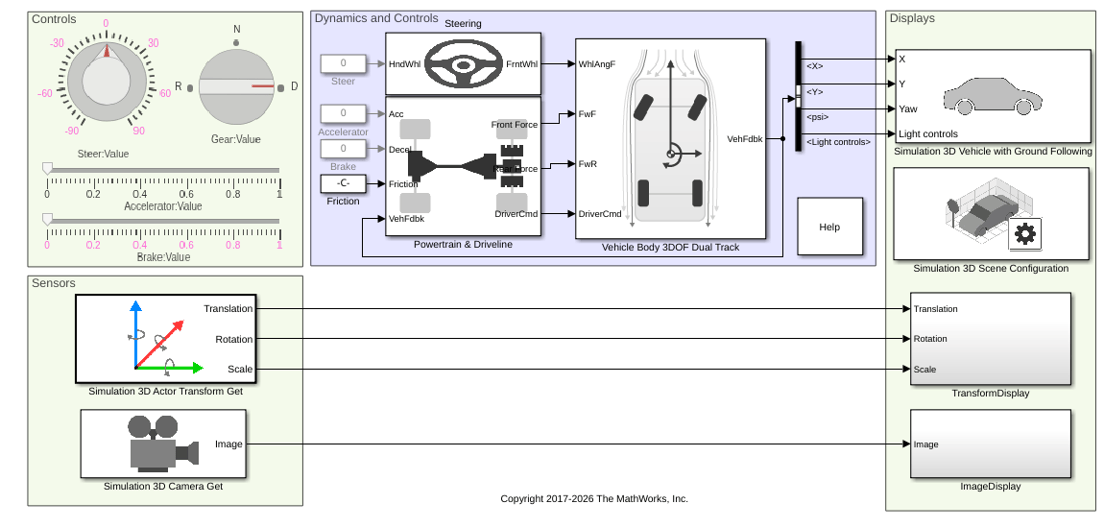
The Simulation 3D Vehicle with Ground Following block implements a vehicle with four wheels in a 3D simulation environment. This environment is rendered using the Unreal Engine® from Epic Games®. The block uses the input (X, Y) position and yaw angle of the vehicle to adjust the elevation, roll angle, and pitch angle of the vehicle so that it follows the ground terrain. The block determines the vehicle velocity and heading and adjusts the steering angle and rotation for each wheel. Use this block for automated driving applications.

To use this block, ensure that the Simulation 3D Scene Configuration block is in your model. If you set the Sample time parameter of the Simulation 3D Vehicle with Ground Following block to -1, the block inherits the sample time specified in the Simulation 3D Scene Configuration block.

The Coordinate system parameter of the block specifies how the actor transformations are applied in the 3D environment. The output of the block also follows the specified coordinate system.

By default, the block input uses the vehicle Z-down right-handed (RH) Cartesian coordinate system defined in SAE J6701. The coordinate system is inertial and initially aligned with the vehicle geometric center:

  • X-axis — Along vehicle longitudinal axis, points forward

  • Y-axis — Along vehicle lateral axis, points to the right

  • Z-axis — Points downward

Tip

The Simulation 3D Vehicle with Ground Following block must execute before the Simulation 3D Scene Configuration block. That way, the Simulation 3D Vehicle with Ground Following block prepares the signal data before the Unreal Engine 3D visualization environment receives it. To check the block execution order, right-click the blocks and then click the Properties button . On the General tab, confirm these Priority settings:

  • Simulation 3D Scene Configuration0

  • Simulation 3D Vehicle with Ground Following-1

For more information about execution order, see Control and Display Execution Order.

You can configure the Simulation 3D Vehicle with Ground Following block to import custom meshes and control vehicle lights.

Examples
Ports

Input

expand all

Longitudinal position of the vehicle along the X-axis of the scene.

Lateral position of the vehicle along the Y-axis of the scene.

Yaw orientation angle of the vehicle along the Z-axis of the scene. .

Light controls input signal, specified as a 1-by-6 Boolean vector. Each element of the vector turns a specific vehicle light on or off, as indicated in this table. A value of 1 turns the light on; a value of 0 turns the light off.

Vector ElementVehicle Light

(1,1)

Headlight high beam

(1,2)

Headlight low beam

(1,3)

Brake

(1,4)

Reverse

(1,5)

Left signal

(1,6)

Right signal

Dependencies

To create this port, on the Light Controls tab, select Enable light controls.

Data Types: Boolean

Parameters

expand all

Vehicle Parameters

Select the type of vehicle. To obtain the dimensions of each vehicle type, see these reference pages:

Dependencies

Selecting Custom enables parameters that allow you to import a custom mesh for your vehicle.

Programmatic Use

To set the block parameter value programmatically, use the set_param function.

To get the block parameter value programmatically, use the get_param function.

Parameter: PassVehMesh
Values: Muscle car (default) | Sedan | Sport utility vehicle | Small pickup truck | Hatchback | Box Truck | Formula student vehicle | Custom
Data Types: character vector

Path to custom mesh.

To create a custom vehicle mesh, see Prepare Custom Vehicle Mesh for the Unreal Editor.

Example: /MathWorksSimulation/Vehicles/Muscle/Meshes/SK_Sedan.SK_Sedan

Dependencies

To enable this parameter, set Type to Custom.

Programmatic Use

To set the block parameter value programmatically, use the set_param function.

To get the block parameter value programmatically, use the get_param function.

Parameter: MeshPath
Values: /MathWorksSimulation/Vehicles/Muscle/Meshes/SK_MuscleCar.SK_MuscleCar (default) | valid path
Data Types: character vector

Track width in custom mesh, in m.

Dependencies

To enable this parameter, set Type to Custom.

Programmatic Use

To set the block parameter value programmatically, use the set_param function.

To get the block parameter value programmatically, use the get_param function.

Parameter: TrackWidth
Values: 1.9 (default) | scalar
Data Types: double

Wheel base in custom mesh, in m.

Dependencies

To enable this parameter, set Type to Custom.

Programmatic Use

To set the block parameter value programmatically, use the set_param function.

To get the block parameter value programmatically, use the get_param function.

Parameter: WheelBase
Values: 3 (default) | scalar
Data Types: double

Wheel radius in custom mesh, in m.

Dependencies

To enable this parameter, set Type to Custom.

Programmatic Use

To set the block parameter value programmatically, use the set_param function.

To get the block parameter value programmatically, use the get_param function.

Parameter: WheelRadius
Values: 0.35 (default) | scalar
Data Types: double

Select the color of the vehicle.

Programmatic Use

To set the block parameter value programmatically, use the set_param function.

To get the block parameter value programmatically, use the get_param function.

Parameter: VehColor
Values: Red (default) | Orange | Yellow | Green | Blue | Black | White | Silver
Data Types: character vector

Specify the coordinate system that the actor uses for translation and rotation in the 3D environment.

  • Default – World coordinate system. Units are in m and rad.

  • MATLAB – MATLAB® coordinate system. Units are in m and rad.

  • ISO8855 – ISO 8855 standard coordinate system. Units are in m and deg.

  • AERO – SAE coordinate system. Units are in m and rad.

  • VRML – X3D ISO standard coordinate system. Units are in m and rad.

  • SAE – SAE coordinate system. Units are in m and rad.

For more details on the different coordinate systems, see Actor Coordinate Systems.

Example: MATLAB

Programmatic Use

To set the block parameter value programmatically, use the set_param function.

To get the block parameter value programmatically, use the get_param function.

Parameter: CoordinateSystem
Values: SAE (default) | Default | AERO | ISO8855 | MATLAB | VRML
Data Types: string

Initial vehicle position along the X-axis, Y-axis, and Z-axis of the scene.

Programmatic Use

To set the block parameter value programmatically, use the set_param function.

To get the block parameter value programmatically, use the get_param function.

Parameter: InitialPos
Values: [0, 0, 0] (default) | vector
Data Types: double

Initial angle of vehicle rotation. The angle of rotation is defined by the roll, pitch, and yaw of the vehicle. The rotation order is Roll, then Pitch, then Yaw. When you update any of the three rotation values and leave others unchanged, the software reapplies all three rotations in the same order.

Programmatic Use

To set the block parameter value programmatically, use the set_param function.

To get the block parameter value programmatically, use the get_param function.

Parameter: InitialRot
Values: [0, 0, 0] (default) | vector
Data Types: double

Name of vehicle. By default, when you use the block in your model, the block sets the Name parameter to SimulinkVehicleX. The value of X depends on the number of Simulation 3D Vehicle with Ground Following blocks that you have in your model.

Programmatic Use

To set the block parameter value programmatically, use the set_param function.

To get the block parameter value programmatically, use the get_param function.

Parameter: ActorName
Values: SimulinkVehicle1 (default) | character vector
Data Types: character vector

Sample time, Ts. The graphics frame rate is the inverse of the sample time.

If you set the sample time to -1, the block uses the sample time specified in the Simulation 3D Scene Configuration block.

Programmatic Use

To set the block parameter value programmatically, use the set_param function.

To get the block parameter value programmatically, use the get_param function.

Parameter: SampleTime
Values: -1 (default) | scalar
Data Types: double

Light Controls

Select whether to control the vehicle headlights. Use the enabled parameters to set the light parameters, including headlight intensity.

Dependencies

Selecting this parameter:

  • Creates the input port Light controls.

  • Enables these light parameters.

    LightsLight Parameters
    Headlights

    • Headlight color

    • High beam intensity

    • Low beam intensity

    • High beam cone half angle

    • Low beam cone half angle

    • Left headlight beam orientation

    • Right headlight beam orientation

    Brake lights

    Brake light intensity

    Reverse lights

    Reverse light intensity

    Turn signal lights

    • Turn signal light intensity

    • Period

    • Pulse width

Programmatic Use

To set the block parameter value programmatically, use the set_param function.

To get the block parameter value programmatically, use the get_param function.

Parameter: VehLightsControl
Values: Off (default) | On
Data Types: character vector

Headlights

Headlight color, specified as a normalized 1-by-3 vector of RGB triplet values.

Dependencies

To enable this parameter, select Enable light controls.

Programmatic Use

To set the block parameter value programmatically, use the set_param function.

To get the block parameter value programmatically, use the get_param function.

Parameter: HeadlightColor
Values: [1,1,1] (default) | vector
Data Types: double

High beam intensity, in cd.

Dependencies

To enable this parameter, select Enable light controls.

Programmatic Use

To set the block parameter value programmatically, use the set_param function.

To get the block parameter value programmatically, use the get_param function.

Parameter: HighBeamIntensity
Values: 100000 (default) | scalar
Data Types: double

Low beam intensity, in cd.

Dependencies

To enable this parameter, select Enable light controls.

Programmatic Use

To set the block parameter value programmatically, use the set_param function.

To get the block parameter value programmatically, use the get_param function.

Parameter: LowBeamIntensity
Values: 60000 (default) | scalar
Data Types: double

High beam cone half angle, in rad.

Dependencies

To enable this parameter, select Enable light controls.

Programmatic Use

To set the block parameter value programmatically, use the set_param function.

To get the block parameter value programmatically, use the get_param function.

Parameter: HighBeamConeAngle
Values: 1.22 (default) | scalar
Data Types: double

Low beam cone half angle, in rad.

Dependencies

To enable this parameter, select Enable light controls.

Programmatic Use

To set the block parameter value programmatically, use the set_param function.

To get the block parameter value programmatically, use the get_param function.

Parameter: LowBeamConeAngle
Values: 1.22 (default) | scalar
Data Types: double

Pitch and yaw orientation of the left headlight beam orientation in the Z-down coordinate system, specified as a 1-by-2 vector, in rad. The first element of the vector, [1,1], is the pitch angle. The second element of the vector, [1,2], is the yaw angle.

Dependencies

To enable this parameter, select Enable light controls.

Programmatic Use

To set the block parameter value programmatically, use the set_param function.

To get the block parameter value programmatically, use the get_param function.

Parameter: LeftHeadlightOrientation
Values: [0,0] (default) | vector
Data Types: double

Pitch and yaw orientation of the right headlight beam orientation in the Z-down coordinate system, specified as a 1-by-2 vector, in rad. The first element of the vector, [1,1], is the pitch angle. The second element of the vector, [1,2], is the yaw angle.

Dependencies

To enable this parameter, select Enable light controls.

Programmatic Use

To set the block parameter value programmatically, use the set_param function.

To get the block parameter value programmatically, use the get_param function.

Parameter: RightHeadlightOrientation
Values: [0,0] (default) | vector
Data Types: double

Brake Lights

Brake light intensity, in cd/m^2.

Dependencies

To enable this parameter, select Enable light controls.

Programmatic Use

To set the block parameter value programmatically, use the set_param function.

To get the block parameter value programmatically, use the get_param function.

Parameter: BrakelightIntensity
Values: 500 (default) | scalar
Data Types: double

Reverse Lights

Reverse light intensity, in cd/m^2.

Dependencies

To enable this parameter, select Enable light controls.

Programmatic Use

To set the block parameter value programmatically, use the set_param function.

To get the block parameter value programmatically, use the get_param function.

Parameter: ReverselightIntensity
Values: 500 (default) | scalar
Data Types: double

Turn Signal Lights

Turn signal light intensity, in cd/m^2.

Dependencies

To enable this parameter, select Enable light controls.

Programmatic Use

To set the block parameter value programmatically, use the set_param function.

To get the block parameter value programmatically, use the get_param function.

Parameter: SignallightIntensity
Values: 500 (default) | scalar
Data Types: double

Turn signal light period, in s.

Dependencies

To enable this parameter, select Enable light controls.

Programmatic Use

To set the block parameter value programmatically, use the set_param function.

To get the block parameter value programmatically, use the get_param function.

Parameter: SignallightPeriod
Values: 1 (default) | scalar
Data Types: double

Turn signal light pulse width, specified as a percent of the period.

Dependencies

To enable this parameter, select Enable light controls.

Programmatic Use

To set the block parameter value programmatically, use the set_param function.

To get the block parameter value programmatically, use the get_param function.

Parameter: SignalPulseWidth
Values: 50 (default) | scalar
Data Types: double

More About

expand all

References

[1] Vehicle Dynamics Standards Committee. Vehicle Dynamics Terminology. SAE J670. Warrendale, PA: Society of Automotive Engineers, 2008.

[2] Technical Committee. Road vehicles — Vehicle dynamics and road-holding ability — Vocabulary. ISO 8855:2011. Geneva, Switzerland: International Organization for Standardization, 2011.

Version History

expand all