ocr
R2026bRecognize text using optical character recognition
Description
txt = ocr(ds)ocrText objects, each containing the
recognition results for the ROIs specified in the datastore, ds, for
the corresponding image. Use this syntax to perform OCR on a collection of images. By
default, the ocr function assumes that each ROI contains only a single
line of text. To process ROIs that may contain multiple lines of text, set the
LayoutAnalysis name-value argument to
"block".
txt = ocr(___,Name=Value)LayoutAnalysis="page"
treats the image as a page containing blocks of text.
Examples
Load an image with text into workspace.
businessCard = imread("businessCard.png");
ocrResults = ocr(businessCard)
ocrResults =
ocrText with properties:
Text: '4 MathWorks:↵↵ ↵↵The MathWorks, Inc.↵↵-3 Apple Hill Drive↵Natick, MA 01760-2098↵USA↵↵www.mathworks.com↵↵ ↵↵'
CharacterBoundingBoxes: [107×4 double]
CharacterConfidences: [107×1 single]
Words: {16×1 cell}
WordBoundingBoxes: [16×4 double]
WordConfidences: [16×1 single]
TextLines: {8×1 cell}
TextLineBoundingBoxes: [8×4 double]
TextLineConfidences: [8×1 single]
     recognizedText = ocrResults.Text;
     figure
     imshow(businessCard)
     text(600,150,recognizedText,BackgroundColor=[1 1 1]);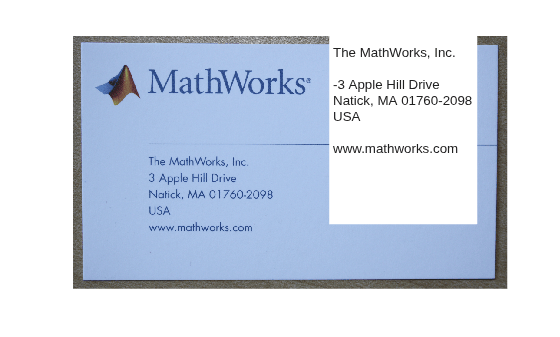
Read an image into the workspace.
I = imread("handicapSign.jpg");Define one or more rectangular regions of interest in which to recognize text within input image.
roi = [370 246 363 423];
Alternatively, you can use drawrectangle to select a region using a mouse.
For example,
figure;imshow(I)
roi = round(getPosition(drawrectangle))
Recognize text within the ROI.
ocrResults = ocr(I,roi);
Insert the recognized text into the original image. Display the image with the inserted recognized text.
Iocr = insertText(I,roi(1:2),ocrResults.Text,AnchorPoint="RightTop",FontSize=16);
figure
imshow(Iocr)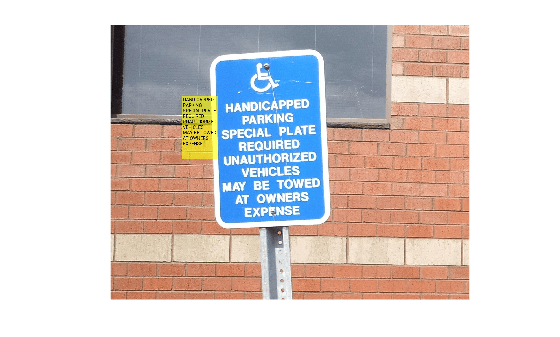
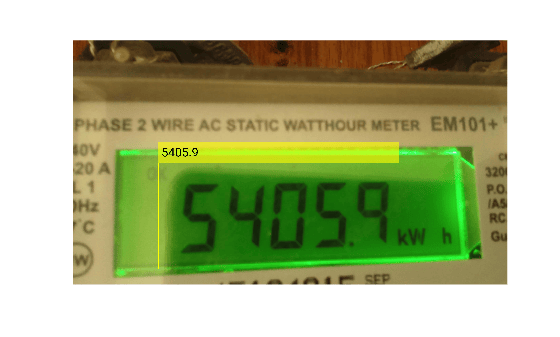
Read an image containing a seven-segment display into the workspace.
I = imread("sevSegDisp.jpg");Specify the ROI that contains the seven-segment display.
roi = [506 725 1418 626];
To recognize the digits from the seven-segment display, specify the Model argument as "seven-segment".
ocrResults = ocr(I,roi,Model="seven-segment");Display the recognized digits and detection confidence.
fprintf("Recognized seven-segment digits: ""%s""\nDetection confidence: %0.4f",cell2mat(ocrResults.Words),ocrResults.WordConfidences)Recognized seven-segment digits: "5405.9" Detection confidence: 0.7948
Insert the recognized digits into the image.
Iocr = insertObjectAnnotation(I,"rectangle", ...
            ocrResults.WordBoundingBoxes,ocrResults.Words,LineWidth=5,FontSize=72);
figure
imshow(Iocr)
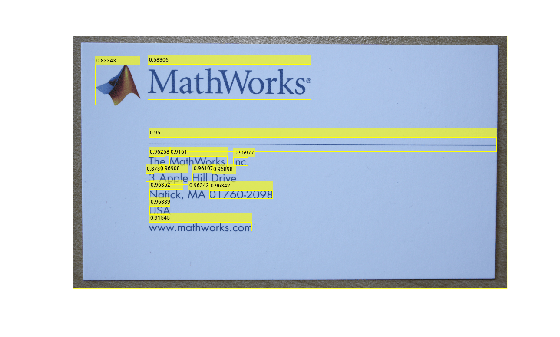
Read an image containing text into the workspace.
businessCard = imread("businessCard.png");
ocrResults = ocr(businessCard)
ocrResults =
ocrText with properties:
Text: '4 MathWorks:↵↵ ↵↵The MathWorks, Inc.↵↵-3 Apple Hill Drive↵Natick, MA 01760-2098↵USA↵↵www.mathworks.com↵↵ ↵↵'
CharacterBoundingBoxes: [107×4 double]
CharacterConfidences: [107×1 single]
Words: {16×1 cell}
WordBoundingBoxes: [16×4 double]
WordConfidences: [16×1 single]
TextLines: {8×1 cell}
TextLineBoundingBoxes: [8×4 double]
TextLineConfidences: [8×1 single]
Iocr = insertObjectAnnotation(businessCard,"rectangle", ...
                           ocrResults.WordBoundingBoxes, ...
                           ocrResults.WordConfidences);
figure
imshow(Iocr)
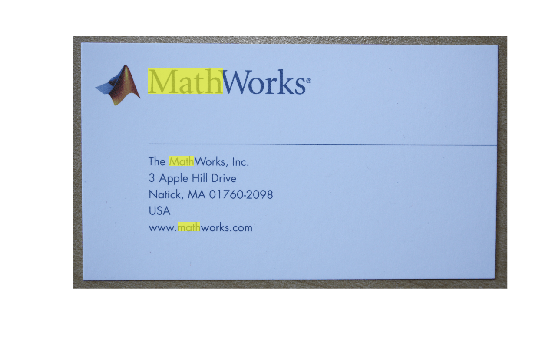
Load an image containing text into the workspace.
businessCard = imread("businessCard.png");
ocrResults = ocr(businessCard);
bboxes = locateText(ocrResults,"Math",IgnoreCase=true);
Iocr = insertShape(businessCard,"FilledRectangle",bboxes);
figure
imshow(Iocr)
This example shows how to evaluate the accuracy of an OCR model that can recognize seven-segment numerals on a dataset. The evaluation dataset contain images of energy meter displays that have seven-segment numerals in them.
Download and extract dataset.
datasetURL = "https://ssd.mathworks.com/supportfiles/vision/data/7SegmentImages.zip";
datasetZip = "7SegmentImages.zip";
if ~exist(datasetZip,"file")
    disp("Downloading evaluation dataset (" + datasetZip + " - 96 MB) ...");
    websave(datasetZip,datasetURL);
end

datasetFiles = unzip(datasetZip);
Load the evaluation ground truth.
ld = load("7SegmentGtruth.mat");
gTruth = ld.gTruth;
Create datastores that contain images, bounding boxes and text labels from the groundTruth object using the ocrTrainingData function with the label and attribute names used during labeling.
labelName = "Text";
attributeName = "Digits";
[imds,boxds,txtds] = ocrTrainingData(gTruth,labelName,attributeName);
Combine the datastores.
cds = combine(imds,boxds,txtds);
Run OCR on the evaluation dataset.
results = ocr(cds, Model="seven-segment");Evaluate the OCR results against the ground truth.
metrics = evaluateOCR(results,cds);
Evaluating ocr results
----------------------
* Selected metrics: character error rate, word error rate.
* Processed 119 images.
* Finalizing... Done.
* Data set metrics:

    CharacterErrorRate    WordErrorRate
    __________________    _____________

         0.082195            0.19958
Display accuracy of the OCR model.
modelAccuracy = 100*(1-metrics.DataSetMetrics.CharacterErrorRate);
disp("Accuracy of the OCR model= " + modelAccuracy + "%")
Accuracy of the OCR model= 91.7805%
Input Arguments
Name-Value Arguments
Output Arguments
Tips
Optical character recognition (OCR) language data files provide pretrained language models
for the Tesseract OCR engine, enabling accurate and efficient text extraction in various
languages. These files are designed for integration with Computer Vision Toolbox™, allowing you to leverage advanced OCR capabilities across multiple languages.
For step-by-step guidance on installing these language data files, enabling third-party
language support, and using the pretrained models with the ocr function for multilingual text recognition, see Install OCR Language Data Files. For an
overview of OCR workflows and basic usage, see Getting Started with OCR.
If your OCR results are not what you expect, try one or more of these options:
Increase the image size by 2– 4 times.
If the characters in the image are too close together or their edges are touching, use morphology to thin out the characters. Using morphology to thin out the characters helps create space between them.
Use binarization to check for non-uniform lighting issues. Use the
graythreshandimbinarizefunctions to binarize the image. If the characters are not visible in the results of the binarization, then the image has a potential non-uniform lighting issue. Try top-hat filtering, using theimtophatfunction, or other techniques that deal with removing non-uniform illumination.Use the
roiargument to isolate the text. You can specify theroimanually or use text detection.If your image looks like a natural scene containing words, such as a street scene, rather than a scanned document, try setting the
LayoutAnalysisargument to either"Block"or"Word".Ensure that the image contains dark text on a light background. To achieve this, you can binarize the image and invert it before passing it to the
ocrfunction.
References
[1] Smith, Ray. An Overview of the Tesseract OCR Engine. In Ninth International Conference on Document Analysis and Recognition (ICDAR 2007), 629–33. IEEE, 2007. https://doi.org/10.1109/ICDAR.2007.4376991."
[2] Smith, R., D. Antonova, and D. Lee. Adapting the Tesseract Open Source OCR Engine for Multilingual OCR. Proceedings of the International Workshop on Multilingual OCR, (2009).
[3] R. Smith. Hybrid Page Layout Analysis via Tab-Stop Detection. Proceedings of the 10th international conference on document analysis and recognition. 2009.
Extended Capabilities
Version History
Introduced in R2014aSee Also
Apps
Functions
Objects
Topics
- Getting Started with OCR
- Segment and Read Text in Image
- Recognize Text Using Optical Character Recognition (OCR)
- Train an OCR Model to Recognize Seven-Segment Digits
- Recognize Seven-Segment Digits Using OCR
- Automate Ground Truth Labeling for OCR
- Install OCR Language Data Files
- Install Computer Vision Toolbox Add-on Support Files

