Import Data
R2026bDescription
The Import Data task provides an interactive interface to import data from saved files. Communications Toolbox™ adds capabilities to the Import Data task for loading data from TDMS files. The task automatically generates MATLAB® code for your live script.
For information about other capabilities of the Import Data task, see Import Data.
For more information on Live Editor tasks, see Add Interactive Tasks to Live Scripts.
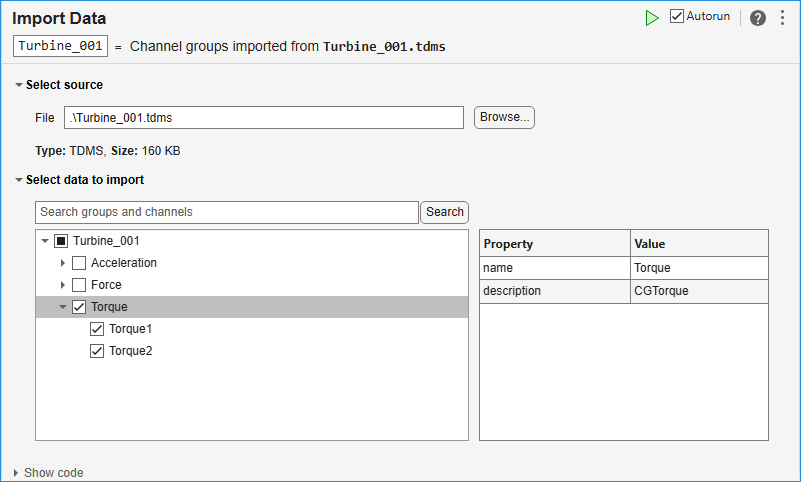
Open the Task
To add the Import Data task to a live script in the MATLAB Editor:
On the Live Editor tab, select Task > Import Data.
In a code block in the script, type a keyword such as
importorload. Then, selectImport Datafrom the suggested command completions.
Examples
Open the Import Data task in a live script and select the TDMS file.
By default, the task selects the Autorun check box. When you select a TDMS source file, the tasks runs automatically and imports all the data in the TDMS file into a variable in the current workspace. The variable name matches the file name and stores the data as a cell array of tables.
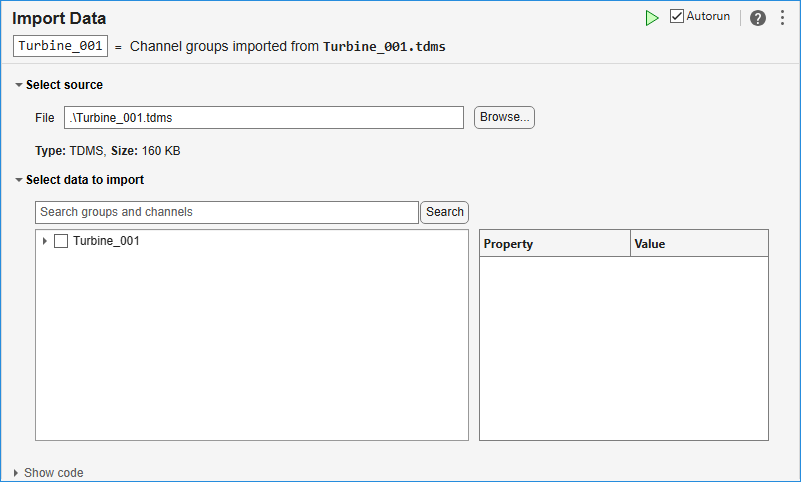
To view the generated code, expand the task display by clicking Show code at the bottom of the task parameter area.
% Import data from TDMS file
Turbine_001 = tdmsread(".\Turbine_001.tdms");
Open the Import Data task in the Live Editor, clear the Autorun check box, and select a TDMS source file.
The Select data to import section shows the TDMS file structure as a tree view. This tree view shows the file, the channel groups within the file, and the channels within each group. When you select an item in the tree view, the properties panel updates to show the associated metadata. Use the search option to find a channel by name.
Expand the check box tree to view the TDMS hierarchy. Select the channels you want
to load and clear other channels. To import the selected channel data, click the Run
current section button  at the top right of the task display.
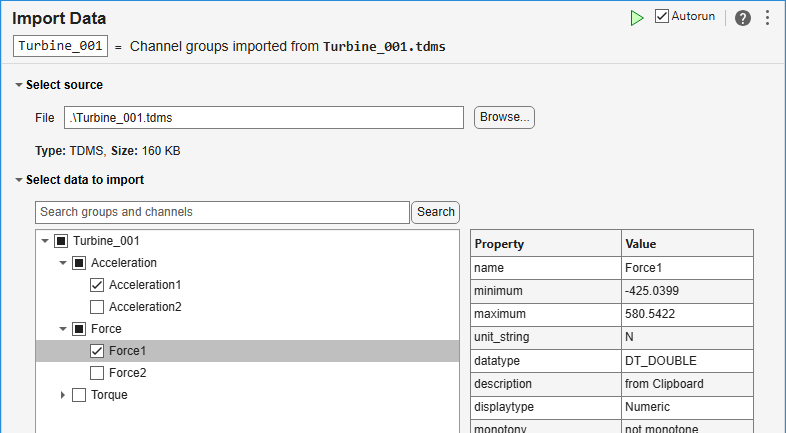
MATLAB imports the data into the workspace as cell arrays of tables and saves each cell array with a variable name that matches the channel group name. To view the generated code, expand the task display by clicking Show code at the bottom of the task parameter area.

Parameters
Tips
To reduce memory use, clear the Autorun check box and select required channels using the Select data to import section before you run the task.
Version History
Introduced in R2026b

