Calibrate Service-Oriented Application
R2026bBefore you begin, ensure that you have:
Installed the Embedded Coder® Support Package for Service-Oriented Applications on Linux®. For more information, see Install Embedded Coder Support Package for Service-Oriented Applications on Linux.
Set up and connected to a Linux target computer. For more information, see Set Up Linux Target Computer.
Docker installed and running on the target computer.
Embedded Coder Support Package for Service-Oriented Applications on Linux enables you to calibrate service-oriented applications. You can use the Linux Runtime Manager application to build a model, create and deploy an application package to the target, and perform calibration and measurement for the application.
To calibrate a service-oriented application, follow these steps:
Open or create a software component model.
For information about creating an AUTOSAR adaptive software component model, see Model AUTOSAR Adaptive Component and Elements in Simulink (AUTOSAR Blockset).
For information about creating a software component model configured with the Software Component Designer app, see Create Software Component Models in Simulink.
Create a
Simulink.Parameterobject in the base workspace. In the Property Inspector or Model Explorer, set the storage class toExportedGlobalto make it a tunable parameter.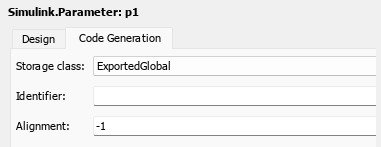
Right-click the signal line that you want to monitor, click the Properties button
 , and in the Signal Properties dialog, enable
Test pointto make the signal measurable.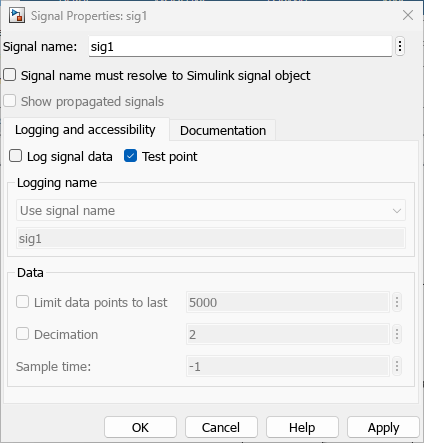
In the model configuration parameters, set Hardware Implementation > Hardware board to one of the following:
Embedded Coder Linux Docker Containerfor x86_64 targets.Embedded Coder Linux Docker Container - ARM64for ARM targets.
Verify that Code Generation > Build Process > Toolchain is set to:
AUTOSAR Adaptive Linux Executablefor AUTOSAR Adaptive software component models and AUTOSAR Adaptive software architecture models.Embedded Coder Linux Docker Container GCC Toolchainfor software component models configured with the Software Component Designer app.
Enable the XCP service for the model by using the
linux.setXCPServiceConfigurationfunction. For example, to enable the XCP service with a specific TCP port and target computer:linux.setXCPServiceConfiguration("myModel", TCPPort=12345, Target="LinuxTarget3");
To enable the XCP service with default settings:
linux.setXCPServiceConfiguration("myModel");Note
Ensure that the specified TCP port is not blocked by a firewall on the target machine.
Generate code for the model and verify that the application package is generated.
Open the Linux Runtime Manager application by entering the following command at the MATLAB command prompt.
linuxRuntimeManager
Connect to the Linux target machine by specifying the IP address, user name, and password of the target. For more information, see Set Up Linux Target Computer.
Select Create & Deploy Application Package and choose the application package generated from the model to deploy it to the target.
After the application is deployed, in the Signals tab, select the check boxes for the signals that you want to instrument.
Select Monitor & Tune to start calibrating the application.
In the Parameters tab, modify the value of the tunable parameter. The new value takes effect immediately on the running application.
Open the Simulation Data Inspector to verify that the parameter change is reflected in the monitored signals.
See Also
Linux Runtime
Manager | linux.setXCPServiceConfigurationlinux.getXCPServiceConfiguration

