Refine Segmentation Using Morphology in Image Segmenter
R2026bThis example shows how to use the capabilities of the Image Segmenter app to polish the appearance of the mask image you created with the app. The Image Segmenter app includes several morphological operations that you can use to fix small imperfections in the mask image.
Load Image and Mask in Image Segmenter
Open the Image Segmenter app and load an image to be segmented.
I = dicomread("knee1");
knee = mat2gray(I);
imageSegmenter(knee)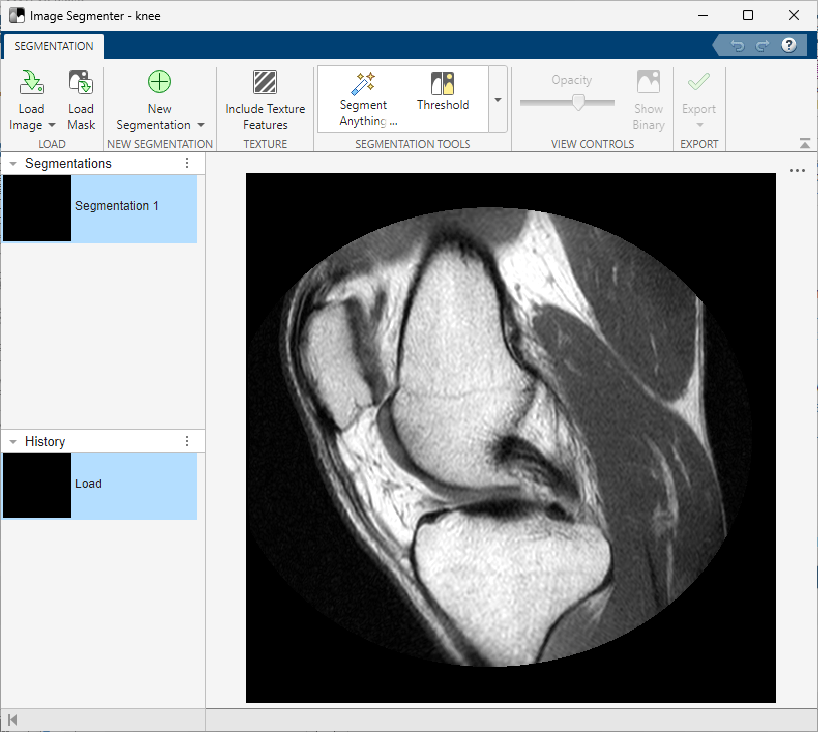
After you load an image, you can optionally load an existing binary mask. For example, you might have previously created a mask by drawing ROIs. To load an existing mask, click Load Mask. The segmentation mask image must be a logical image of the same size as the image you are segmenting. This example loads a mask image using hand-drawn ROIs and active contours (see Refine Segmentation Mask Using Active Contours in Image Segmenter).
After finishing the segmentation, click Show Binary on the Segmentation tab to view the mask image. Upon close examination, you can see several small holes in the mask image.
Refine Mask
Image Segmenter includes morphological tools to refine the binary mask. Expand the Refine Mask section of the app toolstrip and click Fill Holes.
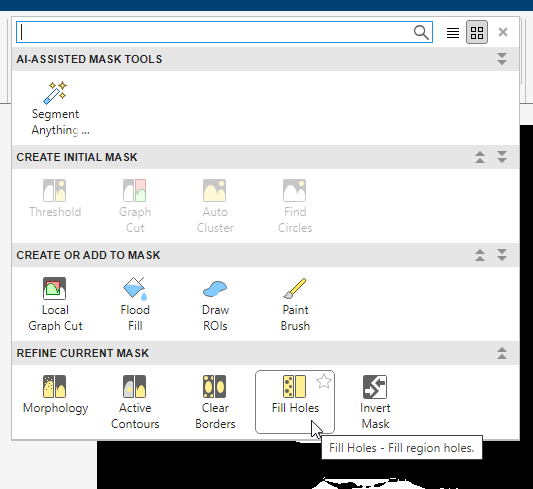
This removes the holes in the binary mask.
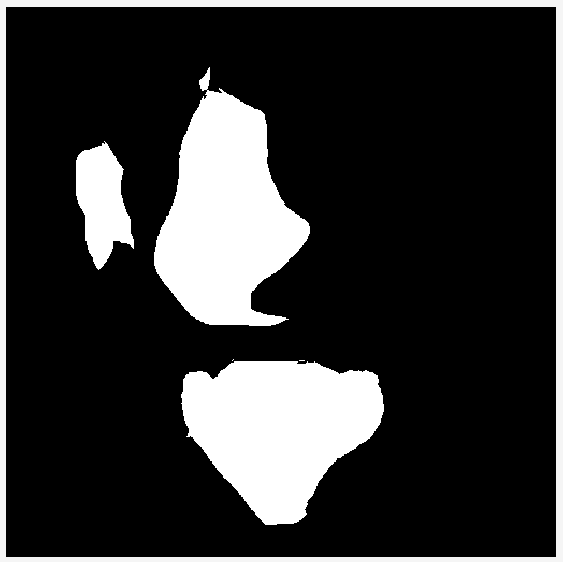
To save the binary mask, click Export and select Export Images.

