Justify Missing Coverage for Generated C/C++ Code in Equivalence Tests
R2026bIf your equivalence tests reveal coverage gaps that you cannot or do not need to satisfy, you can filter the coverage from your results by using justifications. For example, you can use justifications when it is not feasible to satisfy all coverage outcomes or if you do not intend for your current tests to exercise the unsatisfied outcomes.
Create Justifications
To create a justification for a block of C/C++ code, you:
Create a code coverage report. For more information, see Collect Coverage for Generated C/C++ Code in Equivalence Tests.
Open the Code Quality Dashboard and click the Generated Code Coverage section title.
Set Currently viewing to
Function,Statement, orDecision, depending on the coverage metric type you want to filter.In the Source Details section, select the function, statement, or decision coverage that you want to filter. The Create Coverage Justification dialog box opens.
Enter a justification in the Reason field.
Click OK to save the justification.
Creating a justification creates a matlabtest.coverage.Justification
object and saves the objects to an XML file.
Note
For MATLAB® projects, creating the first justification creates the XML file in the
resources folder. If you are not using a project, then
specify a path and file name using the Save dialog box.
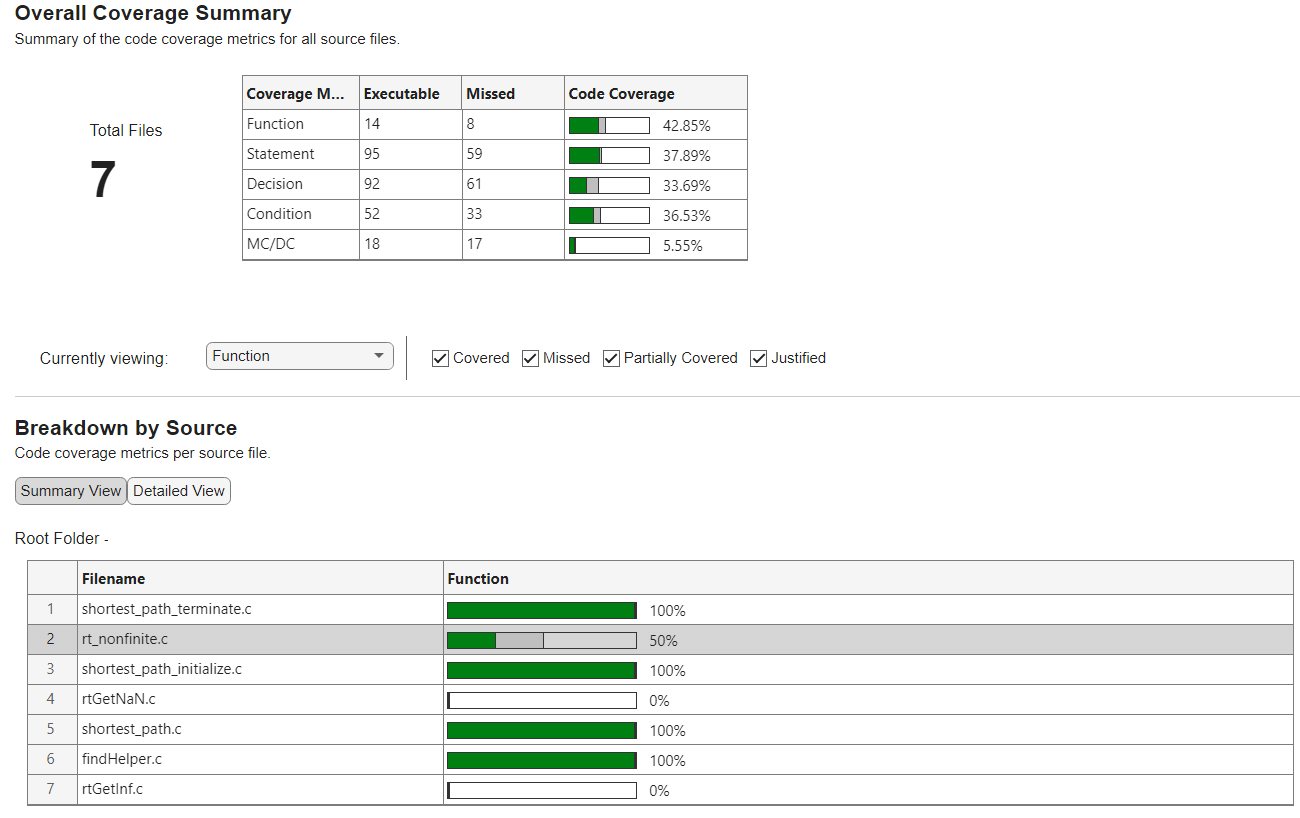
After you justify missing coverage for a block of code, the code coverage report displays the updated coverage results. The Overall Coverage Summary and Breakdown by Source sections of the report include the updated coverage metrics. In the Source Details section, the justified coverage appears in gray.
When you create justifications:
You must set the Currently viewing list to
Function,Statement, orDecisionbefore creating a justification.You must select the highlighted entry point to the code block. Examples of code block entry points include:
An
iforswitchstatementA
fororwhilestatementA
trystatementA function definition
View or Delete Justifications
You can view the reason or summary for a justification in the Source Details section of the code coverage report:
To view the reason for a justification, point to the Justification Summary button for a justified outcome.
To view the summary of a justification, click the Justification Summary button for a justified outcome or click the highlighted code.
To delete a justification, open the summary of a justification, then click Delete.
Apply Existing Justifications After Coverage Analysis
After justifying the missing coverage for your code, you can apply or remove the
justification to existing coverage results by using the applyFilter and resetFilter methods, respectively. For example, suppose that you have a
coverage filter named GeneratedCodeCoverageFilter.xml located in the
resources subfolder of the current directory, and you want to
apply it to the current coverage results object, coverageResult.
newResult = coverageResult.applyFilter( ...
    fullfile(pwd,"resources","GeneratedCodeCoverageFilter.xml"));
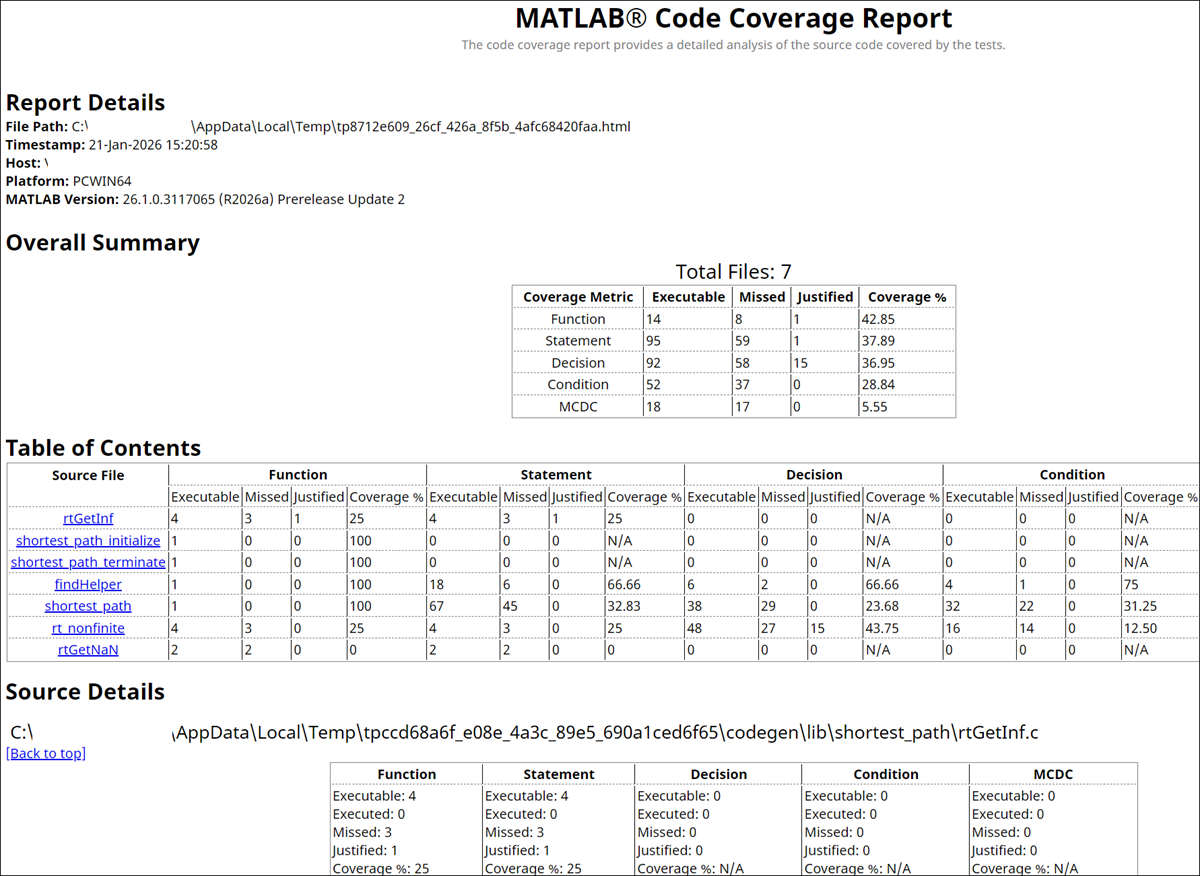
You can then generate a standalone code coverage report from
newResult. The report includes the justified outcomes and the
justification reasons.
generateStandaloneReport(newResult);
Apply Justifications to New Coverage Analysis
If you rerun your tests to collect new code coverage information, you can reuse the
justifications previously created for the source code under test. To apply
justifications before running tests, use the Filter name-value
argument for the GeneratedCodeCoveragePlugin class.
import matlab.unittest.plugins.codecoverage.CoverageReport
import matlabtest.coder.plugins.GeneratedCodeCoveragePlugin

r = testrunner("minimal");
f = CoverageReport("report");
filtPath = fullfile(pwd,"resources","GeneratedCodeCoverageFilter.xml");
p = GeneratedCodeCoveragePlugin(Producing=f,Filter=filtPath);
addPlugin(r,p)
results = run(r,suite);
See Also
Functions
Classes
matlabtest.coder.plugins.GeneratedCodeCoveragePlugin|matlab.coverage.Result|matlabtest.coverage.Justification

