uitogglebutton
R2026bCreate toggle button component
Description
tb = uitogglebuttonToggleButton object. MATLAB® calls the uifigure function to create the figure.
tb = uitogglebutton(___,Name=Value)ToggleButton properties using one or more name-value arguments. Use
this option with any of the input argument combinations in the previous syntaxes.
Examples
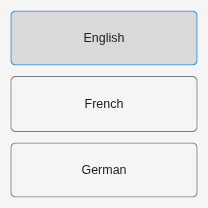
Create a grid layout in a figure and add three toggle buttons. Then create a selection group to manage the three toggle buttons.
fig = uifigure(Position=[100 100 200 200]);
gl = uigridlayout(fig,[3 1]);
tb1 = uitogglebutton(gl,Text="English");
tb2 = uitogglebutton(gl,Text="French");
tb3 = uitogglebutton(gl,Text="German");
sg = uiselectiongroup([tb1 tb2 tb3]);
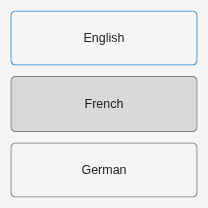
Change the toggle button selection to French.
tb2.Value = true;
Input Arguments
Name-Value Arguments
Specify optional pairs of arguments as
Name1=Value1,...,NameN=ValueN, where Name is
the argument name and Value is the corresponding value.
Name-value arguments must appear after other arguments, but the order of the
pairs does not matter.
Example: uitogglebutton(fig,Text="French")
Note
The properties listed here are a subset of the available properties. For the full list,
see ToggleButton.
Button label, specified as a character vector, cell array of character vectors, string scalar, string array, or 1-D categorical array. Specify a character vector or string scalar to label the button with a single line of text. Use a cell array or string array to label the button with multiple lines of text. Each element in the array represents a separate line of text. If you specify this property as a categorical array, MATLAB uses the values in the array, not the full set of categories.
Icon, specified as a predefined icon or a custom icon.
Predefined Icon
This table lists the values to specify the predefined icons.
| Value | Icon |
|---|---|
'' (default) | No icon displays. |
'question' |
|
'info' |
|
'success' |
|
'warning' |
|
'error' |
|


Custom Icon
Specify a custom icon as one of these values:
A character vector or string scalar that specifies the file name of an SVG, JPEG, GIF, or PNG image that is on the MATLAB path. Alternatively, you can specify a full path to the image file.
An
m-by-n-by-3 truecolor image array or anm-by-ngrayscale image array. See Working with Image Types in MATLAB for more information.
If you plan to share an app with others, put the image file on the MATLAB path to facilitate app packaging.
If the button text takes up all the space specified by the
Position property value, then MATLAB does not display the icon. If some room is available for the icon,
then MATLAB scales down the image to fit, if necessary.
Tips
To manage exclusive selection of radio buttons or toggle buttons, use the
uiselectiongroupfunction to create a selection group. Buttons managed by a selection group can be in any container within the same figure.To make your program respond when a user selects a toggle button managed by a selection group, define a
SelectionChangedFcncallback for theSingleSelectionGroupobject. You cannot define callbacks for the individual buttons.To determine which toggle button is currently selected, query the
SelectedObjectproperty of theSingleSelectionGroupobject. For example,sg.SelectedObjectreturns the currently selected button in the selection groupsg. You can execute this query anywhere in your code.If you use a
ButtonGroupobject as the parent container for toggle buttons that are managed by a selection group, then only the selection group manages the selection of the buttons. (since R2026b)

