Contenido principal

snapshot

R2026b

Create custom snapshot

Description

fig = snapshot(snap) creates a custom snapshot according to the properties of the Simulink.sdi.CustomSnapshot object snap and returns the Figure object fig. Omit the output argument when you do not need to modify the figure.

To capture a snapshot of the plots currently displayed in the Simulation Data Inspector, use Simulink.sdi.snapshot.

[fig,image] = snapshot(snap) also returns theFigure object fig and an array of image data.

[___] = snapshot(snap,Name=Value) specifies snapshot options using one or more Name=Value arguments.

example

Examples

collapse all

Create a default Simulink.sdi.CustomSnapshot object.

snapObj = Simulink.sdi.CustomSnapshot;

To configure plot settings in the snapshot, modify the object properties. For example, create a 3-by-1 subplot layout and specify the range of each subplot in columnwise order.

snapObj.Rows = 3;
snapObj.Columns = 1;
snapObj.YRange = {[-1 1],[-2 2],[-3 3]}; 

Suppose that you want the subplots to show three particular signals from the most recent run. First, access those signals.

myRun = Simulink.sdi.Run.getLatest;
sig1 = getSignalByIndex(myRun,1);
sig2 = getSignalByIndex(myRun,2);
sig3 = getSignalByIndex(myRun,3);

To configure the custom snapshot to include these signals, use plotOnSubPlot.

plotOnSubPlot(snapObj,1,1,sig1,true)
plotOnSubPlot(snapObj,2,1,sig2,true)
plotOnSubPlot(snapObj,3,1,sig3,true)

Generate the figure. Using snapshot with the CustomSnapshot object generates the figure without affecting what is currently plotted in the Simulation Data Inspector.

fig = snapshot(snapObj)
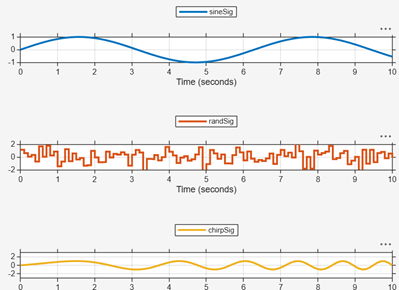
Figure of three signals plotted in a 3-by-1 subplot layout.

Input Arguments

collapse all

Custom snapshot settings, specified as a Simulink.sdi.CustomSnapshot object.

Name-Value Arguments

collapse all

Specify optional pairs of arguments as Name1=Value1,...,NameN=ValueN, where Name is the argument name and Value is the corresponding value. Name-value arguments must appear after other arguments, but the order of the pairs does not matter.

Example: snapshot(snap,To="image")

Type of snapshot to create, specified as:

  • "image" — Create a figure and return the corresponding Figure object and an array of image data.

  • "figure" — Create a figure and return the corresponding Figure object. The output has value, and the image output is empty.

  • "file" — Save to a PNG file with the name specified by the Filename name-value argument. If you do not specify a Filename name-value argument, the file is named plots.png. The image outputs are both empty.

  • "clipboard" — Copy the plots to your system clipboard. The image outputs are both empty.

Example: To="file"

Data Types: char | string

Name for image file to store the snapshot when you specify To="file", specified as a string or a character vector.

Example: To="file",Filename="MyImage.png"

Data Types: char | string

Figure properties, specified as a cell array. To customize your figure, you can include settings for the figure properties described in Figure. Specify properties in the form {"Property1","Value1",...,"PropertyN","ValueN"}.

Example: Props={"Name","MyData","NumberTitle","off"}

Data Types: char | string

Output Arguments

collapse all

Figure, returned as a Figure object. When you save to a file or copy to the clipboard, the fig output is empty.

Image data, returned as an array. Simulink.sdi.snapshot creates an image by default when there are no input arguments or you do not specify the To name-value argument. You can also specify the To="image" name-value argument to create an image. When you explicitly specify To as any value other than "image", the image output argument is empty.

Version History

Introduced in R2018a