Run Polyspace on AUTOSAR Code
R2026bThis topic describes a component-based approach to verifying AUTOSAR code with Polyspace®. For an integration analysis approach, see Choose Between Component-Based and Integration Analysis of AUTOSAR Code with Polyspace.
Polyspace for AUTOSAR runs static program analysis on code implementation of AUTOSAR software components. The analysis looks for possible run-time errors or mismatch with specifications in the AUTOSAR XML (ARXML).
To run Polyspace on code implementation of AUTOSAR software components, provide this information:
ARXML folder: This folder contains all the
.arxmlfiles that define your AUTOSAR model. The files specify the data types, runnables, events and other information about the software components in your AUTOSAR model.Note that Polyspace can parse an AUTOSAR XML schema only for releases 4.0 and later.
Source code folder: This folder contains the C code implementation of the software components. The
.cfiles in this folder contain functions implementing the AUTOSAR runnables and other called functions. The folder can also contain header files referenced in your source files.If you reference header files located in another folder, you can provide that location separately.
The analysis parses your ARXML files, reads your source files and creates a Polyspace workspace with a separate project for each software component. Polyspace Code Prover™ then checks each project for run-time errors or violations of data constraints in the ARXML at run-time.
This topic shows how to run Polyspace on code implementation of AUTOSAR software components. You can run Polyspace from the user interface of the Polyspace desktop products or the command line:
In the user interface, the analysis happens in two steps: creating a Polyspace workspace from the ARXML and code folders and then running Code Prover on the project.
At the command line, the analysis can be done by using the
polyspace-autosarcommand.
Example Files
To follow the steps in this tutorial, use the demo files in
polyspaceroot\polyspace\examples\doc_cxx\polyspace_autosarpolyspacerootC:\Program
Files\Polyspace\R2026b.
Run Analysis in Polyspace Platform User Interface
In the Polyspace platform user interface, you can create a Polyspace workspace (.pswks) from your source code and ARXML
file. In the workspace, each software component of the AUTOSAR model corresponds to
a project (.psprjx). Each project contains the source files and
configuration necessary to analyze a component. You can analyze each software
component separately with their own configurations.
For more details about workspaces, see Manage Related Projects in Polyspace Platform User Interface Using Workspaces.
Read ARXML and Sources
Before running analysis, create a Polyspace workspace using the AUTOSAR specifications.
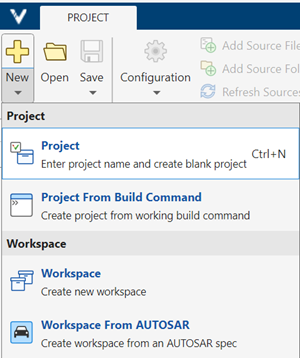
In the Project toolstrip, select New > Workspace from AUTOSAR.
Enter the following information in the Create workspace from AUTOSAR spec window:
Workspace folder name – Enter
psar_workspaceas the workspace folder name.Location – (Optional) Retain the default location or clear Use default location and specify a path to a folder. For this tutorial, enter the location
C:\Polyspace_Projects.The workspace file (
.pswksfile) and all other generated artifacts are stored in a subfolder with the specified name in the specified location. For instance, in the above example, all generated artifacts are stored in the folderC:\Polyspace_Projects\psar_workspace.AUTOSAR ARXML folder – Specify the top level folder containing your ARXML files, in this case,
polyspaceroot\polyspace\examples\doc_cxx\polyspace_autosar\arxmlAUTOSAR source folders – Specify all the folders containing C/C++ source files. In this example, specify the folder
polyspaceroot\polyspace\examples\doc_cxx\polyspace_autosar\codeGenerate AUTOSAR headers – Select this option so that the analysis generates AUTOSAR
Rte_headers. In your regular workflow, you can use your ownRte_headers instead of the generated ones.
In this example, this is the minimum specification you need. For your AUTOSAR projects, you might also have to specify other information such as additional paths to include folders, additional macro definitions or advanced options to troubleshoot errors.
To specify paths to include files that are not directly under the source folder, use the field Specify additional include folders. If you want to recursively include the subfolders of the include folders, select Subfolders.
This field corresponds to the option
-Iofpolyspace-autosar.To specify data type and macro definitions that are not in your source files, use the field Specify additional macro definitions. Specify a file with the definitions.
This field corresponds to the option
-includeofpolyspace-autosar.To specify advanced command-line options associated with
polyspace-autosar, use the field Advanced settings.For example, you might want to specify a compiler and target architecture. By default, compilation of projects created from AUTOSAR specifications use the gnu4.7 compiler and i386 architecture. To specify a visual11.0 compiler with x86_64 architecture, enter this option:
See also-extra-project-options "-compiler visual11.0 -target x86_64"
Compilation toolchain (Static analysis)andTarget processor type (-target).
Click Start. The software parses your ARXML specifications and C code implementation and creates a Polyspace workspace. Follow the project creation progress in the Command output section.
Once the project creation is complete, click Open to complete creating the workspace. The projects (
 ) corresponding to individual
software components are grouped together in a workspace. The project
names correspond to the fully qualified name of the software
component, as specified in the ARXML. See Benefits of Polyspace for AUTOSAR.
) corresponding to individual
software components are grouped together in a workspace. The project
names correspond to the fully qualified name of the software
component, as specified in the ARXML. See Benefits of Polyspace for AUTOSAR. 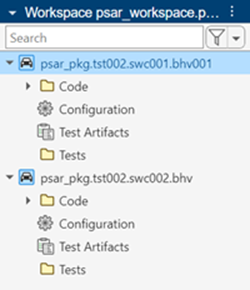
In the Project view, click the AUTOSAR tab to view a summary of the ARXML read, code compilation, and other workspace configuration tasks. In these examples, these tasks were completed with no errors:

Use the AUTOSAR Configuration pane to:
Manage and explore the AUTOSAR project structure
Investigate ARXML read or code compilation errors
Below the summary, there are two trees:
Components — Has a child node for each component in your ARXML specification. Each component node has three children: Behavior Analysis, Code Extraction, and Source Files. Explore the tree to view the logs for every step of the workspace configuration tasks, and resolve errors and warnings.
Source Files — Has a child node for each source file in your code base. For each source file, the node displays the number of errors/warnings and the component(s) this file belongs to.
Configure Projects
Once the projects are created, you can configure each project using the options in Configuration. For instance, you can generate a report after analysis using the options in the Reporting section on the Static Analysis tab. For details on how to specify options in the Polyspace Platform user interface, see Polyspace Code Prover Options in Polyspace Platform User Interface.
You do not need the options in these sections for a project generated from an AUTOSAR description:
Configure Code Constraints: External data constraints in your ARXML files are extracted automatically when you create a Polyspace project. You cannot explicitly specify external constraints.
Configure Multitasking Checks: You cannot perform a multitasking analysis with the Polyspace workspace because each project analyzes the implementation of one software component. To detect data races, create a separate project for the entire application and explicitly add your source folders. Specify the ARXML files relevant for multitasking and run Bug Finder. For more information, see
ARXML files selection (-autosar-multitasking).Configure Library Verification: A
mainfunction is generated (in the filepsar_prove_main.c) when you create a Polyspace project from an AUTOSAR description. Themainfunction calls functions that implement runnable entities in the software components. The generatedmainis needed for the Code Prover analysis. You cannot change the properties of thismainfunction.
If you make changes to the configurations of your AUTOSAR projects, you may want to save those configurations externally for future reference. To export the configuration of your projects, select Export > Export All Configurations and select a location to save the configurations. For more details about exporting options, see Share and Reuse Configuration Variants.
Verify Code
Verify each project individually with their individual set of configurations. To verify a project, right-click the project and select Prove Absence of Run-Time Errors. The verification of a project checks the code implementation of the corresponding software component against the ARXML specifications and also checks for run-time errors. See Benefits of Polyspace for AUTOSAR.
Update Workspace for Later Changes
If you update your code or ARXML specifications, you can update the workspace to reflect the changes. When you update the workspace, Polyspace overwrites your projects and recreates them using the updated code and ARXML specification. To avoid losing any configuration changes that you made to your projects, export the configuration of your projects before you update the workspace. See Share and Reuse Configuration Variants.
To update your AUTOSAR workspace, right-click your workspace and select Update AUTOSAR Workspace. You can also update the workspace by right-clicking any of the projects.
After updating the workspace, check your configuration. If needed, import a previously saved configuration.
If you change the code only for specific software components, only the affected projects are recreated. The projects corresponding to the other software components remain unchanged.
Run Polyspace Programmatically
Run the polyspace-autosar command with paths to your ARXML and source code
folder. The command parses the ARXML and source files, creates a Polyspace workspace (.pswks ) with multiple projects
(.psprjx), and analyzes all projects in the workspace for
run-time errors or violation of data constraints in the ARXML.
In the first run, specify the path to your ARXML and source files explicitly. In later runs, specify the project folder created in the previous run. The analysis detects changes in the ARXML and source files since the last run and reanalyzes only those projects where the software component implementation changed. If the ARXML specification changed since the previous analysis, the new analysis reanalyzes all projects.
For example, you can run these commands in a .bat script. In
the first run, this script looks for the ARXML specifications in a folder
arxml in the current folder, and C source files in a folder
code. The results are stored in a folder
polyspace in the current folder. In later runs, the analysis
reuses the result from the previous run and updates the results only for the
software components modified since the last
run.
echo off
set POLYSPACEROOT="C:\Program Files\Polyspace\R2026b"

set POLYSPACE_AUTOSAR_PATH="C:\Program Files\Polyspace\R2026b\polyspace\bin\polyspace-autosar"
set POLYSPACE_EXAMPLE_PATH="C:\Program Files\Polyspace\R2026b\polyspace\examples\doc_cxx\polyspace_autosar"

IF NOT EXIST polyspace (
"%POLYSPACE_AUTOSAR_PATH%" -create-project polyspace -arxml-dir "%POLYSPACE_EXAMPLE_PATH%\arxml" -sources-dir "%POLYSPACE_EXAMPLE_PATH%\code" -generate-autosar-headers -update-verification
) ELSE (
"%POLYSPACE_AUTOSAR_PATH%" -update-project polyspace
)
Pause
You can also run Code Prover on code implementations of AUTOSAR software
components with MATLAB® scripts. See polyspaceAutosar.
Review Polyspace Results on AUTOSAR Code
After you run the analysis, review the results directly in the Polyspace Platform user interface by opening the Review perspective from the toolstrip. Polyspace Code Prover checks for various issues in AUTOSAR software components, including:
In the Results List pane, red, green, and yellow checks of identified issues are listed. In the Result Details pane, each check is linked to the parameter specification.
For the complete workflow of reviewing Polyspace results on AUTOSAR code, see Review Polyspace Results on AUTOSAR Code.
See Also
AUTOSAR
                    runnable not implemented
| Invalid
result of AUTOSAR runnable implementation | Invalid use
of AUTOSAR runtime environment function | polyspaceAutosar | polyspace-autosar

