Author a Baseline Test Case
R2026bIn this example, you use the Simulink Test Manager to create a test file and author a test case. You specify the test properties by selecting the system under test and coverage collection settings. Then, you simulate the model to capture the baseline data and run the test case to validate the data and confirm that the signals are the same.
You can also create a test case programmatically or use the Test for Model Component wizard. For information see Create and Run Test Cases with Scripts and Generate Tests and Test Harnesses for a Model or Components.
Open the Model and Test Manager
Open the
sldemo_absbrakemodel.openExample("sldemo_absbrake")In the Apps tab, in the Model Verification, Validation, and Test section, click Simulink Test.
In the Tests tab, in the Test Cases section, click Simulink Test Manager.
Create the Test File and Specify Test Properties
In the Test Manager, click New > Test File.
Name the file
baselineTestFileand save the file.By default, the Test Manager creates a test suite with one baseline test case,
New Test Case 1. In the Test Browser, right-clickNew Test Case 1and select Rename. Rename the test case tobaselineTestCase.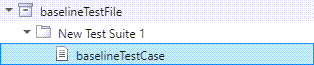
Load the
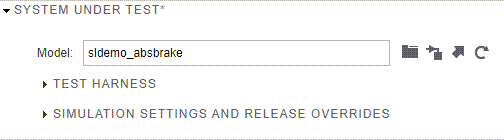
sldemo_absbrakemodel into the test case. In the System Under Test section, click the Use current model button .
. 
To collect coverage in the test case, you must enable coverage collection in the test file. In the Test Browser, select
baselineTestFile. Expand the Coverage Settings section. Select Record coverage for system under test. The Coverage Settings section of the test case updates to match the coverage settings in the test file. For more information on coverage, see Collect Coverage in Tests.
Capture and Validate Baseline Data
In the Test Browser, select
baselineTestCase. In the Baseline Criteria section, click Capture and specify a location in the File field. Name the fileabsbrake_baselinedataand click Capture. The test case simulates the model and captures the signals that are selected for signal logging. The Baseline Criteria section displays the logged signals with default tolerances of0. For more information about how to mark signals for logging in your model, see Save Signal Data Using Signal Logging. Alternatively, you can select signals in the Simulation Outputs section of the Test Manager. See Simulation Outputs.
In the Test Manager, click Run.
In the Results and Artifacts pane, expand baselineTestCase and double-click Baseline Criteria Result. Then, in the Data Inspector, in the Compare pane, select the
slpsignal. The upper plot displays the simulation output data and baseline data and the lower plot displays the tolerance and difference between the simulation output data and baseline data. Review the signals to confirm that there is a zero difference between the simulation output and baseline data, as expected.

