Visualize VTOL UAV Mission over Urban Environment
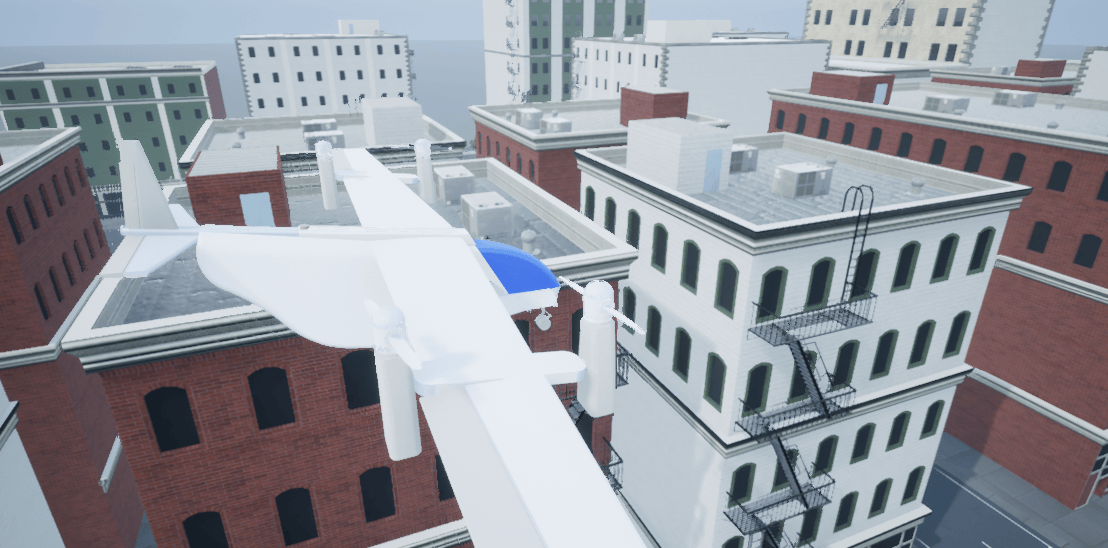
R2026bThis example shows how to visualize a vertical takeoff and landing (VTOL) aircraft in Unreal Engine® while flying a mission within an urban environment.
In the previous examples, the control design for a tilt-rotor VTOL has been previously tuned through hover, transition, and fixed wing flight. This example leverages the custom actor workflow in UAV Toolbox™ to visualize aircraft performance in a photorealistic environment.
Prerequisites
This example requires Unreal Engine®. For more information about the required Unreal Engine® version, see Unreal Engine Simulation Environment Requirements and Limitations.
You must install the UAV Toolbox Interface for Unreal Engine Projects. For more information about how to install and configure the UAV Toolbox Interface for Unreal Engine Projects, see Install Support Package for Customizing Scenes.
This example uses a 3D Game Asset Urban Air Mobility Vehicle dataset, which contains a
fbxfile of a VTOL UAV and is approximately 6 MB in size. Download theVTOLAssetZIP file from the MathWorks® website, then unzip the file.
zipFile = matlab.internal.examples.downloadSupportFile("uav","data/VTOLAsset.zip");
filepath = fileparts(zipFile);
dataFolder = fullfile(filepath,'VTOLAsset');
unzip(zipFile,dataFolder)
Getting Started
To open the example live script and the directory that contains the Simulink® project file, first run openExample('uav/VisualizeVTOLFlightMissionOverUrbanEnvironmentExample') in the Command Window.
You must open the VTOLRefApp.prj project file to access the Simulink model, supporting files, and project shortcuts that this example uses.
% Open the Simulink
prj = openProject("VTOLApp/VTOLRefApp.prj");
To set up the aircraft plant model and base controller, click the Getting Started button in the project shortcuts or run the setupPlant helper function.
setupPlant;
Initialized VTOL model.
Enabled hover configuration.
Enabled hover guidance mission.
To set up a guidance mission that is visualized in Unreal Engine environment, click the Set up City Mission button in the project shortcuts or run the setupCityMission helper function.
setupCityMission
Initialized city mission.
Configure Simulation 3D Scene Configuration block
Open the Visualization subsystem of the VTOLTiltrotor model.
load_system("VTOLTiltrotor")
open_system("VTOLTiltrotor/Visualization")
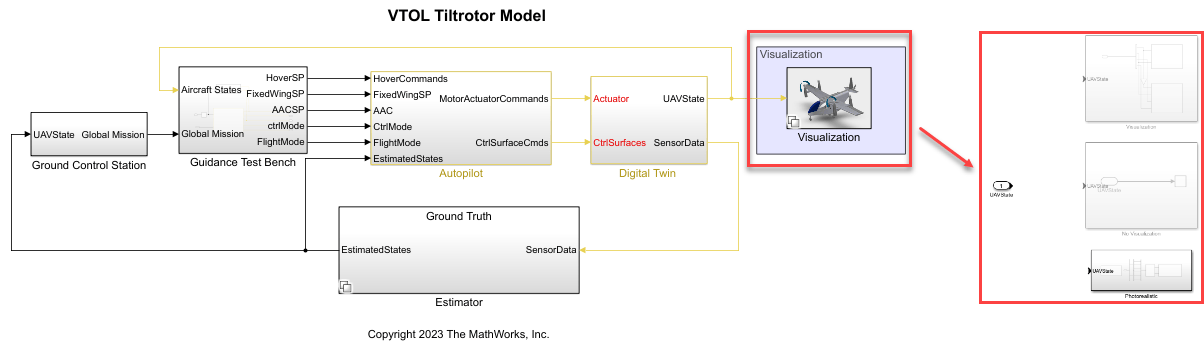
Open the Photorealistic subsystem in the Visualization subsystem.
open_system("VTOLTiltrotor/Visualization/Photorealistic")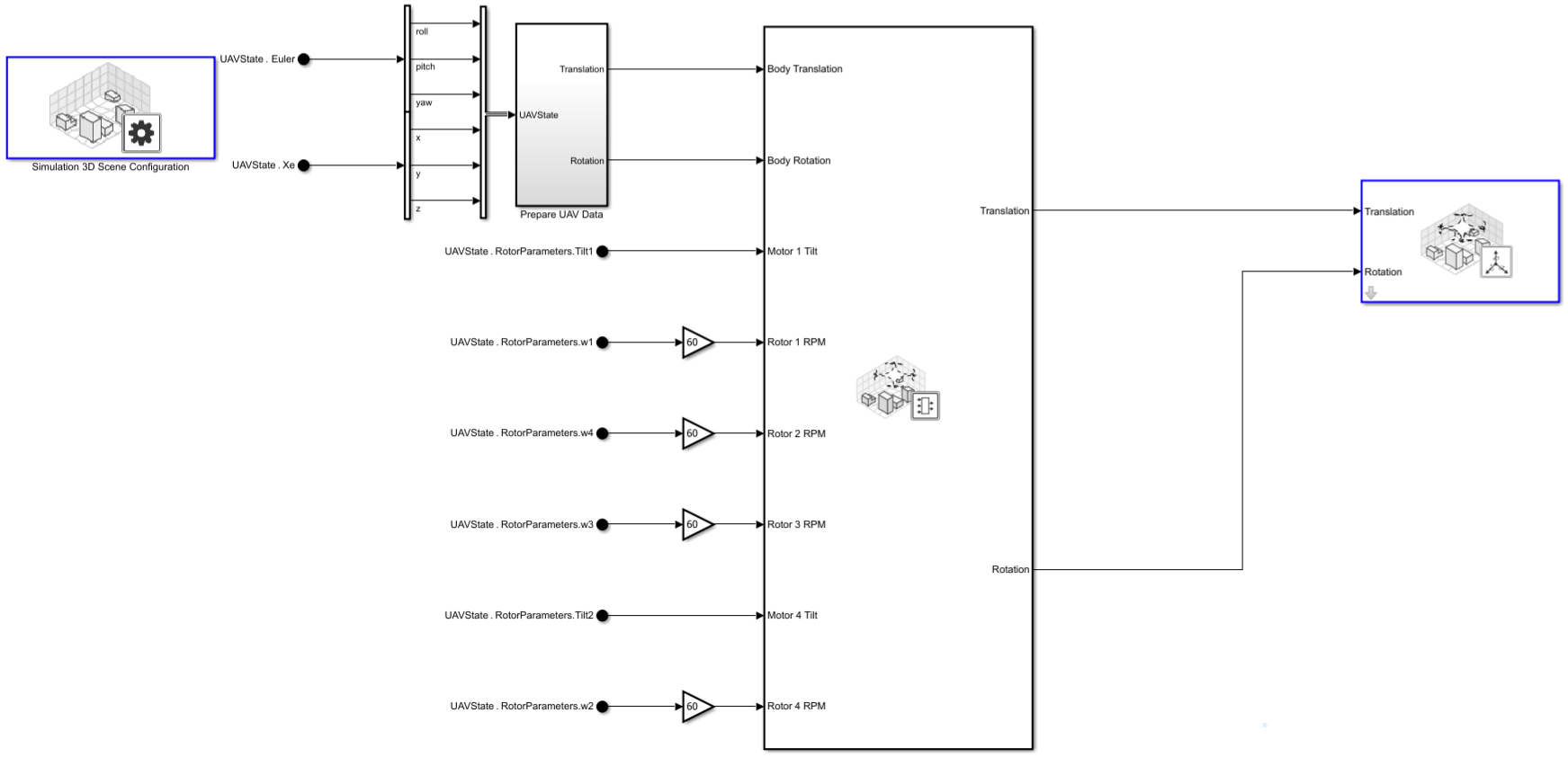
The Simulation 3D Scene Configuration block enables you to simulate the VTOL UAV mission in a 3D environment using Unreal Engine. To configure this block for this example, specify the Scene Source parameter as Unreal Editor, and specify the Project parameter as the path to the AutoVrtlEnv project on your system.
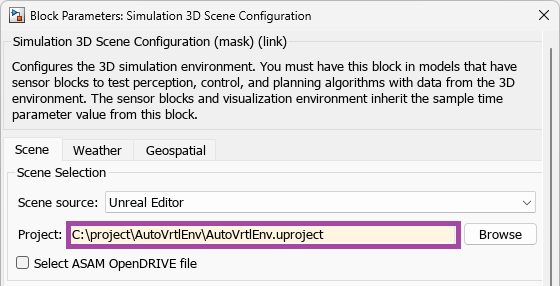
If you do not have the AutoVrtlEnv file, you must download the Install Support Package for Customizing Scenes support package to complete this step. The installation and set up process for the UAV Toolbox Interface for Unreal Engine Projects includes setting up the AutoVrtlEnv file.
Import VTOL UAV Asset into Unreal Engine
To launch Unreal Editor, click Open Unreal Editor in the Simulation 3D Scene Configuration block mask.
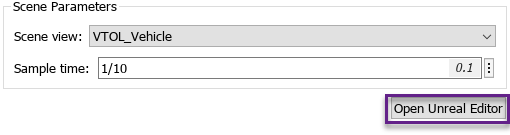
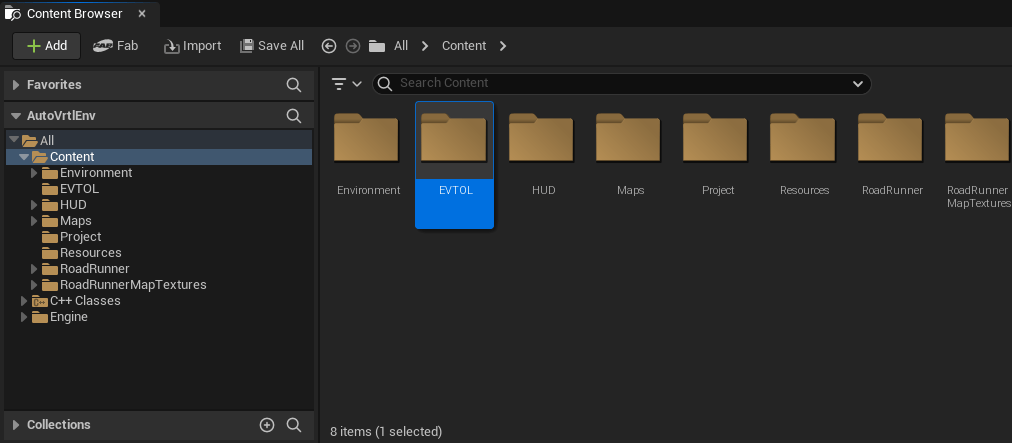
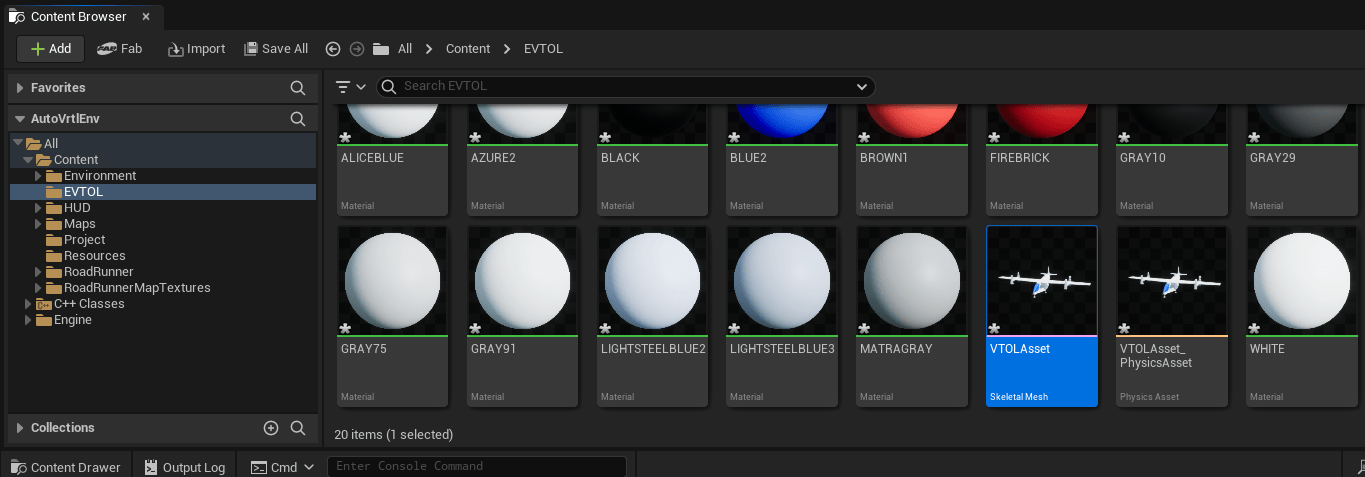
In the Content Browser pane, click Add and select New Folder from the context menu. Create a folder called EVTOL, and then open the EVTOL folder.
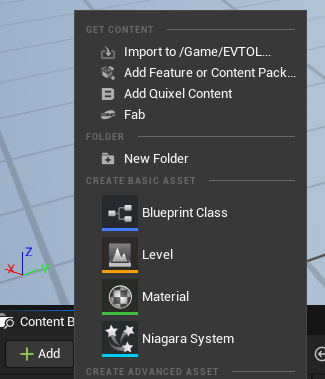
Click Add again and then select Import to Game/EVTOL. Select the VTOLAsset.fbx that you have downloaded in the prerequisites section by navigating to the Documents\MATLAB\Examples\<release>\supportfiles\uav\data directory, where <release> is your MATLAB release (for example, R2026b).
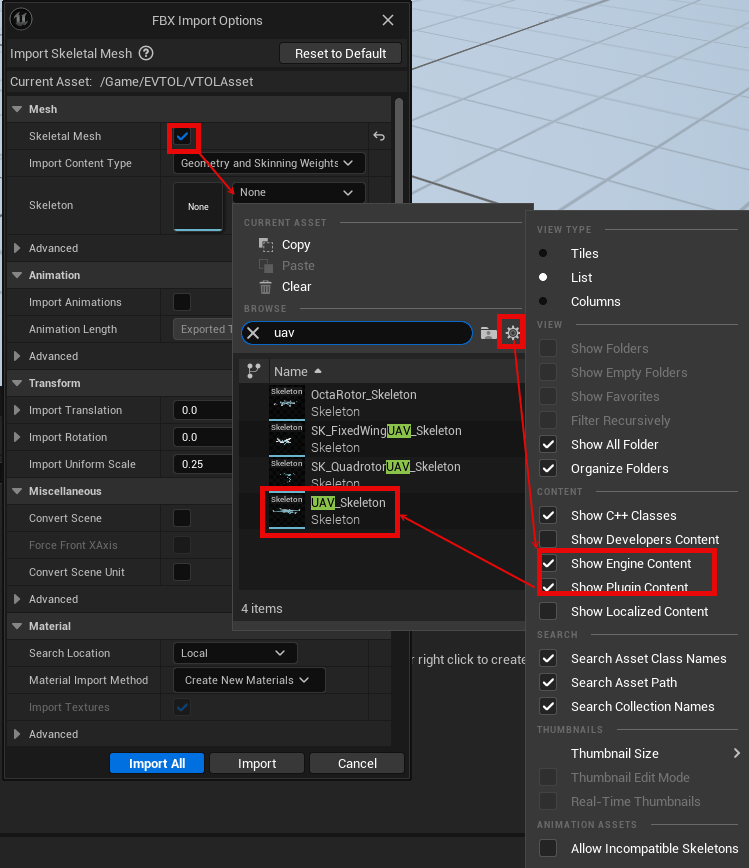
In the FBX Import Options window, select Skeletal Mesh. Open the Skeleton drop down list and click the gear icon to open the options drop down. Then, select both Show Engine Content and Show Plugin Content to show the UAV_Skeleton mesh option, then click UAV_Skeleton.
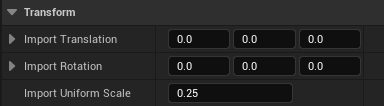
Set the Import Uniform Scale parameter to 0.25 in FBX Import Options to scale the VTOL asset to a smaller, more realistic size.
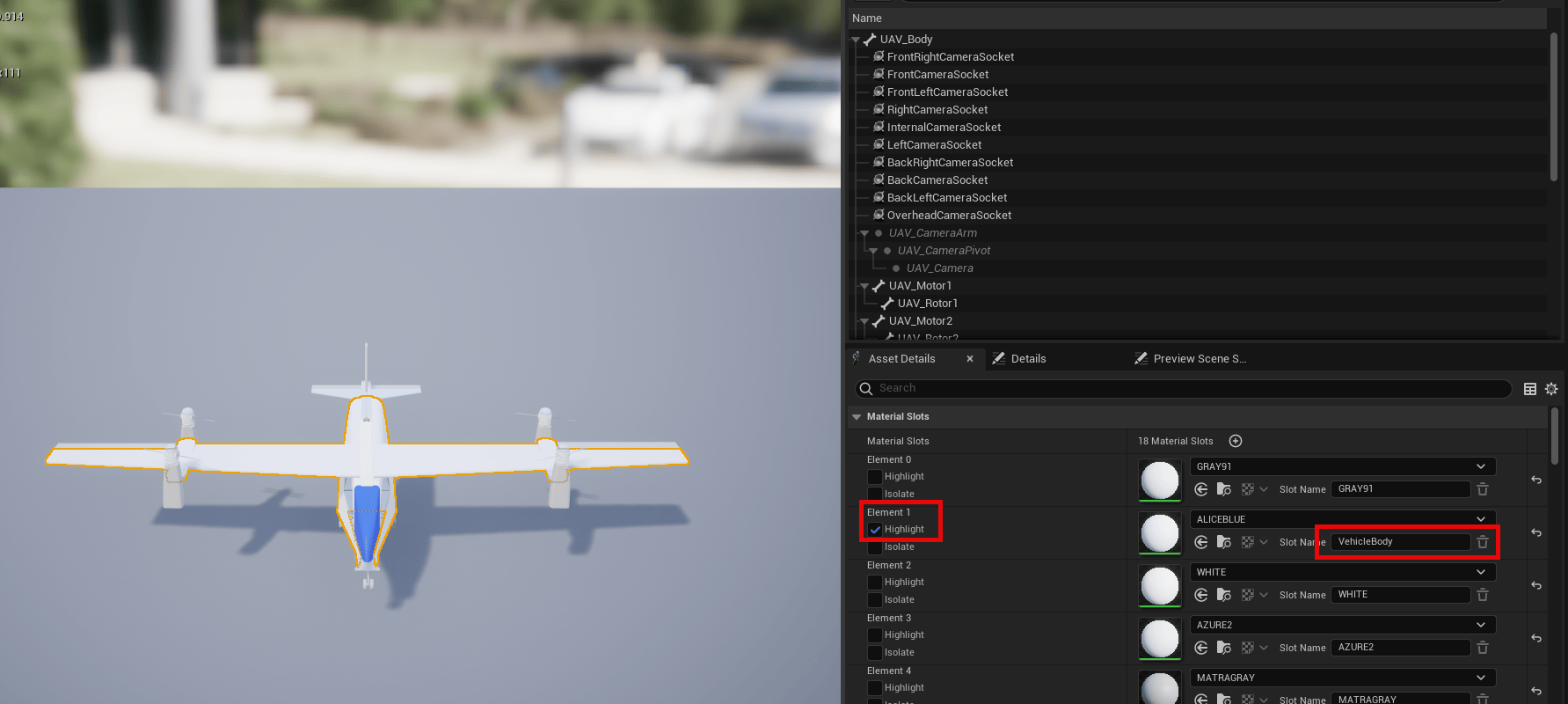
In the Content Browser pane, double click VTOLAsset to open the Asset Details window.
In the Material Slots pane, select Highlight under Element 1 to verify that Element 1 corresponds to the main body of the UAV, and specify the Slot Name as VehicleBody. Click Save This Asset, then close the Asset Details window.
Configure Simulation 3D UAV Vehicle Block
The Simulation 3D UAV Vehicle block places the VTOL UAV model in the 3D scene.
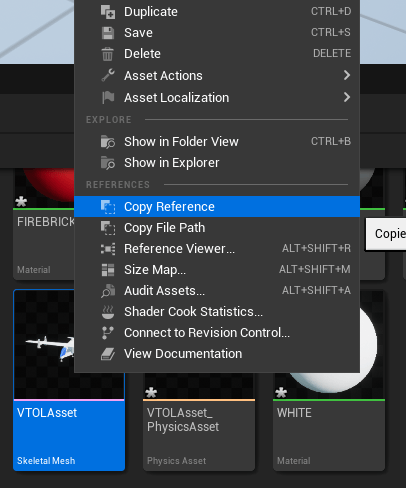
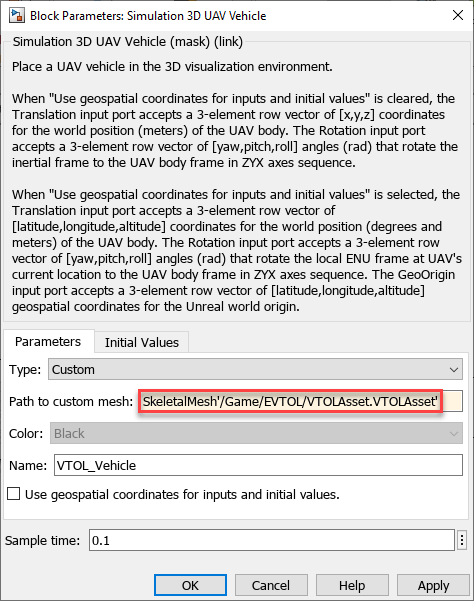
To configure this block for this example, specify the Type parameter as Custom. Then, copy the reference to the VTOL UAV asset from Unreal Editor by right-clicking the VTOLAsset and selecting Copy Reference.
Paste the reference path into the Path to custom mesh parameter, and select OK.
Run Simulation
To run the simulation:
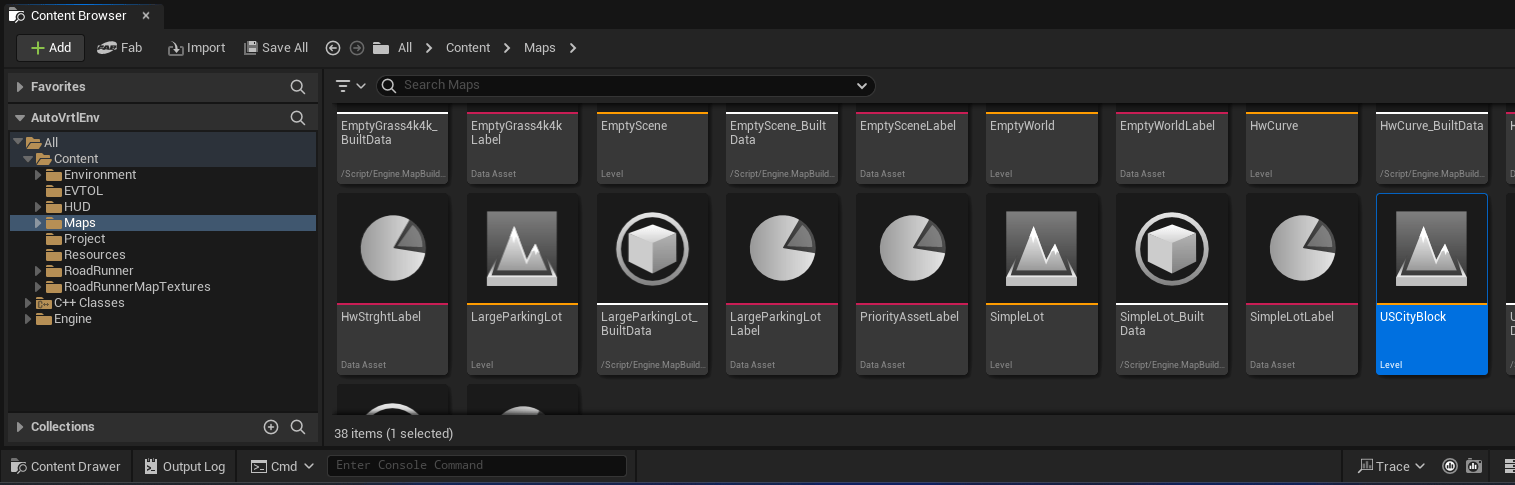
1. Open Unreal Editor. Navigate to Maps in the Content Browser and double-click USCityBlock to load the US City Block scene.
2. Open the VTOLTiltrotor.slx Simulink model and click Run. After you click Run, Simulink model remains in the initialize state until you run the scene in Unreal Editor.
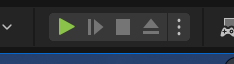
3. In Unreal Editor, click Play to run the scene.
Before resuming to other examples in this example series, you must close the VTOLRefApp.prj Simulink project by running this command in the Command Window:
close(prj)
See Also
Design and Tune Controller for VTOL UAV | Simulation 3D Scene Configuration | Simulation 3D UAV Vehicle

