Integrate Scenes with MATLAB and Simulink
R2026bYou can integrate RoadRunner scenes with MATLAB and Simulink to provide a workflow for developing and testing automated driving algorithms in a virtual environment. This integration enables you to create detailed, photo-realistic scenes in RoadRunner and use them in MATLAB and Simulink for algorithm development and testing.
An automated driving workflow encapsulates the entire process from data import and transformation to analysis, simulation, and visualization. You can create RoadRunner scenes and export them to file formats that are compatible with Simulink for scenario simulation. You can then use these scenes to test your driving algorithms in dynamic scenario environments containing vehicles, sensors, and weather conditions.
You can integrate MATLAB and Simulink with scenes at the following different stages of an automated driving workflow
Scene Import and Export:
You can design scenes in RoadRunner from scratch using a graphical interface and the RoadRunner Asset Library, which contains 3D models and assets. You can also import data from a variety of formats, such as ASAM OpenDRIVE®, and Zenrin SD Maps. If you are working with HD map data like Here or TomTom or your own custom formats, you can import these maps into RoadRunner using RoadRunner Scene Builder
RoadRunner also provides MATLAB functions for performing common workflow tasks such as opening, closing, and saving scenes and projects and importing and exporting scenes.
The scenes you create in RoadRunner can then be exported to file formats like ASAM OpenDRIVE and Filmbox, which are compatible with MATLAB and Simulink.
Automation: Once you integrate RoadRunner scenes with MATLAB, you can use MATLAB scripts to automate repetitive tasks such as bulk export, running simulations or updating models based on RoadRunner data.
Algorithm Design and Analysis: Using MATLAB and Simulink, you can simulate driving applications to mimic real-world behaviors such as adaptive cruise control, emergency braking, lane change, platooning, and parking. Simulation results from these behaviors can influence subsequent simulations or model adjustments in RoadRunner, creating an iterative process with a high-fidelity algorithm.
Therefore, using this integration workflow, you can automate data handling and processing, reducing manual effort and the potential for errors. Your algorithms can easily adapt to handle larger datasets or more complex simulations as projects grow. This also implies that processes are consistent and an be replicated for different datasets or projects.
MATLAB Objects and Functions
Blocks
 | RoadRunner Scenario | Define interface for Simulink actor model (Since R2022a) |
 | RoadRunner Scenario Reader | Reads selected topic from RoadRunner scenario (Since R2022a) |
 | RoadRunner Scenario Writer | Write selected topic to RoadRunner scenario (Since R2022a) |
Topics
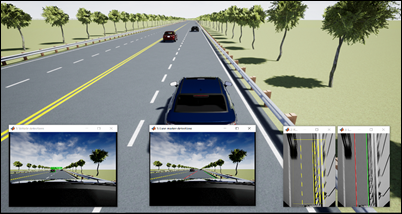
- Highway Lane Following with RoadRunner Scene (Automated Driving Toolbox)
Simulate a highway lane following application using a scene created in the RoadRunner 3D scene editing tool.
- Create and Use an Oval Track (Vehicle Dynamics Blockset)
Create an oval track with RoadRunner and use it in a Vehicle Dynamics Blockset™ simulation.
- Connect MATLAB and RoadRunner to Control and Analyze Simulations (Automated Driving Toolbox)
Use MATLAB with RoadRunner to control simulations programmatically and model actors in MATLAB or Simulink.
- Overview of Simulating RoadRunner Scenarios with MATLAB and Simulink (Automated Driving Toolbox)
This topic describes workflows to create actor behaviors in MATLAB or Simulink, associate the behaviors with graphical actors in RoadRunner Scenario, start the scenario simulation in RoadRunner, and log simulation results for further analysis.
- Export Driving Scenario to RoadRunner Scenario Simulation (Automated Driving Toolbox)
Export a driving scenario to RoadRunner scenario and launch RoadRunner using the
startRoadRunnerForScenariofunction or the Driving Scenario Designer app. - Import RoadRunner Scene into Unreal Engine Using Simulink (Automated Driving Toolbox)
Import a scene built in RoadRunner into an Unreal Engine simulation in Simulink to generate vision detections and ground-truth semantic segmentation labels for the scene.
Related Information
Featured Examples
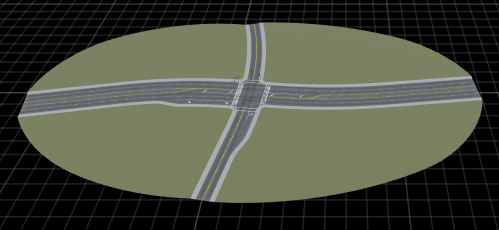
Export Multiple Scenes Using MATLAB
Export all RoadRunner scenes in a project to a supported format using MATLAB functions.
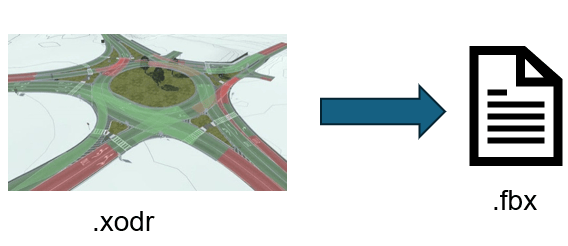
Convert Scenes Between Formats Using MATLAB Functions
Import multiple scenes in a RoadRunner project, and export them to a supported format using MATLAB functions.
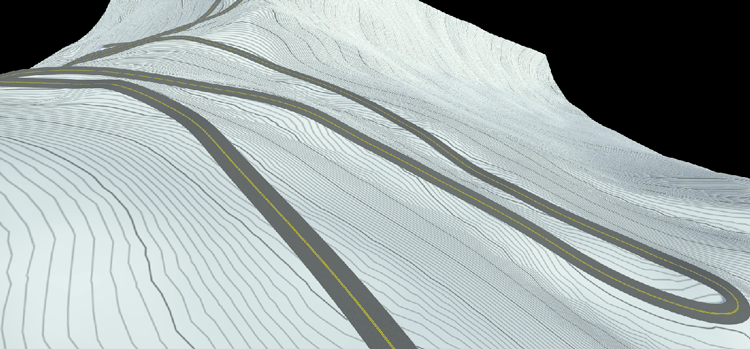
Build Pikes Peak RoadRunner 3D Scene Using RoadRunner HD Map
Build RoadRunner 3D scene for Pikes Peak, Colorado using MATLAB functions.

